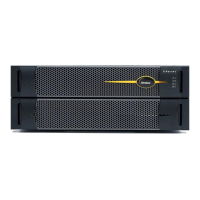
Removing and Replacing a CPU-I/O Enclosure Cover
Installing and Replacing System Components
5-15
When you plug the power cord into the
CPU- I ⁄ O enclosure, its green SAFE TO PULL LED will
blink for about 30 seconds while its integrated BMC is
synchronizing. Do not remove the enclosure during
this process. If the LED continues to blink for several
minutes, contact the CAC or your authorized Stratus
service representative.
7. Ensure that the enclosure and any CRUs you replaced are functioning properly.
Using system management commands, verify that all installed options appear in
the system inventory and, if applicable, that they are operating in Duplex mode.
On systems running ftServer System Software for the Windows Operating System,
it could take the system several minutes to update the status of all the devices in
ftSMC, particularly for mirrored disk drives. If the system was out of duplex
operation for more than 30 minutes, the disks undergo full resynchronization,
which can take several hours.
On Windows systems, you can run diagnostics to verify that the Ethernet PCI
adapters have a link and are actively passing packets. For information about using
the Intel PROSet tool (also known as Advanced Network Services) to troubleshoot
and configure Ethernet adapters, see the
Stratus ftServer System Administrator’s
Guide for the Windows Operating System
(R014W).
If any devices are not functioning properly, verify that you properly installed all of
the data cables. If the cabling is correct, refer to the system administrator’s guide
for your system for troubleshooting information.
8. Replace the bezel.
Removing and Replacing a CPU-I/O Enclosure Cover
Remove the cover of a CPU- I ⁄ O enclosure to access the CRUs located within it. See
the following topics:
• “Removing an Enclosure Cover” on page 5-16
• “Replacing an Enclosure Cover” on page 5-16
Estimated time: Six minutes.
Tools: Phillips head number 2 screwdriver.
Use ESD precautions when performing this procedure.


 To Next Page