SunFounder PiCar-X Kit
For Windows Users
For Windows 10 or higher users, remote login to a Raspberry Pi can be achieved through the following steps:
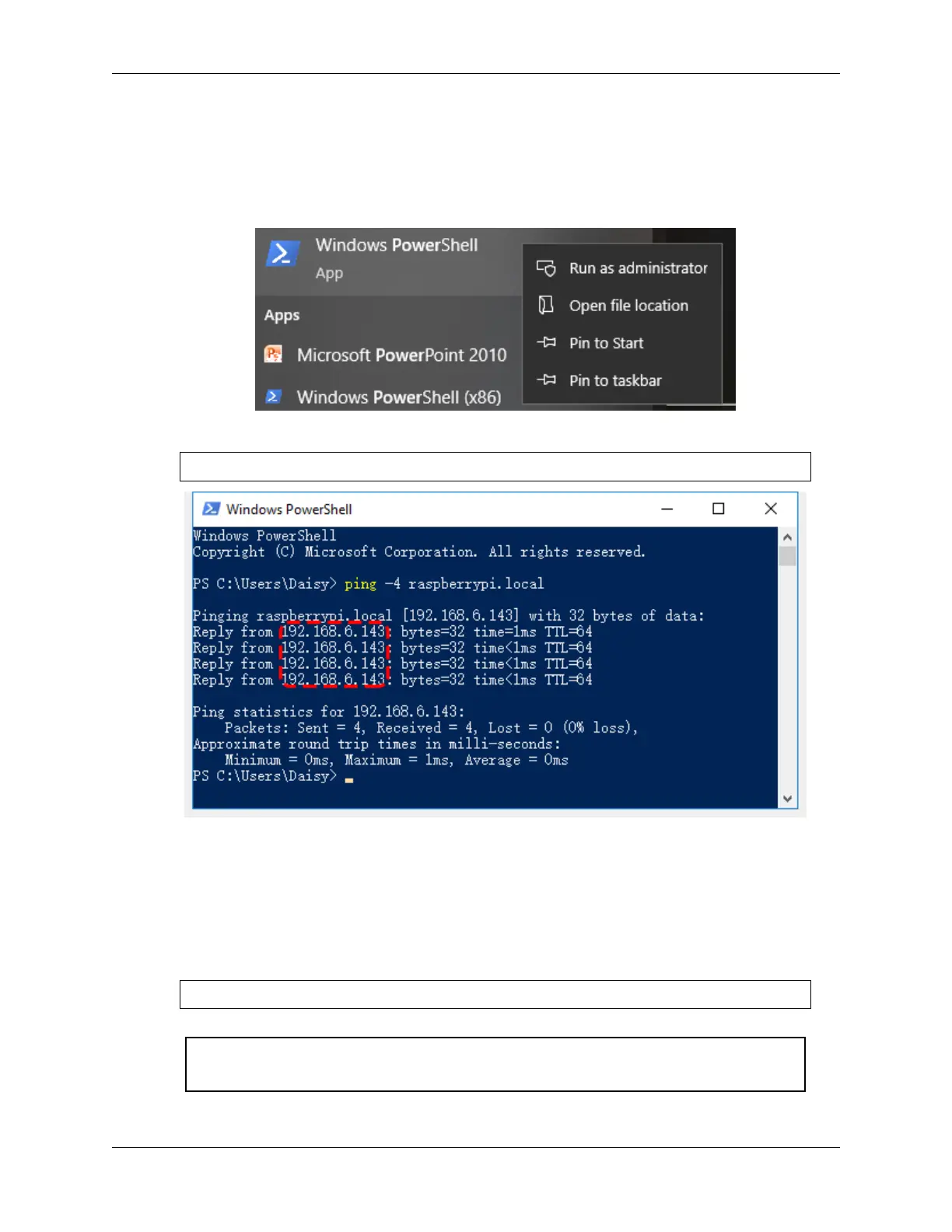
1. Search for powershell in your Windows search box. Right-click on Windows PowerShell and select Run as
administrator.
2. Determine your Raspberry Pi’s IP address by typing ping -4 <hostname>.local in PowerShell.
ping -4 raspberrypi.local
The Raspberry Pi’s IP address will be displayed once it’s connected to the network.
• If the terminal displays Ping request could not find host pi.local. Please check
the name and try again., verify the hostname you’ve entered is correct.
• If the IP address still isn’t retrievable, check your network or WiFi settings on the Raspberry Pi.
3. Once the IP address is confirmed, log in to your Raspberry Pi using ssh <username>@<hostname>.local or
ssh <username>@<IP address>.
ssh pi@raspberrypi.local
Warning: If an error appears stating The term 'ssh' is not recognized as the name
of a cmdlet..., your system may not have SSH tools pre-installed. In this case, you need to
4.1. Quick Guide on Python 29



 To Next Page