SunFounder PiCar-X Kit
• Expert Support: Solve post-sale issues and technical challenges with help from our community and team.
• Learn & Share: Exchange tips and tutorials to enhance your skills.
• Exclusive Previews: Get early access to new product announcements and sneak peeks.
• Special Discounts: Enjoy exclusive discounts on our newest products.
• Festive Promotions and Giveaways: Take part in giveaways and holiday promotions.
Ready to explore and create with us? Click [] and join today!
4.9 7. Computer Vision
This project will officially enter the field of computer vision!
Run the Code
cd ~/picar-x/example
sudo python3 7.display.py
View the Image
After the code runs, the terminal will display the following prompt:
No desktop !
* Serving Flask app "vilib.vilib" (lazy loading)
* Environment: production
WARNING: Do not use the development server in a production environment.
Use a production WSGI server instead.
* Debug mode: off
* Running on http://0.0.0.0:9000/ (Press CTRL+C to quit)
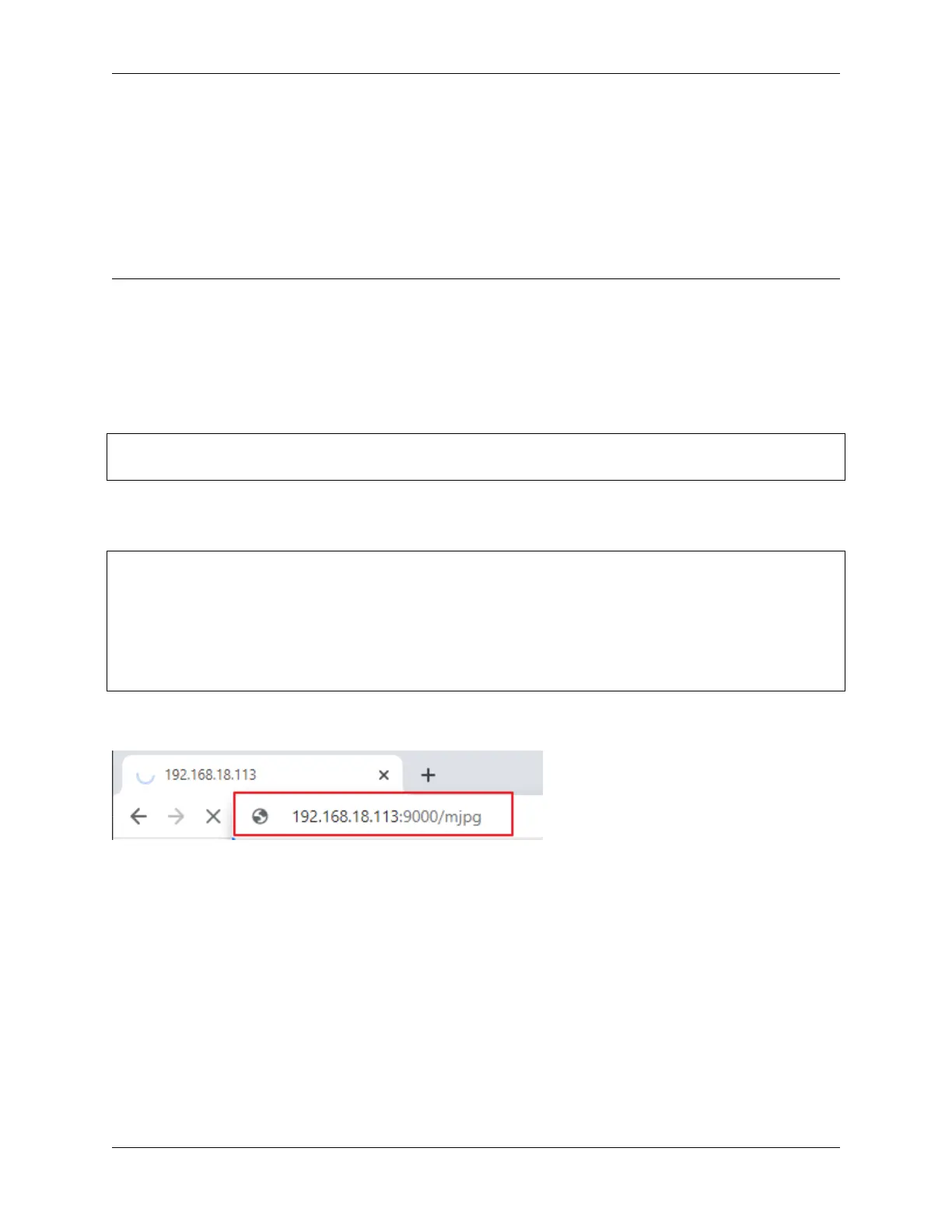
Then you can enter http://<your IP>:9000/mjpg in the browser to view the video screen. such as: https://
192.168.18.113:9000/mjpg
After the program runs, you will see the following information in the final:
• Input key to call the function!
• q: Take photo
• 1: Color detect : red
• 2: Color detect : orange
• 3: Color detect : yellow
• 4: Color detect : green
• 5: Color detect : blue
• 6: Color detect : purple
• 0: Switch off Color detect
66 Chapter 4. Play with Python



 To Next Page