rev. 08.15.2006.
3-32
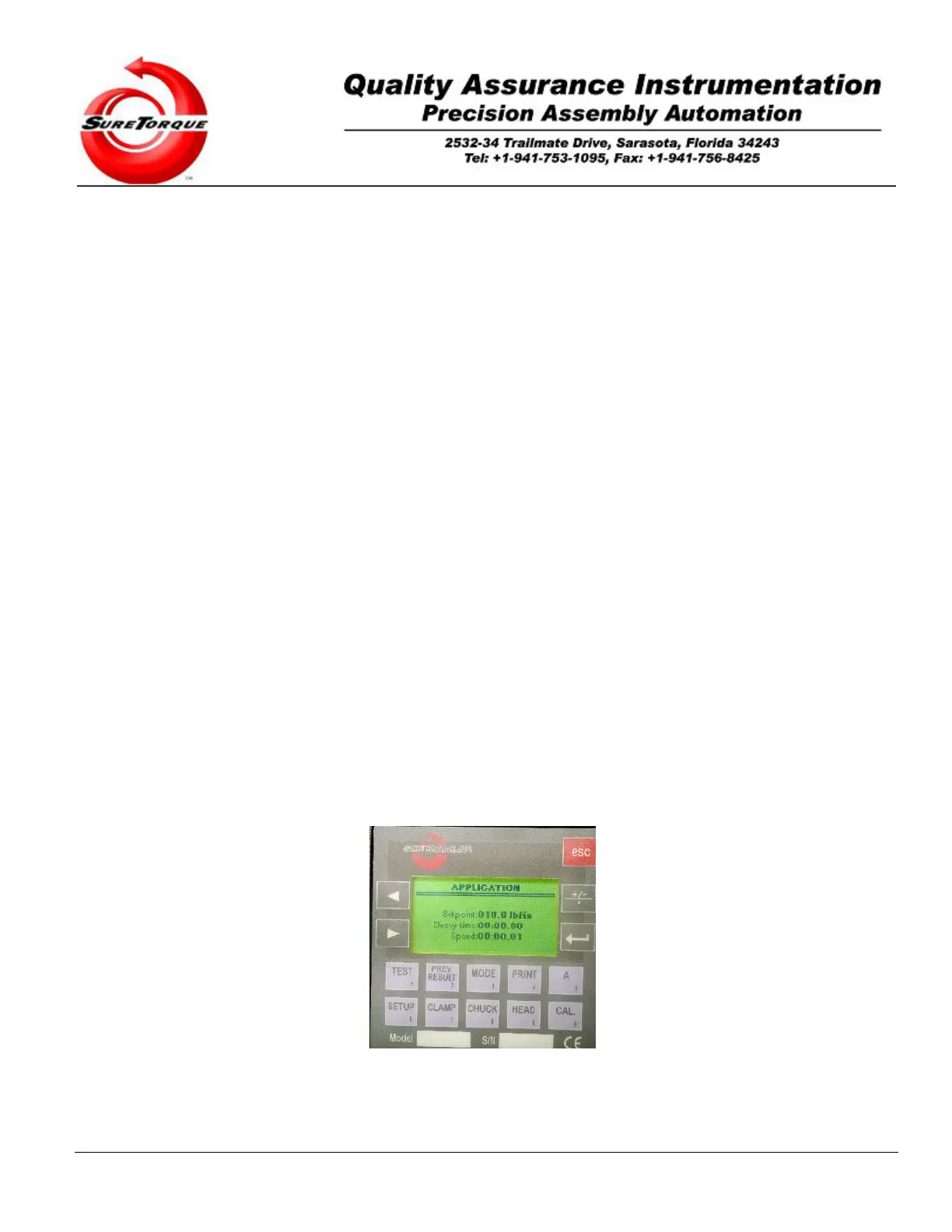
ENTER. In this screen and on the other manual screens as well, there are special functions associated with the
different keys. These are:
Esc: This key is used to leave a screen and reset the tester and stop any motions.
Left Arrow: Press or hold down this key to decrease the torque applied by the rotary actuator.
Right Arrow: Pressing or holding down the key will increase the torque applied by rotary actuator.
+-: This key is used only on topload models, to turn on/off the topload application
Enter: Use this button to turn on/off the torque application
1/Test: This key is used to toggle the test cylinder. It affects the direction of the rotation.
2/Prev. Results: It turns the Ratchet cylinder on/off when it is built-in the tester.
3/Mode: Toggles the Alarm output.
4/Print: Toggles O9. Not used.
5/A: Toggles O10. Not used.
6/Setup: Toggles O11. Not used.
7/Clamp: Toggles the clamp cylinder.
8/Chuck This button turns on/off the chuck cylinder.
9/Head: Toggles the high pressure cylinder.
0/Cal: Press this key to turn on/off the low pressure cylinder.
The Manual/Control screen is used to manually evaluate the torque application. The operator may control the
frequency output’s rate and evaluate the corresponding torque value. For example, the customer wants to use the
tester in application mode and the applied setpoint is 15 lbfin. It is advisable to start the torque application at 10-13
lbfin to save time. But how is it possible to find out what starting PWM rate equals to 10-13 lbfin? Here is the
procedure to follow: Hold the head in one hand and activate the torque application with the other. Then use the
ARROW buttons, and the TEST button to change the frequency of the output and the direction of the rotation if
necessary. Hold the head against the direction of the head. The torque generated this way will be shown on the
screen and the corresponding output rate as well. Now you can go to the parameter change screen and enter the
output rate which equals to your starting torque requirements. You can also manually run a torque test and even read
out the real-time measurement data through the COM2 serial port and Hyperterminal or other terminal emulation
software, or serial port monitoring application. This method may be used for special test purposes where the built-in
methods are not acceptable.
Operational Modes
These mode screens can be used to initiate a torque test, check the historical results or to change the parameters
of a torque test.
Navigation between the different modes is possible by the “ARROW buttons. The operator may alter the
default/current parameters of a torque testing cycle with the following steps:
1. Hit the “ENTER” button on the current mode screen.


 To Next Page