37 ©2022 Sveaverken. All rights reserved.
Sveaverken F100 Auto Steer System Software User Manual
applicable to irregularly shaped fields or special fields.
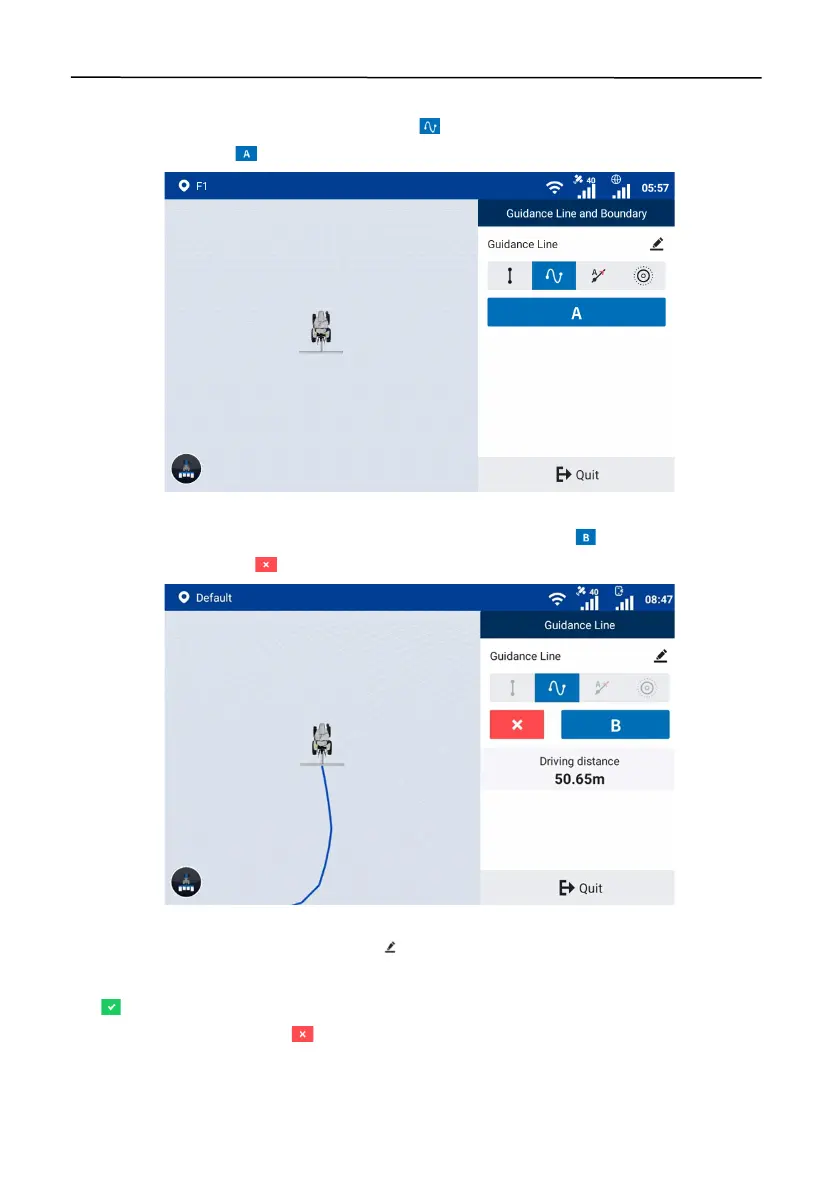
Access the guidance line creation screen, and tap to select the curve mode. Drive the vehicle to
the start point, and tap to set the current position as point A.
Figure 65.
Set point A
Stay in the manual mode, and drive along a curve for at least 50 m. Tap to set the current
position as point B, or tap to cancel point A.
Figure 66.
Set point B
When creating a guidance line, you can tap in the upper right corner to change the guidance
line name.
Tap to import the curve line, and the system goes to the home screen and uses the curve line
automatically. You can also tap to cancel the line creation.


 To Next Page