22
7. MODBUS TCP/IP SERVER
The Scan incorporates a Modbus TCP/IP Server that allows access to the main functions of the Scan.
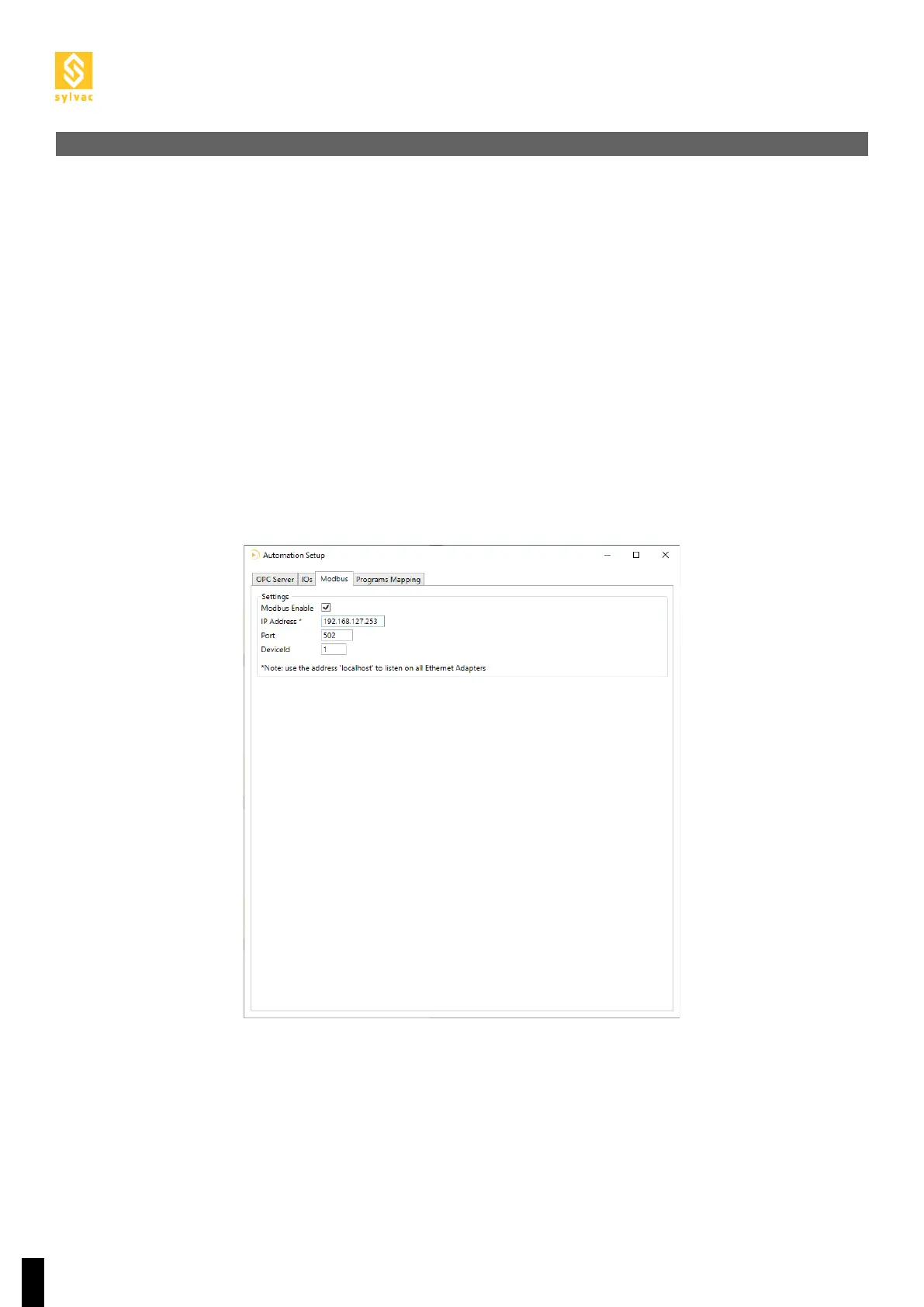
When first used, Modbus must be enabled to use the protocol.
Go to the Setup of the “Automation” plugin using the “Service->Plugin->Automation->Setup” menu and check
Modbus Enable in the Modbus tab.
If you do not use Modbus, Modbus Enable must be unchecked.
To check the Modbus status, go to the Diagnostics of the “Automation” plugin using the “Service->Plu-
gin->Automation->Diagnostics” menu and check the Modbus status in the drop-down window at the bottom
of the Modbus tab.
To change the Modbus IP address, go to the Setup of the “Automation” plugin from the menu “Service->Plu-
gin->Automation->Setup” and then to the IP Address in the Modbus tab.
Note that the address of the Automation Ethernet port on the PC where ReflexScan is installed must be the
same.
7.1 Configuration



 To Next Page