Altiris Deployment Solution™ from Symantec User’s Guide 135
Manage Servers from the Console. The Deployment Server Console includes features
specifically designed for deploying and managing servers, such as enhanced task
logging and history tracking features to let you recall administrative actions and quickly
redeploy mission-critical servers.
Set Server-specific options. Servers are essential to any organization and require
special planning and management strategies. Deployment Server provides server-
specific features to automatically deploy new servers and maintain existing servers. See
Server deployment options on page 136.
Server management features
Deployment Server provides various features for deploying and managing servers.
These features are supported for client computers as well, but are essential in deploying
servers.
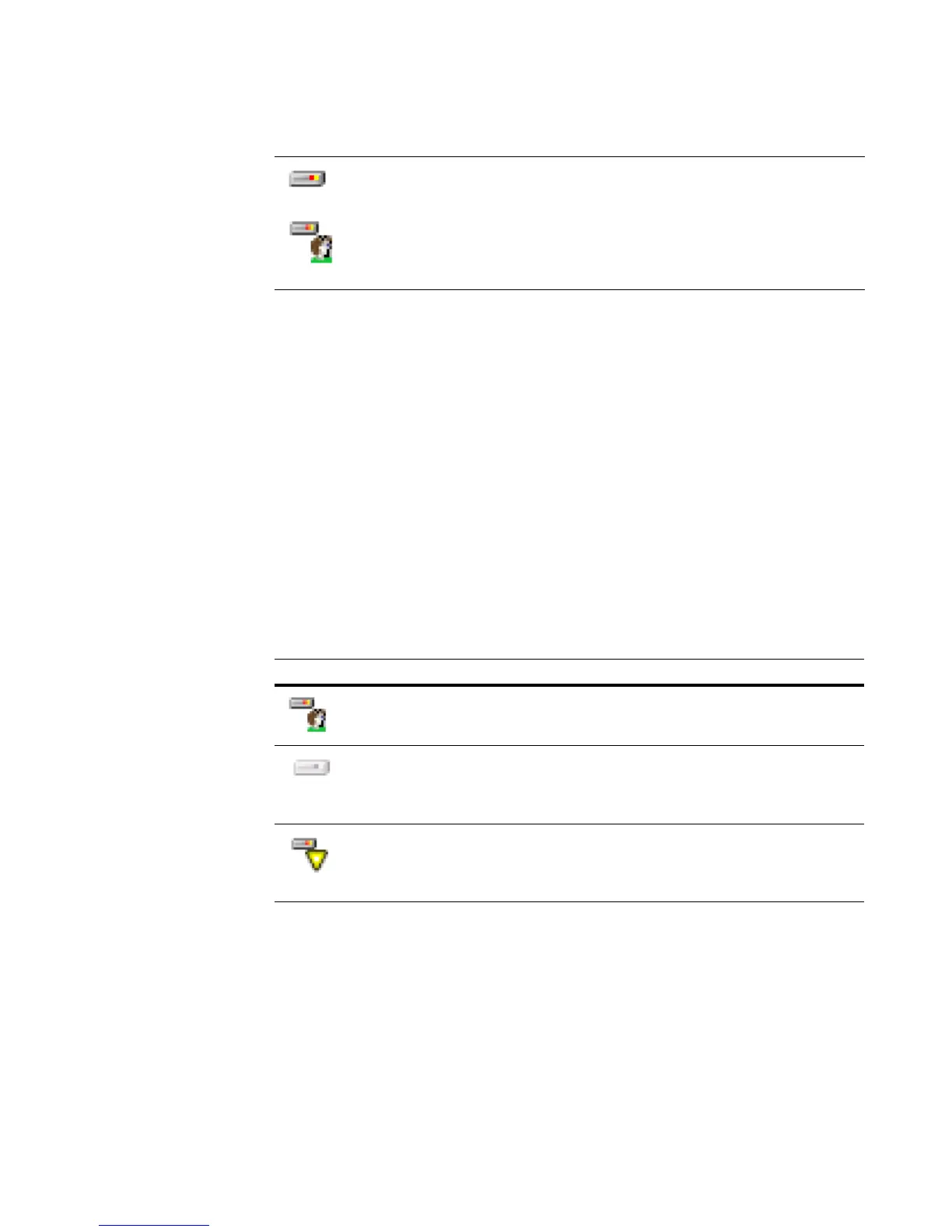
Server icons. The Deployment Console displays icons that identify servers across the
network. Like other computer icons in the console, server icons can be selected to view
server properties or assign specific jobs and management tasks
Run Scripted Installs. Execute scripted, unattended installs across the network for
both Microsoft Windows and Linux servers. Follow steps to create answer files and set
up operating system install files using a wizard. See Scripted OS install on page 168.
Support for multiple network adapter cards. Because servers may require more
than one network interface card, Deployment Server provides property pages to access
and configure multiple network adapters remotely from the console. See TCP/IP
configuration settings on page 104.
Servers are identified in the Computer pane with distinctive server icons.
Like all managed computer icons, the icons change to identify the status
and state of the computer, such as user logged on or Server Waiting.
Note
Servers are recognized by their operating system (such as Windows or
Linux), multiple processors, and specific vendor server models.
Icon Description
The server is active and a user is logged on.
The server is disconnected from the console.
The server is in a waiting state.




 To Next Page