Using the Mobile Companion Utility in Windows CE
E - 18 Spectrum24 Wireless LAN Adapter Users Guide
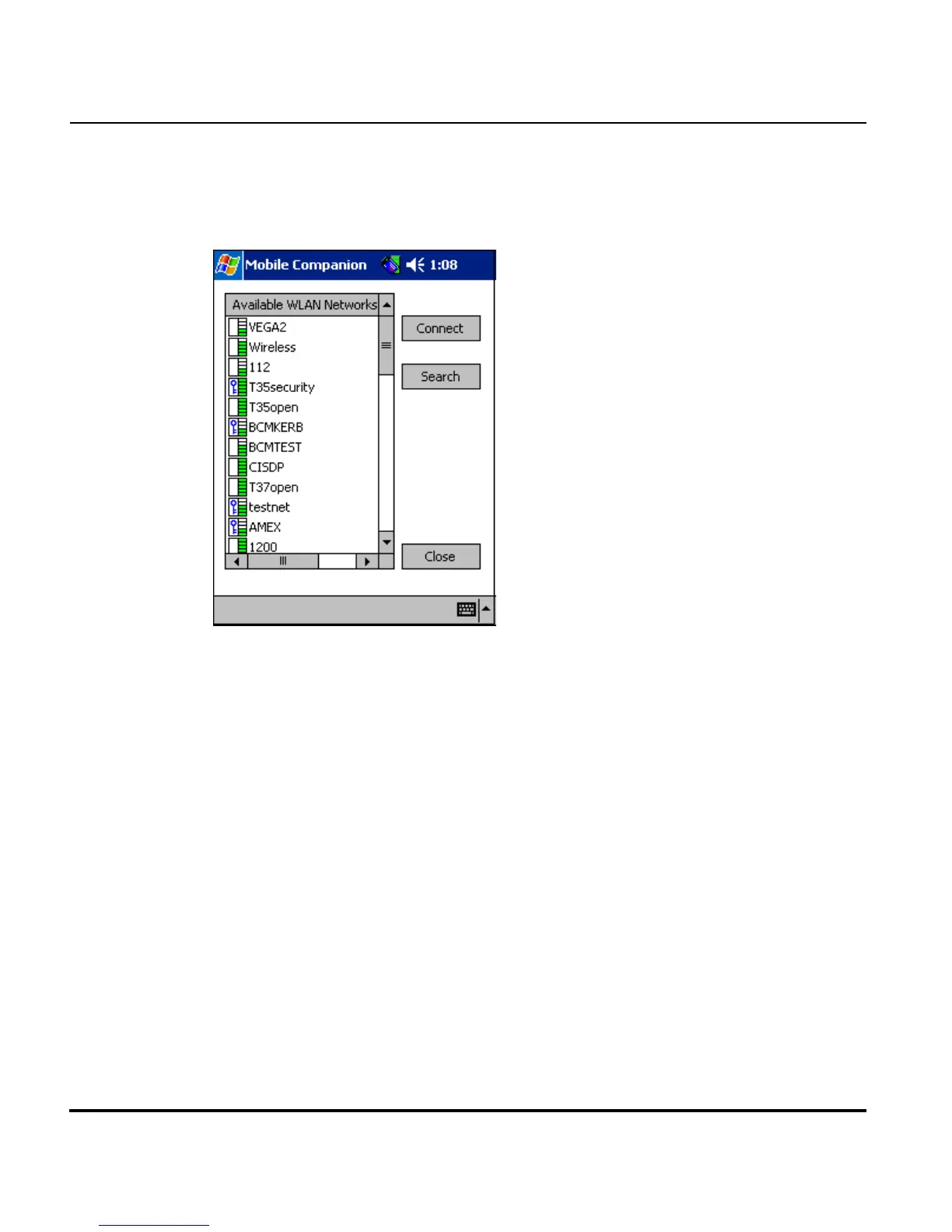
E.4.6 Available WLAN Networks Property Page
Select Find WLANs from the Mobile Companion main menu to display the
Available WLAN Networks property page.
Use the Available WLAN Networks property page to list those Spectrum24
networks (access points or networked peers) available to the adapter for
association. The networks are listed by their ESSID. To the right of each
network is a signal strength icon similar in appearance to the Mobile
Companion icon displaying in the Windows taskbar.
If a network displays a key to the left of the signal strength indicator, the
network is using an encryption algorithm. The adapter is required to use an
identical encryption scheme to interoperate with that access point or client. If
the encryption scheme is unknown, ask the system administrator.
Networks with Good (3 Green bars out of 5) or better signal strength should
be considered for connection. Tap a network and tap the Connect icon to
interoperate with the AP representing the network. Once connected, the
Mode, Encryption, IP Config and Power pages display the network ESSID,
security settings, network address information and power consumption level.
Click the Refresh icon to update the list of networks available to the adapter.



 To Next Page