I Hardware Installation Manual 2. Safety Functions and Interface
25
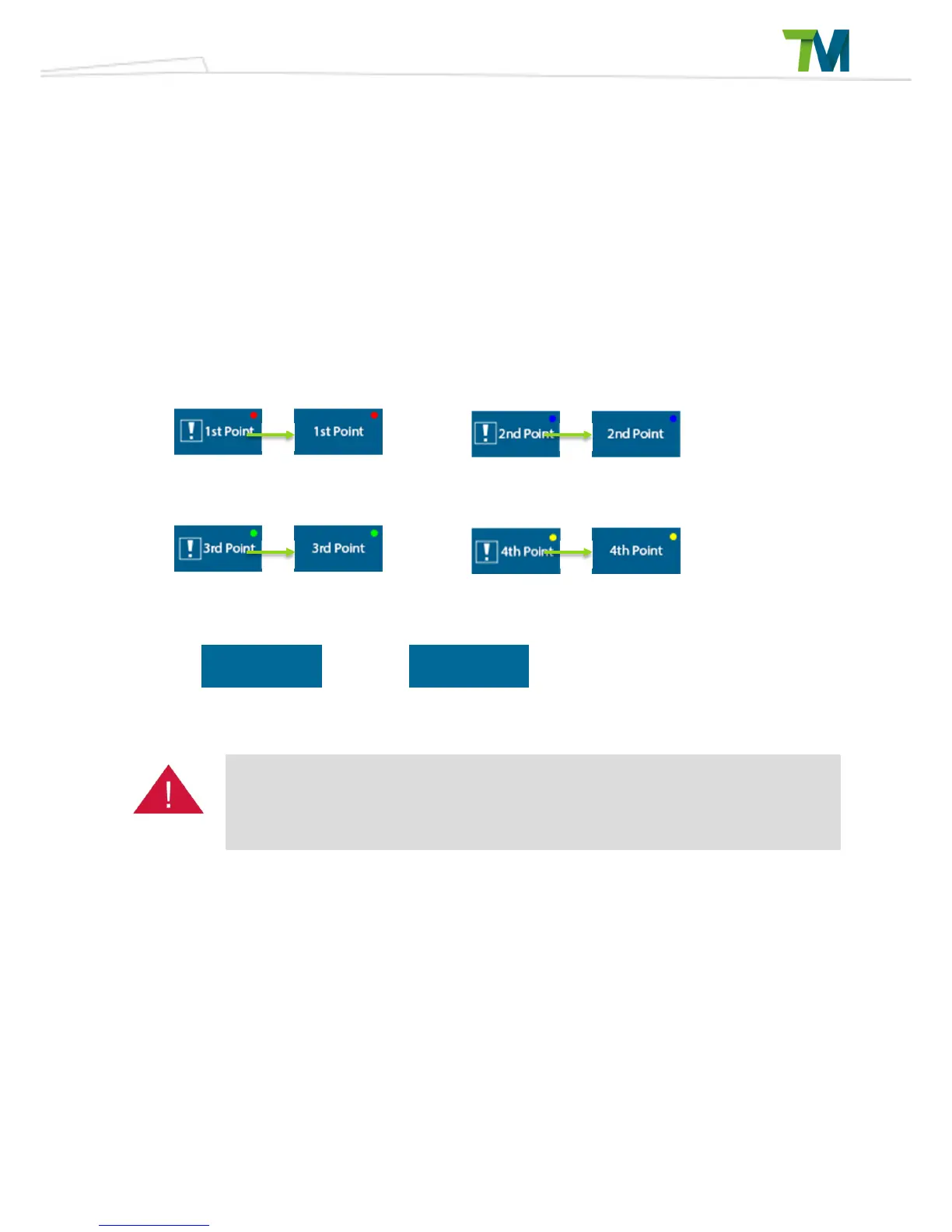
Press the Add Cube button or select a cubic attribute then click on the Reset Attribute button to
enter the Add/Edit Cube page. In this page, the user can use TCP to define 4 points and create a
cube. The 4 points can be defined in any order and corresponding colored spheres will appear in
the 3D simulator, but it should follow the indicated rules. Once all 4 points have been set then a
transparent blue virtual cube will appear. Now click on the Confirm button to create the cube.
Please note that the virtual cube will not appear if there are common points or the points are
collinear. In this case clicking on Confirm will not create a cube.
The button functions are as shown below.
The safety space setting is achieved by complex algorithms. Under specific settings, the
setting result may not be as expected. User is responsible for assuring the result shown in 3D
figure is correct. Improper configuration of safety space or running incorrect project may lead
to the risk of the robot colliding with the human body at full speed.
When finishing the safety space setting, user can access the safety space setting through the collapsible on the right
side of the project page.
Set the first point
Set the second point
Set the third point
Set the fourth point
Confirm cube creation Cancel cube creation
OK Cancel


 To Next Page