Matrix 908 Field Computer
42
www.teejet.com
CONSOLE START JOBSETUP HELPMEASUREMENTS UTSTART JOB
NO.5 APPLICATION MAPPING INSTRUCTIONS
Depending on if there is a section control system present and when present what kind of section control is being used as well as what
options are enabled, there are multiple options for application mapping.
This section includes setup options for these congurations:
X Without Section Control Module
X ISOBUS Sprayer
X ISOBUS Spreader
X TeeJet Section Control Module
Without Section Control Module
If a section control system is not present and an
Application Mapping device is active (see "No.4
Establish an Implement through the Device Wizard"
on page 18), manual section control with simple
application mapping will be available.
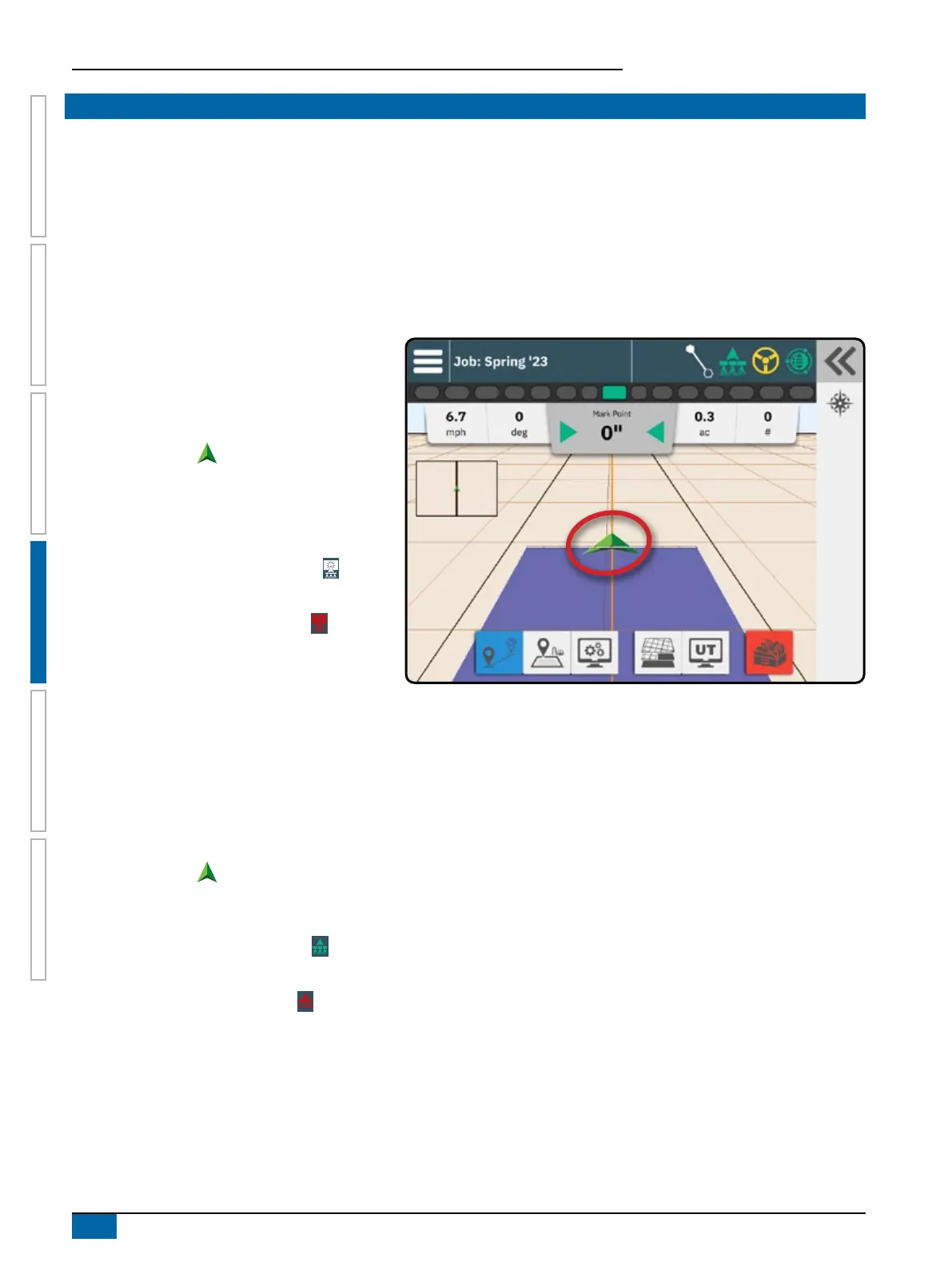
The Vehicle Chevron is used to turn application
mapping on or off.
X On – application mapping will automatically turn
on/off when exiting/entering previously applied
areas or boundaries.
– Applied Alert Status icon is white
X Off – no application mapping.
– Applied Alert Status icon is red
ISOBUS Sprayer
If an ISOBUS Electronic Control Unit (ECU) is present,
BoomPilot automatic section control and automatic
application mapping will be available.
All ISOBUS rate control congurations should be setup before starting a job.
X Sprayer with a Switchbox – Setting to either Automatic or manual regulation mode on the ISOBUS device will not affect
functionality of BoomPilot. Switchbox master switch and section switches must be in the “On” positions.
X Sprayer with an ISOBUS Implement Status Module (ISO ISM) – Regulation mode on the ISOBUS device should be set to
“Manual”.
The Vehicle Chevron is used to turn BoomPilot Automatic Application Control on or off.
X On – application will automatically turn on/off when exiting/entering previously applied areas or boundaries. Master Switch and
section switches must be in the ON position.
– BoomPilot Status icon is green
X Off – application is controlled manually using the Master Switch or Start/Stop key on the ISOBUS Operation screen.
– BoomPilot Status icon is red
NOTE: Application can be manually controlled while in Automatic BoomPilot mode using the master switch or individual section
switches.
Caution: With some versions of ISOBUS software, while in a previously applied area, manually changing a section switch will change
BoomPilot to manual mode. Therefore, if a switch remained in the on position after exiting the applied area, it would remain off.


 To Next Page