AS 680/682
Description, Operation and Maintenance Installation and Setup
ADS−B
3−21Ed. 10.07
3.3 STARTING THE RCMS AT REMOTE SITE
NOTE: It is supposed that the Linux operating system and the application software is already in-
stalled on the RCMS, i.e. ready for operation. Otherwise the installation procedures des-
cribed in Chapter 8 are required before.
For detailed information to the RCMS software structure, see chapter 4.
Starting the RCMS requires the following steps:
− Switch on the RCMS. Wait until the operating system is loaded (this takes a few seconds...)
− The operating system will be booted into the login screen.
− Login as ’supervisor’ or ’monitor’ (user account) to the Xfce desktop. A password is required.
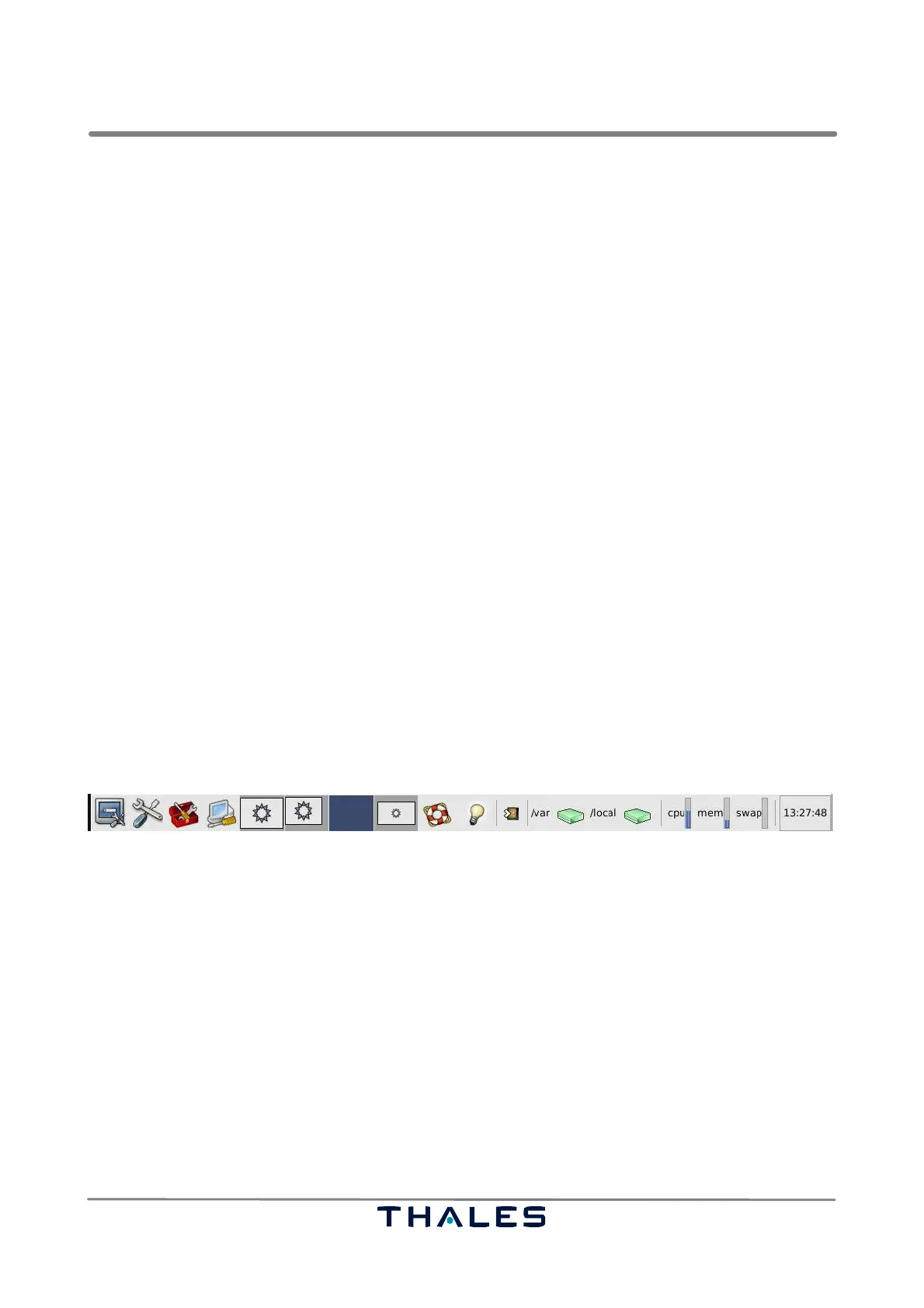
− At the bottom of screen 0 the desktop panel provides the several icons to start up the ADS−B ap-
plications (see Fig. 3−21).
The user is now able to start up the various ADS−B applications by clicking on the corresponding
menu icons, e.g. click on the MTSC icon to start up the MTSC application (this takes a few seconds).
On screen 1 the MTSC main window appears, containing the title bar with the current user role and
the name of the RCMS machine.
A user with supervisor permission is now able to modify the configuration of the GS system or of the
MTSC application (see section 4.3.3).
If the user wants to get detailed information on a specific GS or the Supervisor wants to change para-
meters of a specific Ground Station, he can start the TSC application via the TSC icon on the desktop
panel (see Fig. 3−21).
MTSC
TSC
Fig. 3−21 RCMS desktop panel to start up the MTSC and the TSC application (example)



 To Next Page