Page | 38
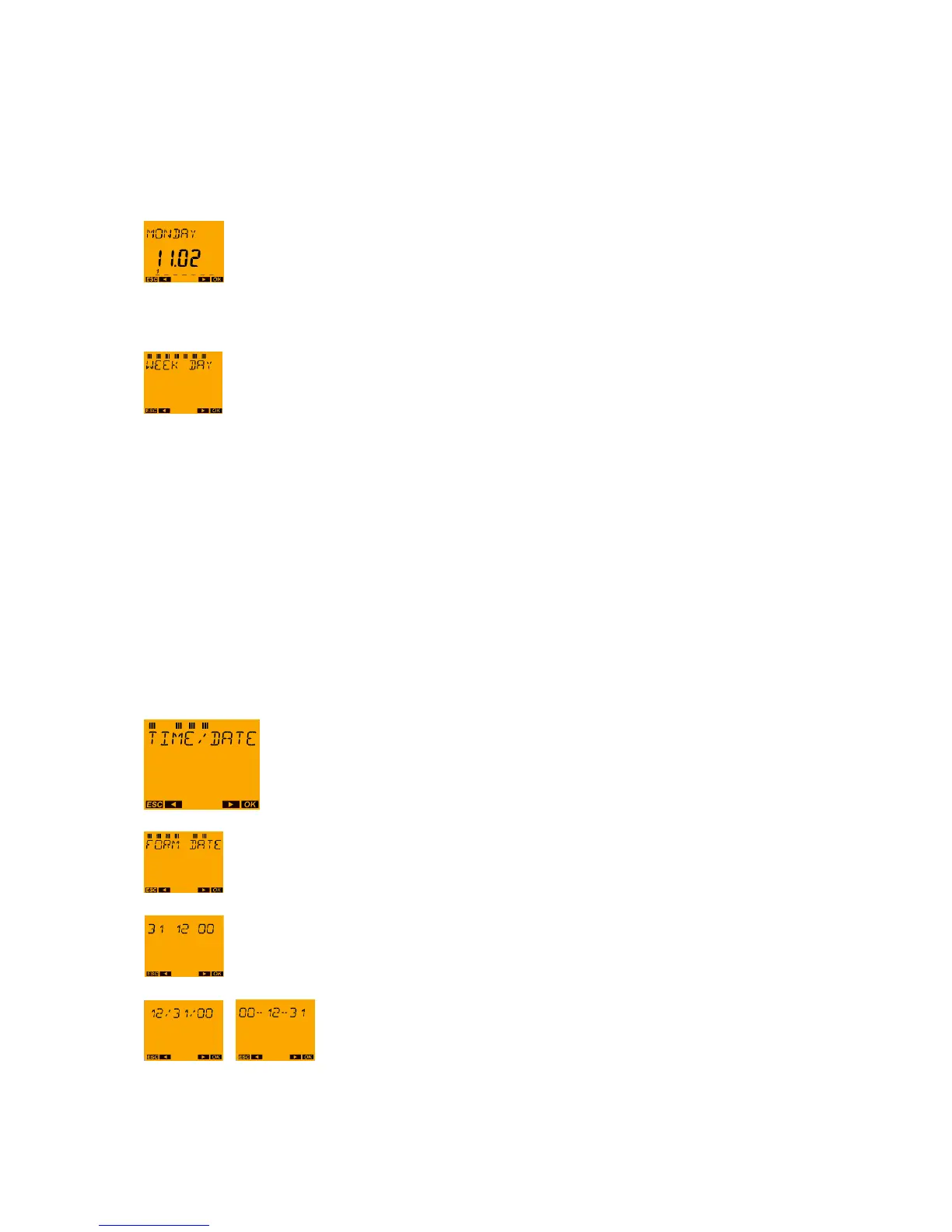
This is where the current weekday, the date and the weekday number for the current day are shown.
The weekday number flashes and can then be changed.
Example: The date is Monday, 11.02 and Monday has the number 1.
This therefore means:
1 = Monday, 2 = Tuesday, 3 = Wednesday, 4 = Thursday, 5 = Friday, 6 = Saturday and 7 = Sunday.
With the push buttons ◄ and ► the weekday numbers can be changed if required and
the setting can be confirmed using the OK push button.
The allocation of the figures to weekdays is saved and a return is made to the menu item WEEKDAY.
Now the WEEKDAY menu can be selected again (OK push button).
With the ► push button it is possible to change to the other menu items in the
TIME/DATE menu or to scroll to the END and return to auto mode using the OK push
button.
The menu can also be exited with the MENU (ESC) push button.
10.5 TIME/DATE menu: DATE FORMAT
In the TR top2 time switches the date is shown in the text line.
Worldwide 3 different formats are usual for showing the date:
Europe: Day.Month.Year e.g. 31.12.2000
USA: Month/Day/Year e.g. 12/31/2000
International (e.g. Asia): Year–Month–Day e.g. 2000–12–31
In the TR top2 time switches the date format can therefore be set:
Press the OK push button then the ► push button four times.
Press OK button.
The date format currently selected (here European format) is shown using the example of
the date 31.12.2000 (the year number is only shown with 2 digits).
Using the push buttons ◄ and ► the date format can be changed if
required:
Proceed to confirm the desired setting with the OK push button.
The setting for the date format is saved and a return is made to the DATE FORMAT menu item.





 To Next Page