Chapter6.Specialkeys
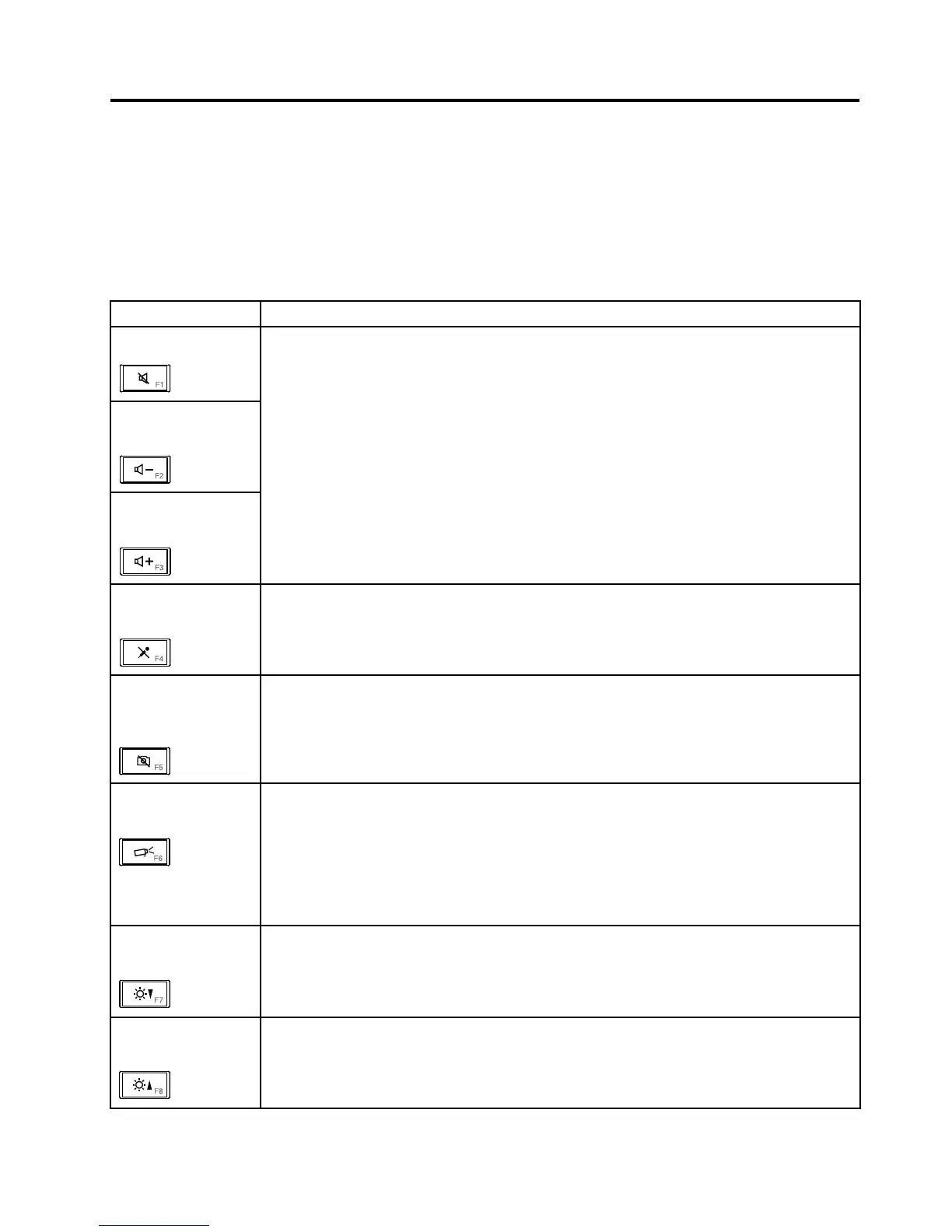
Thecomputercomeswithseveralspecialkeysattheupperrowofthekeyboard.Touseeachfunction,
directlypressthedesiredkey.
Thefollowingtableexplainsthefunctionofeachspecialkey.
Table7.Specialkeys
Specialkey
Description
Speakermute(F1)
Speakervolume
down(F2)
Speakervolumeup
(F3)
Ifyoumutethesoundandthenturnoffthecomputer,thesoundwillremainmutedwhenyou
turnonthecomputeragain.Toturnonthesound,pressthespeakervolumeuporspeaker
volumedownkey.
Microphonemute
(F4)
Pressthemicrophonemutekeytomuteorunmutealloftherecordingdevices.
Launchthe
communications
settingsutility(F5)
•ForWindows7:OpenstheCommunicationssettingswindow,inwhichyoucanpreview
yourvideoimage,takeasnapshotofyourcurrentimage,andchangethecameraand
audiosettings.
•ForWindows8:StartstheLenovoSettingsprogram,whichenablesyoutochangethe
cameraandaudiosettings.
Switchingthedisplay
outputlocation(F6)
Pressthiskeytoswitchbetweenthecomputerdisplayandanexternalmonitor.Thefollowing
optionswillbedisplayed:
•Computerdisplayonly(LCD)
•Computerdisplayandexternalmonitor(sameimage)
•Computerdisplayandexternalmonitor(theExtenddesktopfunction)
•Externalmonitoronly
Note:YoualsocanusetheWindows+Pcombinationtoswitchbetweenthecomputerdisplay
andanexternalmonitor.
Displaybrightness
down(F7)
Whenyoupressthiskey,thecomputerdisplaybecomesdimmer.Thepurposeofthismethod
istochangethebrightnessleveltemporarily.Tochangethedefaultbrightnesslevel,usethe
PowerManagerprogram,orgointoControlPanel➙PerformanceandMaintenance➙
PowerOptionsandmakechangesasdesired.
Displaybrightnessup
(F8)
Whenyoupressthiskey,thecomputerdisplaybecomesbrighter.Thepurposeofthismethod
istochangethebrightnessleveltemporarily.Tochangethedefaultbrightnesslevel,usethe
PowerManagerprogram,orgointoControlPanel➙PerformanceandMaintenance➙
PowerOptionsandmakechangesasdesired.
©CopyrightLenovo2012,2013
45



 To Next Page