E-DOC-CTC-20090507-0002 v1.0
74
6 Thomson Gateway
GUI
Changing the password
Proceed as follows:
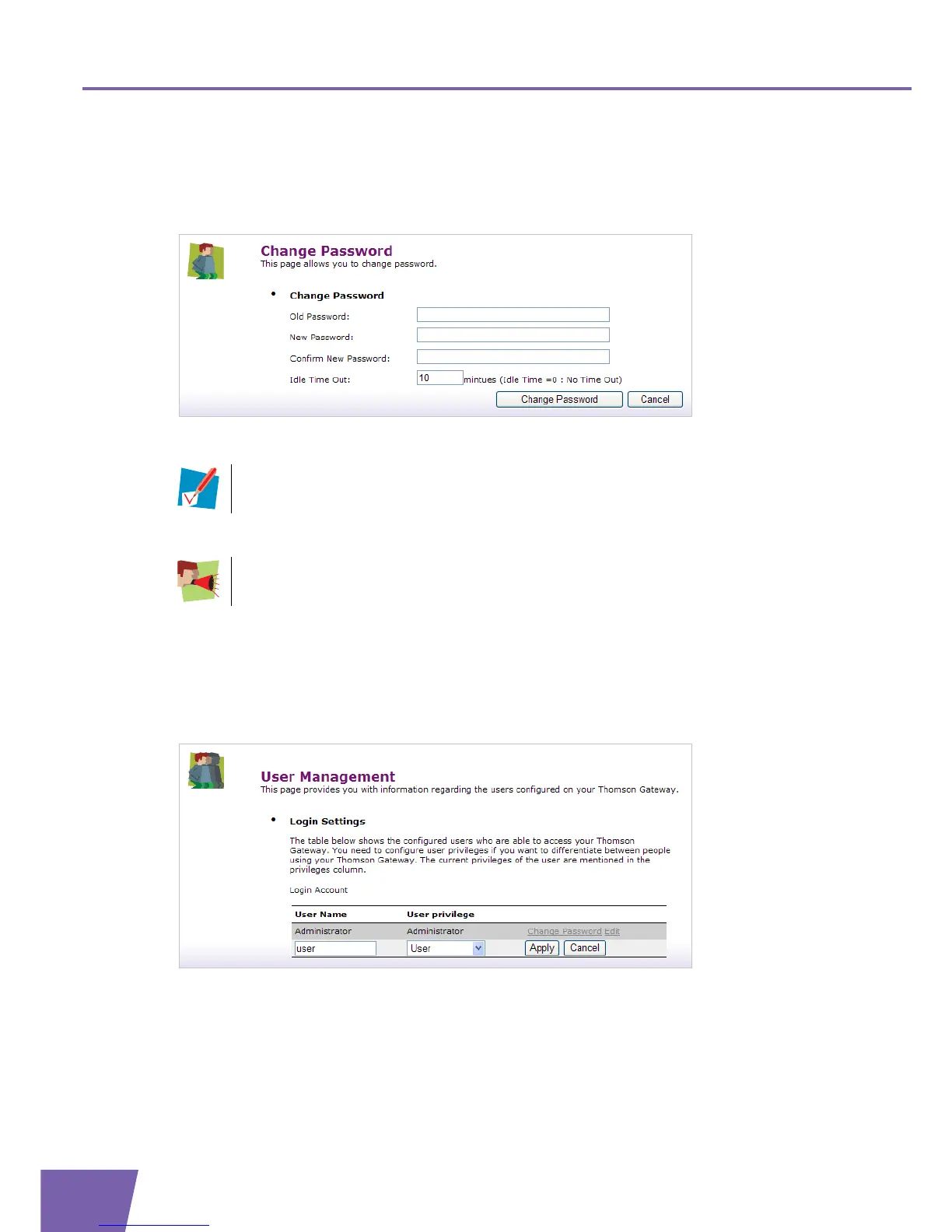
1 Click Change Password after the user you want to edit on the User management page, the Change
Password page appears:
2 Fill in the Old Password box with the current password of the user account your are currently logged on
with.
3 Fill in the New Password and Confirm New Password boxes with the desired new password for the user
account your are currently logged on with.
4 Click Change Password to confirm.
Editing a user
Proceed as follows:
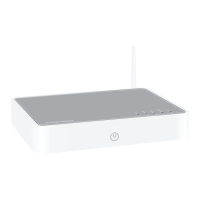
1 Click Edit after the user you want to edit on the User management page, the following page appears:
2 Edit the user name in the User Name textbox.
3 Select the administration right from the User privilege dropdown list.
4 Click Apply.
By default no password is defined. In this case, leave the Old Password box blank.
You can configure an account with a blank password by leaving the New Password and
Confirm New Password boxes blank.


 To Next Page