70
12.7. RS-232C Port Settings
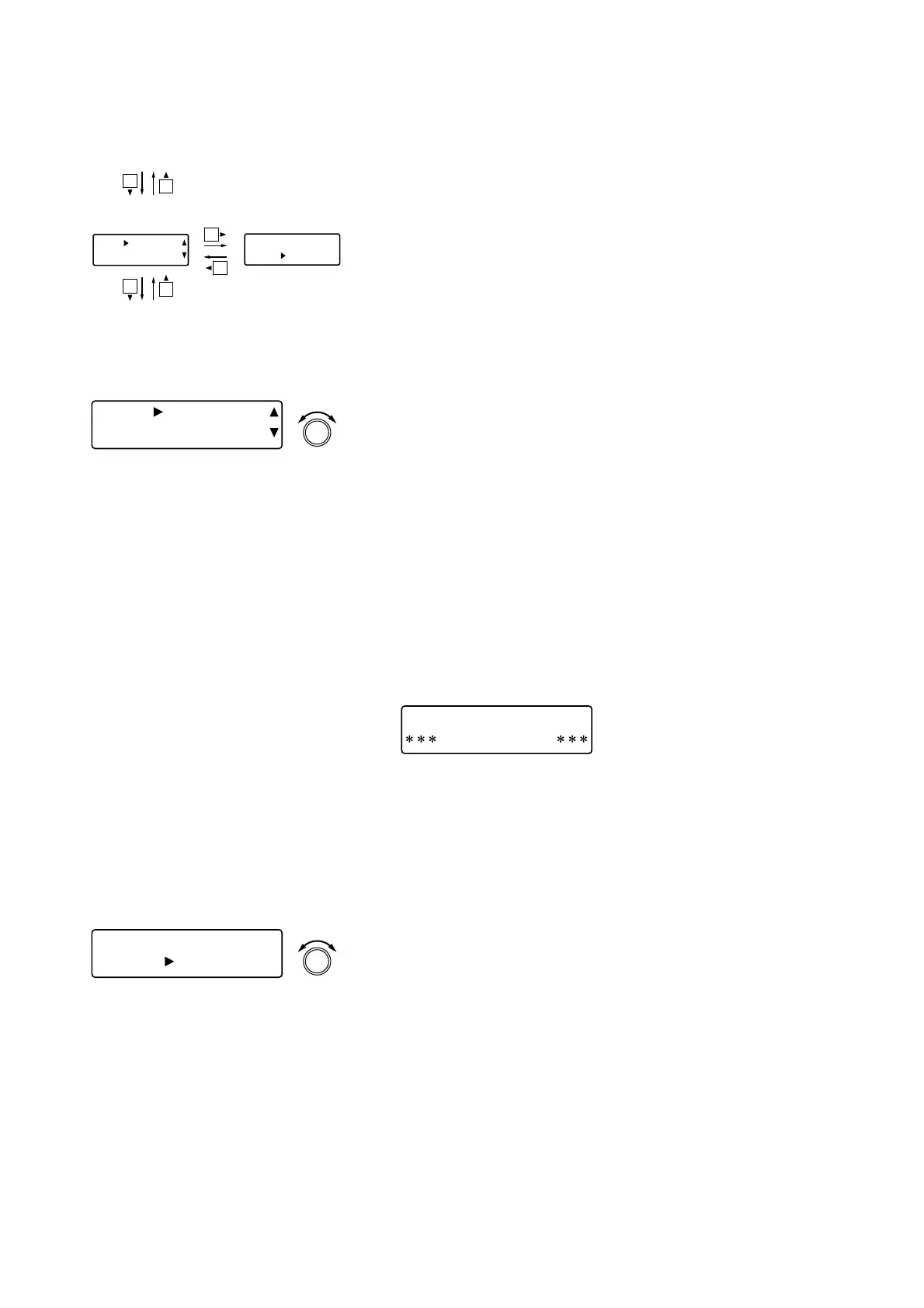
[UTY] RS- 232C
MODE PC CTR
L
PARAMETER
PUSH-ENTER
CHANGE
• Rotate the Setting knob to select the mode that matches the type
of equipment connected to the unit's RS-232C port.
UPDATE: A PC is connected to update the unit's firmware
using the utility program. (Refer to p. 74.)
REMOTE: A conventional remote controller (AMX, Crestron,
etc.) is connected.
PC CTRL: A PC is connected to control the unit using the
dedicated setting software program (to be
downloaded from our International site, see
below).
Tips
• While the D-901 is communicating with a PC, the front-mounted
system lock indicator flashes.
• In the above status, attempting to change settings with the
front-mounted knobs or keys notifies the operator of prohibited
operation by way of the indication shown below.
Protect settings (p. 68)
[UTY] RS-232C
MODE NON
E
Control mode
selection
RS-232C transmission
rate
All input/output channel gain confirmation (next page)
[UTY] RS-232C
115200bps
12.7.1. Control mode selection
[UTY] RS- 232C
115200bp
s
PARAMETER
PUSH-ENTER
CHANGE
• Rotate the Setting knob to set the RS-232C transmission rate.
Parameter setting range: 115200, 38400, 19200, 9600 bps
12.7.2. RS-232C transmission rate settings
PC Con t r o l Mode
Key Locke
d
• To enforce the termination of communications with the PC,
press the Setting knob holding down the Function ON/OFF key.
• The control protocol and setting software program are available
for download at our website:
http://www.toa-products.com/international/
Tip
Settings are automatically saved as system data, and
setting status is maintained even if the power is turned
off.
[Screen display operations]


 To Next Page