3.PRINT FUNCTIONS
Printing With Best Functions for Your Needs 81
3 PRINT FUNCTIONS
Printing on both sides of a paper
You can print on both sides of the paper.
1
Open the [Basic] tab to select the following settings.
y Any paper size other than envelopes from the [Print Paper Size] list. You cannot use envelopes.
y [Plain] from the [Paper Type] list. You cannot use other paper sizes.
2
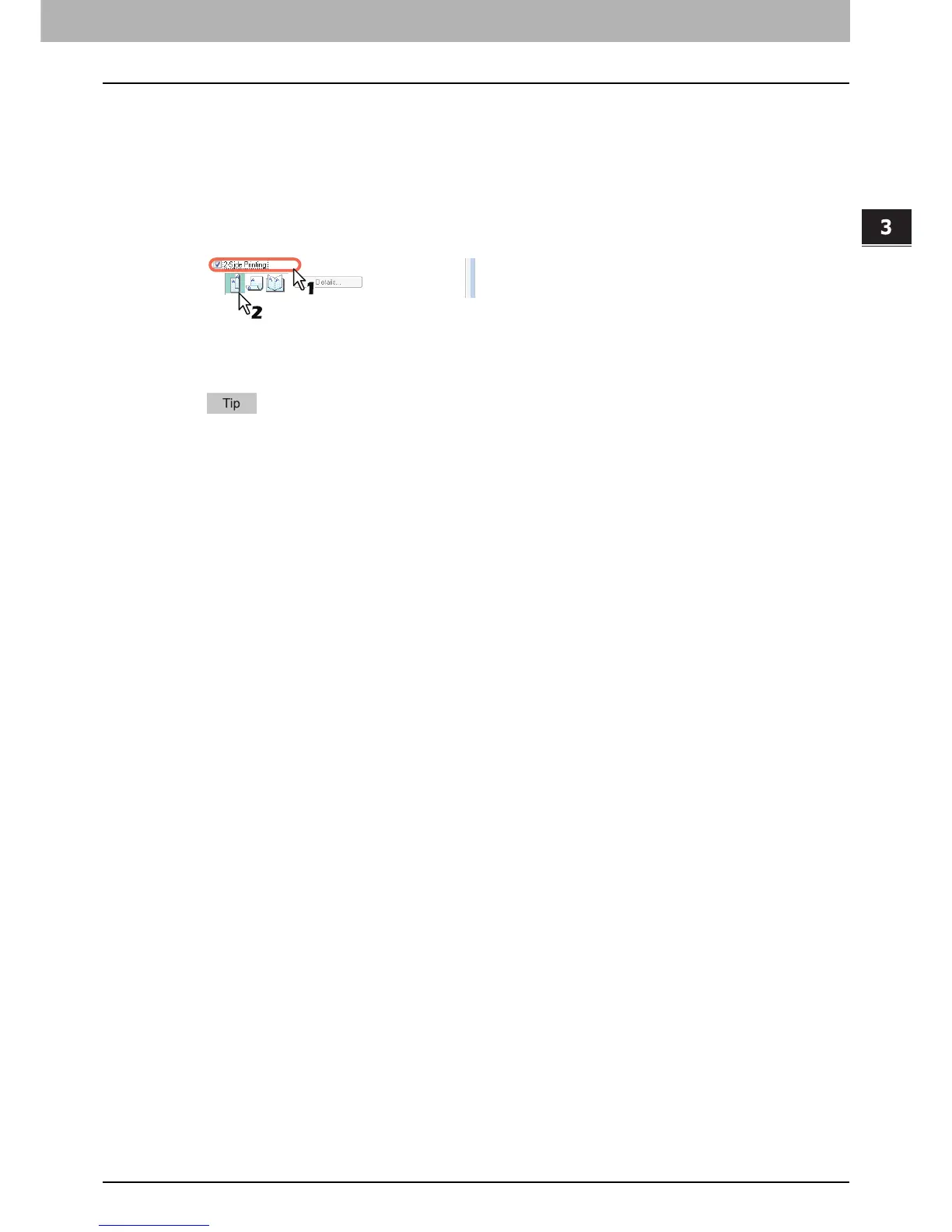
Open the [Finishing] tab, select the [2-Sided Printing] check box, and select the binding
position icon.
Long Edge — Select this to print on both sides of the paper with a margin on the long edge.
Short Edge — Select this to print on both sides of the paper with a margin on the short edge.
Booklet — Select this to print a properly paginated booklet or magazine-style publication.
You can also set booklet printing at the [2-Sided Printing] option by selecting the [Booklet] icon. For instructions
on how to perform booklet printing, see the following section.
P.82 “Making a booklet”
3
Set any other print options you require and click [OK].
4
Click [OK] or [Print] to start the print job.
The print job is printed on both sides of paper in the specified direction.



 To Next Page
 Loading...




