4.PRINT FUNCTIONS (Mac OS X)
Setting up Print Options 121
4 PRINT FUNCTIONS (Mac OS X)
- Down Before Across Right to Left — Pages are arranged vertically from top to down and then right to
left on a sheet.
3) Border
Select a type of the border line around each page for N-up printing.
- None
— Select this option if no border line is to be drawn.
- Single Hairline — Select this option to draw a single hairline around each page.
- Single Thin Line — Select this option to draw a single thin line around each page.
- Double Hairline — Select this option to draw a double hairline around each page.
- Double Thin Line — Select this option to draw a double thin line around each page.
4) Two-Sided
Turn on or off printing on both sides of paper, which is called “two-sided printing”. You can select the
binding position for two-sided printing.
- Off
— Select this option to print on a single side of paper, which is normal single-sided printing.
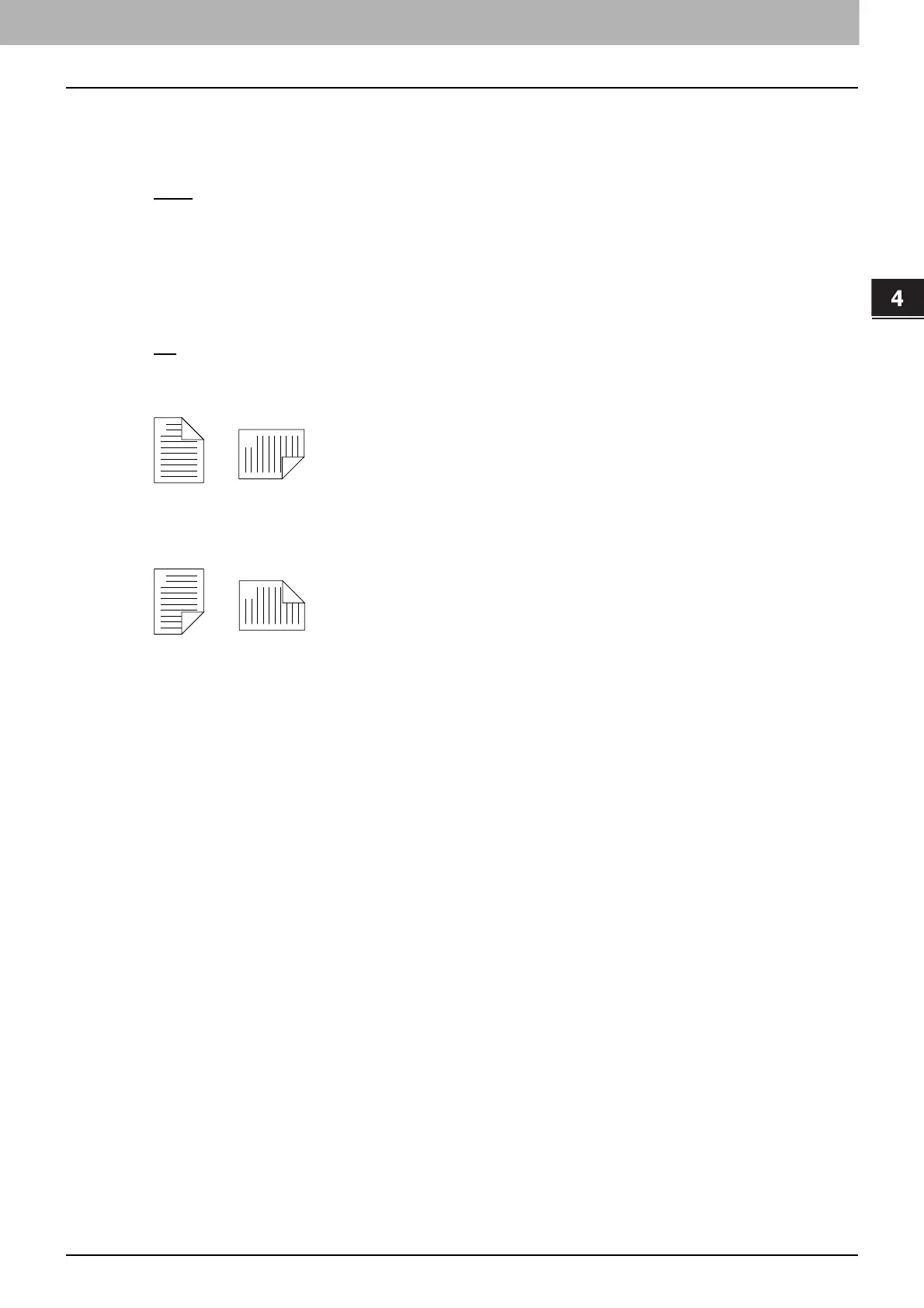
- Long-Edge binding — Select this option to turn on two-sided printing for binding along the long edge
of paper. The print direction on the back side of paper differs depending on the orientation.
- Short-Edge binding — Select this option Select this option to turn on two-sided printing for binding
along the short edge of paper. The print direction on the back side of paper differs depending on the
orientation.
5) Reverse page orientation
Select this check box to reverse the page orientation. If you load paper in the opposite direction for any
reason, you can print pages upside down for correct printing.
6) Flip horizontally
Select this check box to flip pages horizontally for printing.



 To Next Page
 Loading...





