5.SCAN FUNCTIONS
Setting up Scan Options 137
5 SCAN FUNCTIONS
3
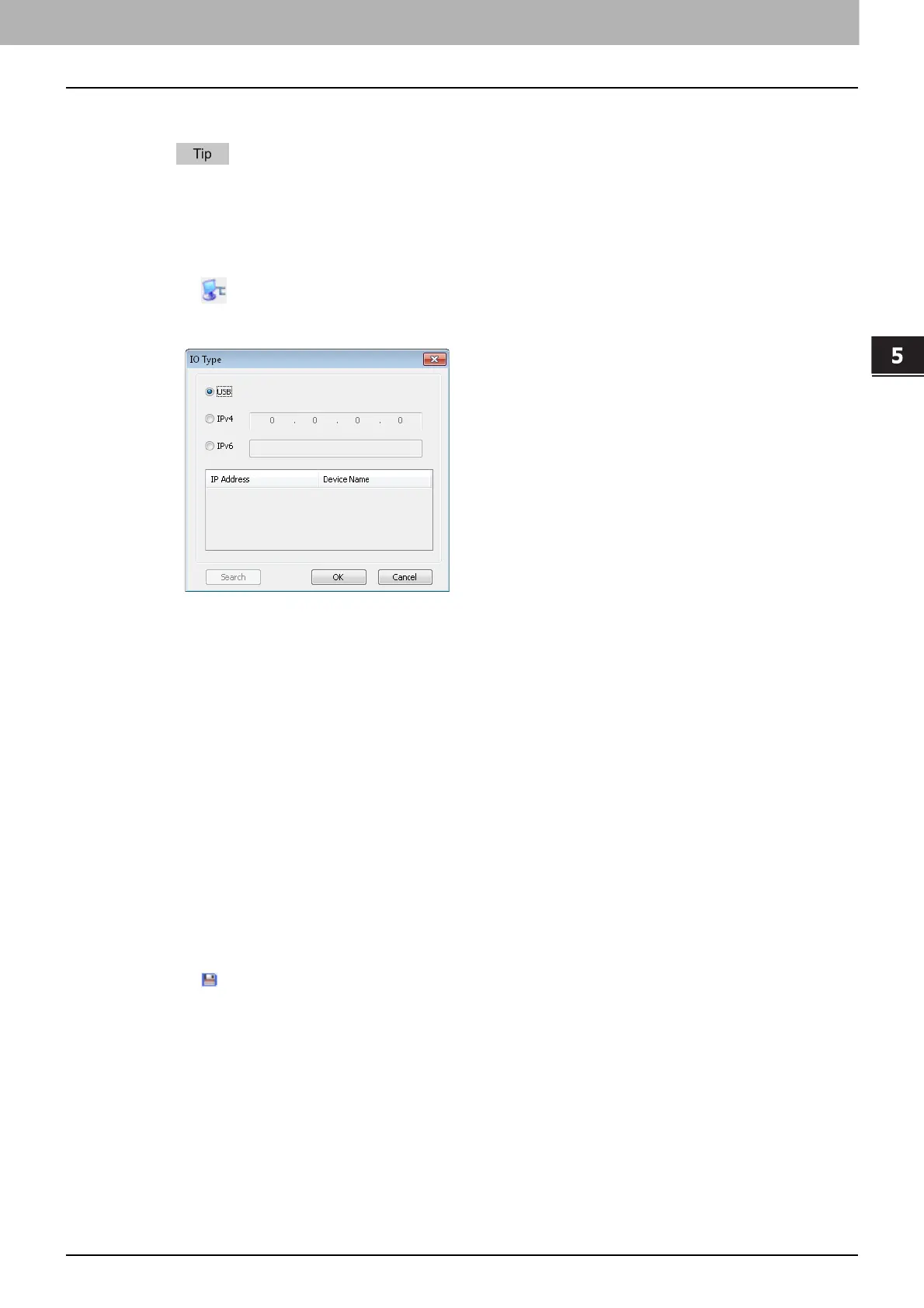
Click [Search], and then confirm the displayed IP address and device name.
If you set the IP address manually, input the address in the text box.
4
Click [OK].
Scanning from the equipment connected by USB cable
1
Click on the basic scan dialog box.
2
When the [IO Type] dialog box appears, select [USB].
3
Click [OK].
Using the Easy Set feature
When you have made scan settings, you can save them as an Easy Set file. This allows you to load a specific
batch of settings without changing the scan settings each time.
P.137 “Saving the Easy Set file”
P.138 “Using the Easy Set file”
P.138 “Deleting the Easy Set files”
Saving the Easy Set file
You can save multiple Easy Set files.
1
Open the advanced scan dialog from within your application.
P.132 “How to scan”
2
Set the scan options as you like.
P.134 “Scan options”
3
Click next to the Easy Set menu.
4
Enter a file name, select a folder where you save the file, and then click [Save].



 To Next Page
 Loading...





