5 SCAN FUNCTIONS
Using Templates (Scan) 169
Using Templates (Scan)
Once you have set the several functions and settings, you can register up to three of them as “templates” and
recall one of them for frequent use.
Registering the templates
1
Make settings for the functions to register as a template.
2
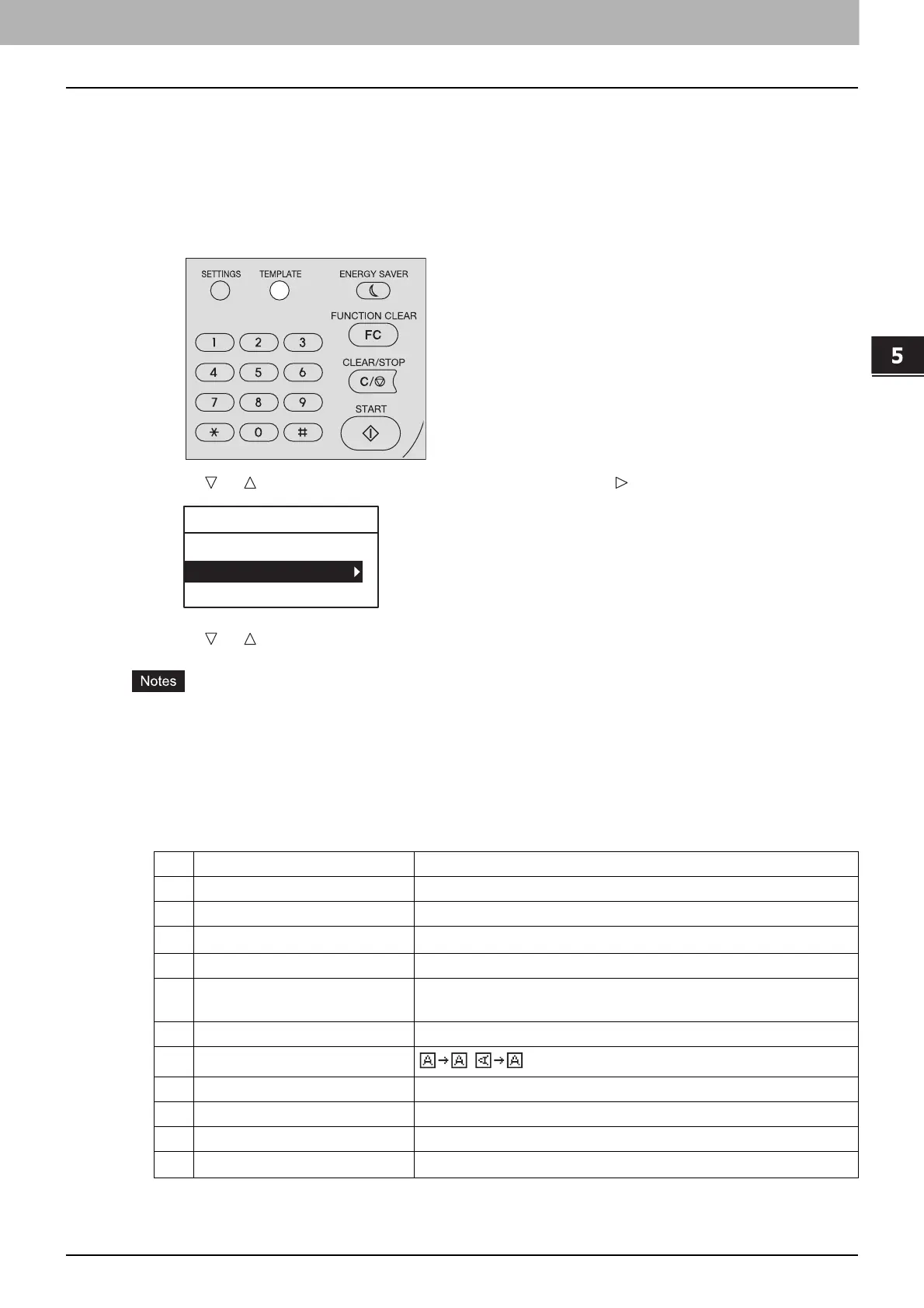
Press [TEMPLATE].
3
Press or to select “REGISTRATION”, and then press .
4
Press or to select a template, and then press [OK].
You can register three templates for scanning.
The settings are overwritten if you select an existing template.
Update the recipients of the template if you have updated the address book.
You can also register and edit templates with TopAccess. For details, refer to the TopAccess Guide.
You can specify the following items in scan templates.
Basic setting
*1 When the “FULL COLOR” mode has been selected, you cannot select the original size larger than A4 or LT.
*2 When the “FULL COLOR” mode has been selected, you can select “600 dpi” only for the original of A5-R or ST-R size.
*3 This item is available only when the Reversing Automatic Document Feeder (RADF) is installed.
No. Item Name Settings
1 Scan to (Agent) E-MAIL, FILE, USB
2 Color Mode BLACK, GRAY SCALE, FULL COLOR
3 Resolution
150dpi, 200dpi, 300dpi, 400dpi*1, 600dpi
*2
4 Single/2-Sided Scan SINGLE, DUPLEX
5 Original Size AUTO SIZES, A3, A4, A4-R, A5-R, B4, B5, B5-R, FOLIO, 8K,
16K, 16KR, LD, LG, LT, LT-R, COMP, 13"LG, ST-R, 8.5"SQ
6 Mixed Original Size OFF, ON
7Rotation
,
8 Compress LOW, MID, HIGH
9 Omit Blank Page OFF, ON
10 Exposure AUTO, MANUAL(±4)
11
Continue Scan
*3
OFF, ON
TEMPLATE
RECALL
REGISTRATION



 To Next Page
 Loading...





