2 COPY FUNCTIONS
58 Copy Settings
Copying both sides of a card on a sheet
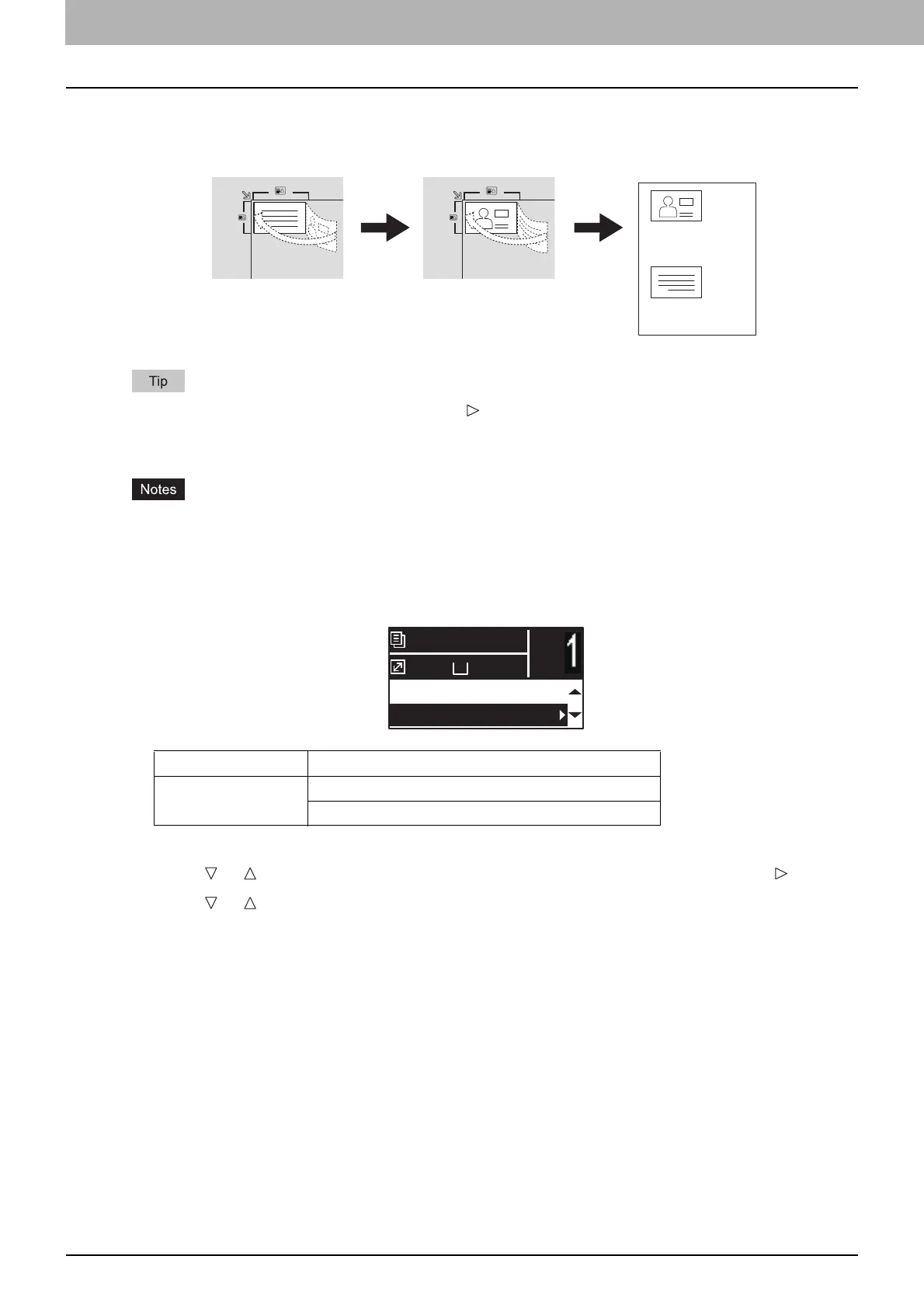
You can copy the front and back of a card on a sheet of paper.
You can directly enable this function by pressing . The button operation varies depending on the region.
For regions other than Europe and the Americas:
P.42 “Using the “EXPOSURE” or “ID CARD” function quickly”
Be sure to set the paper size and density, etc. before selecting [ID CARD].
The settings for the area to scan originals and the print position vary from region to region, so that the
area wider than the card frame of the original glass might be scanned depending on the region.
The upper and left areas (about 4 mm in width) cannot be copied. To copy up to the edges of a card,
place the card apart from the edges of the original glass.
1
Press [COPY].
2
Press or to select the item displayed on the LCD screen, and then press .
3
Press or to select the setting item, and then press [OK].
Menu Functions Settings
ID CARD OFF
ON
A4
1
READY
100%
2IN1/4IN1:OFF
ID CARD:OFF



 To Next Page
 Loading...





