5 SCAN FUNCTIONS
Scan to File 153
Scan to File
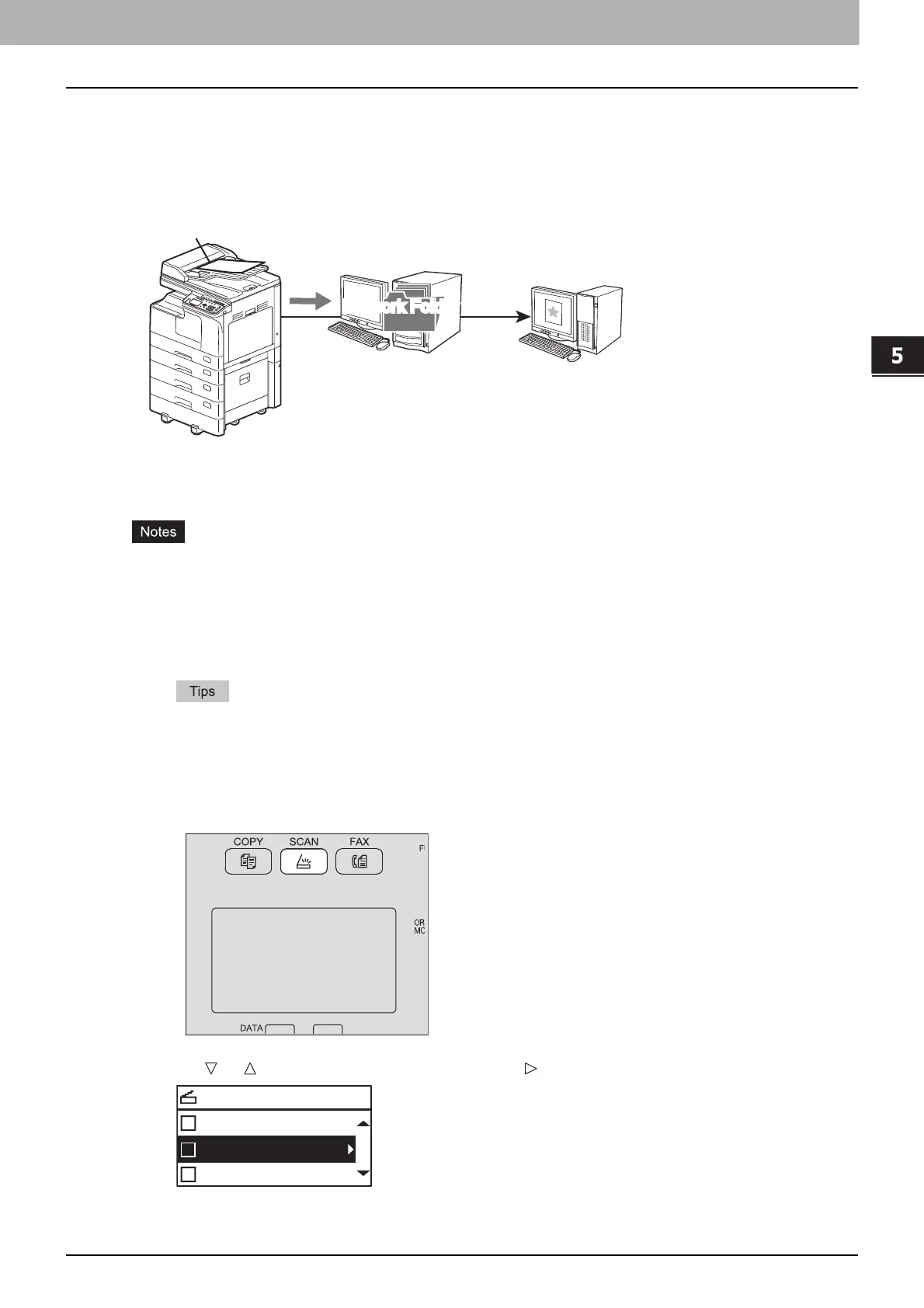
Scan to File allows you to store scans as PDF, TIFF or JPEG files in a network folder. From these folders, you
can copy the saved data and use it on your computer.
If you choose to store your scans in the network folder, the type of operating system, such as Windows or
Macintosh, does not matter; you can save the data in any network folder accessible by FTP or SMB.
Procedure for Scan to File
The network administrator has to make settings for storing the scanned data to the client computers.
For details, refer to the TopAccess Guide.
We recommend that you back up the data stored in the shared folder.
Delete documents stored in the shared folder when they are no longer needed.
1
Place the original(s).
For placing the originals, see the pages below.
P.39 “Copying originals”
A4, A3, A5-R, B5, B5-R, B4, A4-R and FOLIO (LT, LD, LT-R, LG, ST-R and COMP) sized
originals can be scanned.
2
Press [SCAN].
3
Press or to select “FILE”, and then press .
Scan to File
Copying files from the
network folder
Client
computer
Network FolderNetwork Folder
SELECT SCAN TYPE
E-MAIL
FILE
USB



 To Next Page
 Loading...





