5.SCAN FUNCTIONS
Scan to USB Memory 157
5 SCAN FUNCTIONS
3
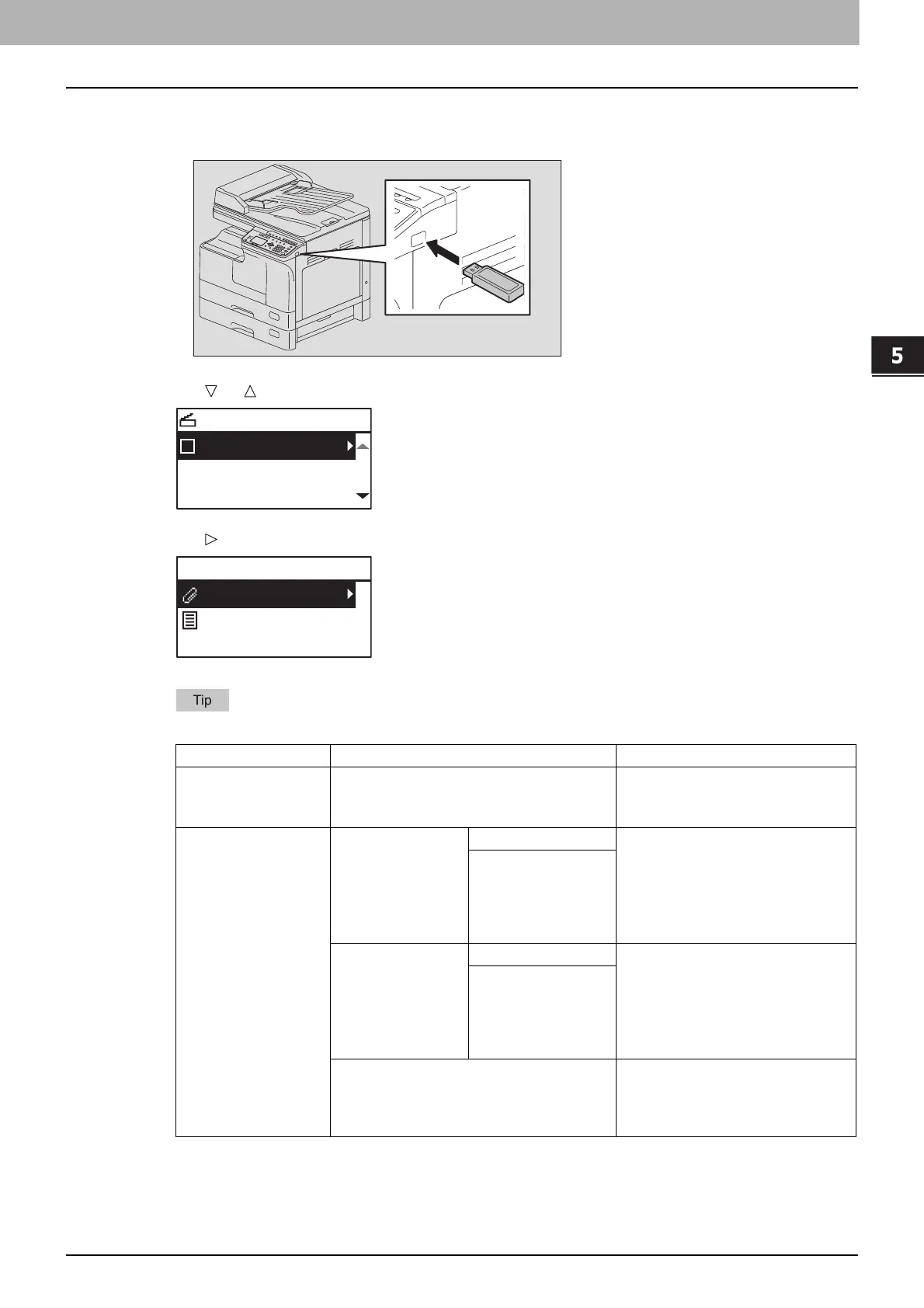
To store scans in a USB storage device, connect the device to the equipment and wait a
few seconds.
4
Press or to select “USB”, and then press [OK].
5
Press , and then make the scan settings as required.
The settings available for Scan to USB Memory are as follows:
To make further settings, see the following.
P.159 “Scan Settings”
Menu Functions Settings Description
FILE
NAME(MAX128)
- An initial file name can be
changed.
P.167 “Character entry”
FILE FORMAT PDF MULTI Stores your scan as a PDF file.
Select [MULTI] for saving several
pages as a single file.
Select [SINGLE] for saving
several pages as a separated
single file for each page.
SINGLE
TIFF MULTI Stores your scan as a TIFF file.
Select [MULTI] for saving several
pages as a single file.
Select [SINGLE] for saving
several pages as a separated
single file for each page.
SINGLE
JPEG Stores your scan as a JPEG file.
This setting is not available when
“BLACK” is selected in the
“COLOR MODE” function.
SELECT SCAN TYPE
USB
BLACK
300dpi



 To Next Page
 Loading...





