6.VARIOUS FUNCTIONS
Scan Menu List 175
6 VARIOUS FUNCTIONS
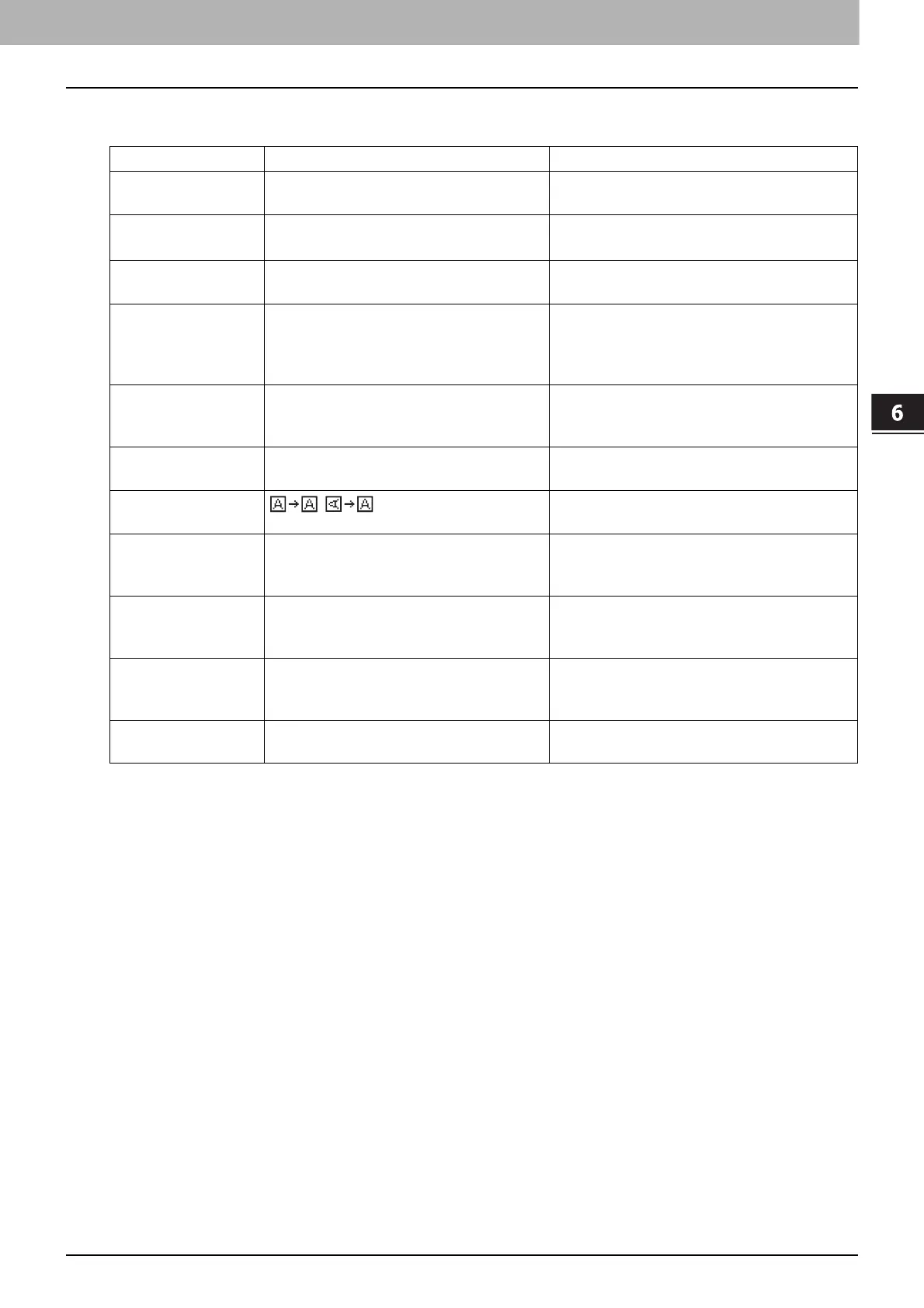
Basic setting functions
*1 When the “FULL COLOR” mode has been selected, you can select “600 dpi” only for the original of A5-R or ST-R size.
*2 When the “FULL COLOR” mode has been selected, you cannot select the original size larger than A4 or LT.
Menu Functions Settings Description and Reference Pages
COLOR MODE BLACK, GRAY SCALE, FULL COLOR Sets the color mode to scan the data.
P.159 “Selecting the color mode”
RESOLUTION
600dpi
*1
, 400dpi
*2
, 300dpi, 200dpi,
150dpi
Sets the resolution for the data to scan.
P.159 “Selecting the resolution”
SINGLE/2-SIDED
SCAN
SINGLE, DUPLEX Sets the type of originals to scan.
P.160 “Scanning the 2-sided originals”
ORIGINAL SIZE AUTO SIZES, A3, A4, A4-R, A5-R, B4,
B5, B5-R, FOLIO, 8K, 16K, 16KR, LD,
LG, LT, LT-R, COMP, 13"LG, ST-R,
8.5SQ
Sets the size for the original to scan.
P.160 “Selecting the original size”
MIXED SIZE
ORIGINAL
OFF, ON Sets the mix-original function.
P.161 “Scanning different sizes in one
go”
ORIGINAL MODE TEXT, TEXT/PHOTO, PHOTO Sets the type of the original to scan.
P.161 “Selecting the original mode”
ROTATION
,
Rotates the scanned data to save.
P.162 “Selecting the orientation”
COMPRESS LOW, MID, HIGH Sets the compression ratio for the scanned
image data.
P.162 “Selecting the compression ratio”
OMIT BLANK PAGE OFF, ON Sets whether to remove blank pages from
the scan result.
P.163 “Removing blank pages”
EXPOSURE AUTO, Manual Sets the density level for the scanned
image data.
P.163 “Adjusting the exposure”
CONTINUE SCAN OFF, ON Sets the scan continuation function.
P.164 “Continuing the scanning”



 To Next Page
 Loading...





