UHP SCPC MODEM
USER MANUAL, v3.2
© ROMANTIS 2015 45 www.uhp.net
1. Follow Advanced -> System -> Flash / Boot (see Figure 47) in the Menu of commands;
2. Click “Select file” and select the file with the required SW;
3. Click “Load To RAM” to load the SW into the router RAM;
4. Select one of the three memory banks Flash- [1-3] to store the SW;
5. Click “RAM Write To” to download the SW in the selected memory bank.
After SW download, specify which of the three memory banks will be used when booting the router (see para.8.1)
8.3.2 SW Installation Applying Console Connection
The SW is installed by transmitting an SW image from TFTP-server to UHP-router. To install a new SW:
1. Make sure that the UHP network is connected to the TFTP-server;
TFTP-server can be run on a computer connected with the UHP through a network (IP-protocol);
2. Run image load to the UHP;
Use the following commands in sequence:
#tftp server < TFTP-server ip-address >
#image load tftp UhpAdvb2.sw3
3. Burn the downloaded image in one of the memory banks and assign the image used for booting.
Run the image write command. In response of UHP request “Select bank (0-3):”, specify the number of
the memory bank to which the image shall be saved.
In order to specify which of the three memory banks will be used by the device when running the router,
run the following command:
#boot main <memory bank number 1 to 3
WARNING! DO NOT SAVE THE SW IMAGE IN MEMORY BANK 0. THIS MEMORY BANK IS RESERVED FOR SYSTEM TASKS.
IMAGE WRITING TO THIS BANK WILL DEACTIVATE THE DEVICE.
8.4 Installed Licenses (Keys) Data
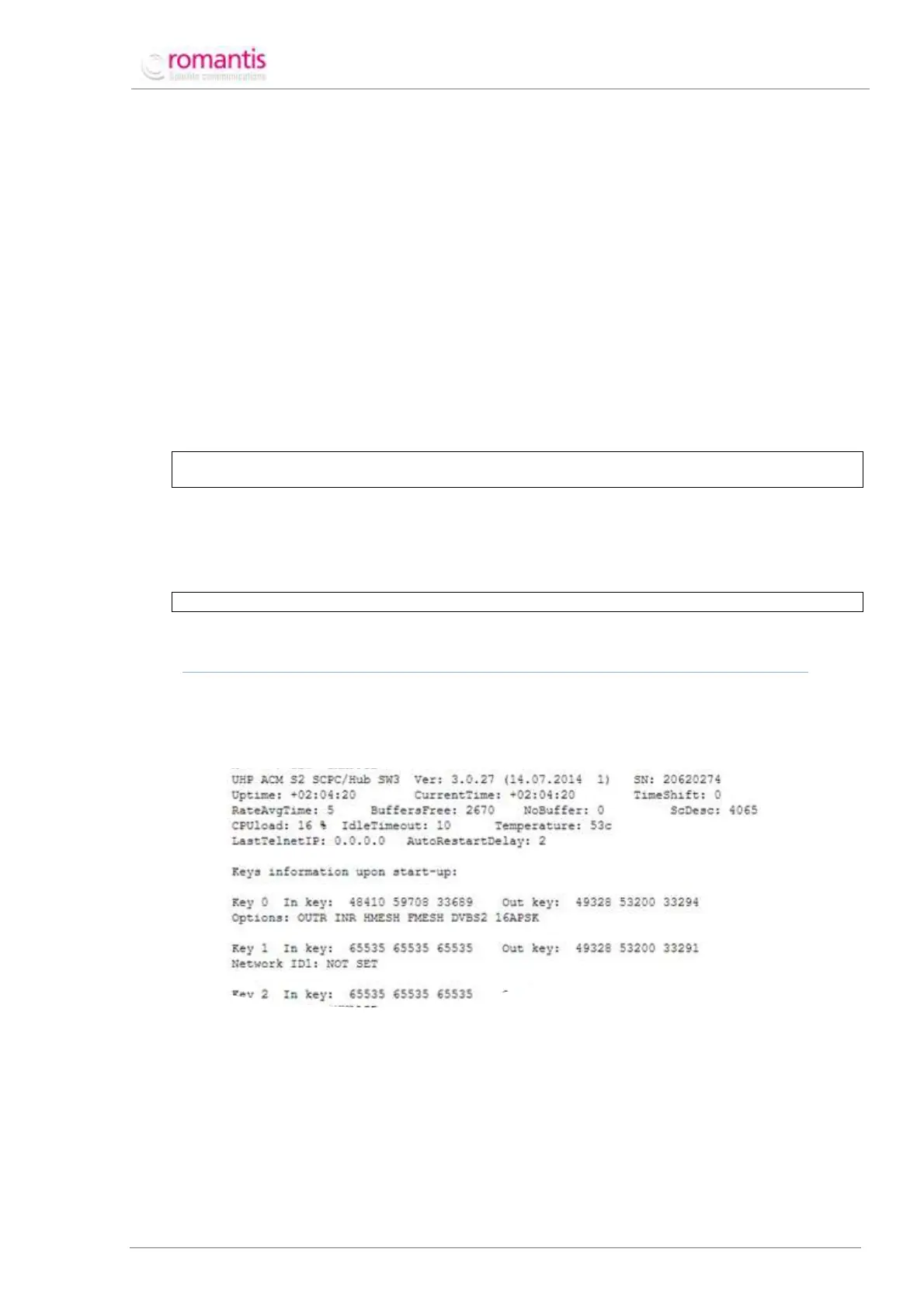
To access information about the licenses available on the router go to Maintenance –> Support info in the Menu of
commands. The section “Keys information upon start-up” displays all the active keys of the router (see Figure 49).
Figure 49 Key information for UHP router



 To Previous Page