Page 27
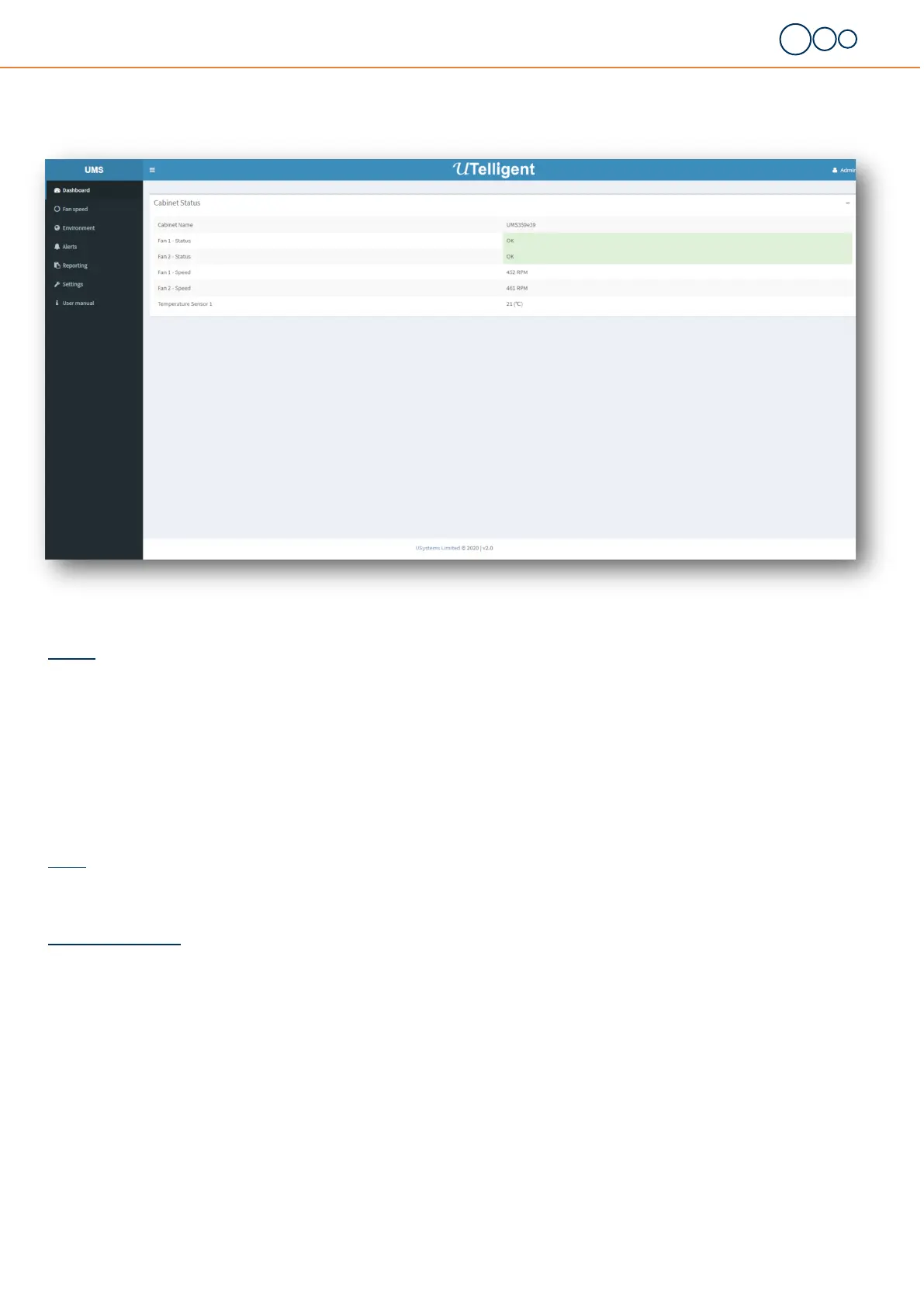
The dashboard is made up of dierent tables depending on your cabinet conguraon.
Header
Select the Username icon to Restart, Upgrade, Remote support and Log out.
Restart - Selecng this with restart the EMS
Upgrade - This opon is available to upgrade the EMS To use this an update le from USystems will be required
SupportMe! - This is to enable the VPN connecon with USystems so that a remote support connecon can be estab-
lished. Once the EMS is restarted the VPN connecon will be disabled, select the SupportMe! Buon again to re-enable,
Log out - Selecng this will log the user out of the EMS and will return to the log in screen.
Menu
Le side of the dashboard is the menu with a list of dierent opons these areas can be locked out for certain users - please see page 20 for
user accounts.
Cabinet Status Table
Cabinet name: By default it is named as EMS followed by 6 digits from the MAC address - please see page 19 sengs to change this. It is also the
hostname for the device.
Fan Status: Displays the fan status and its value being either ‘OK’ or ‘FAIL’ - please see page 10 for fan alarm informaon
Fan Speed: Displays the RPM (Revoluon per minute) of each fan
Temperature Sensor: The current temperature will be displayed along with the sensor locaon, it can be displayed in °C or °F
Each sensor can be provided with a customer name, this can be done under Sengs - Sensor names.
Digital sensors: Contact sensors will display if the cabinet is open or closed.
WebUI - Dashboard


 To Next Page