4
If your battery requires charging, a Battery low
message is displayed when you first switch on your
Vertu phone. Refer to “Charging your battery” on
page 57 for more information.
Contact with the antenna affects call quality and
may cause the phone to operate at a higher power
level than otherwise needed. Avoiding contact with
the antenna area when operating the phone
optimises the antenna performance and battery
life.
ENTERING YOUR PIN CODE
Depending on your SIM card settings, you may be
prompted to enter a PIN (Personal Identification
Number) code when you switch on your Vertu
phone. This code is used to protect access to your
SIM card and is independent of your Vertu phone.
If you used your SIM card in another phone
previously, the code will be the same.
SETTING THE TIME AND DATE
If the time and date are not set, you will be
prompted to enter your time settings when you first
switch on your Vertu phone.
If your Vertu phone was purchased at a Vertu store,
the time and date should already be set for you.
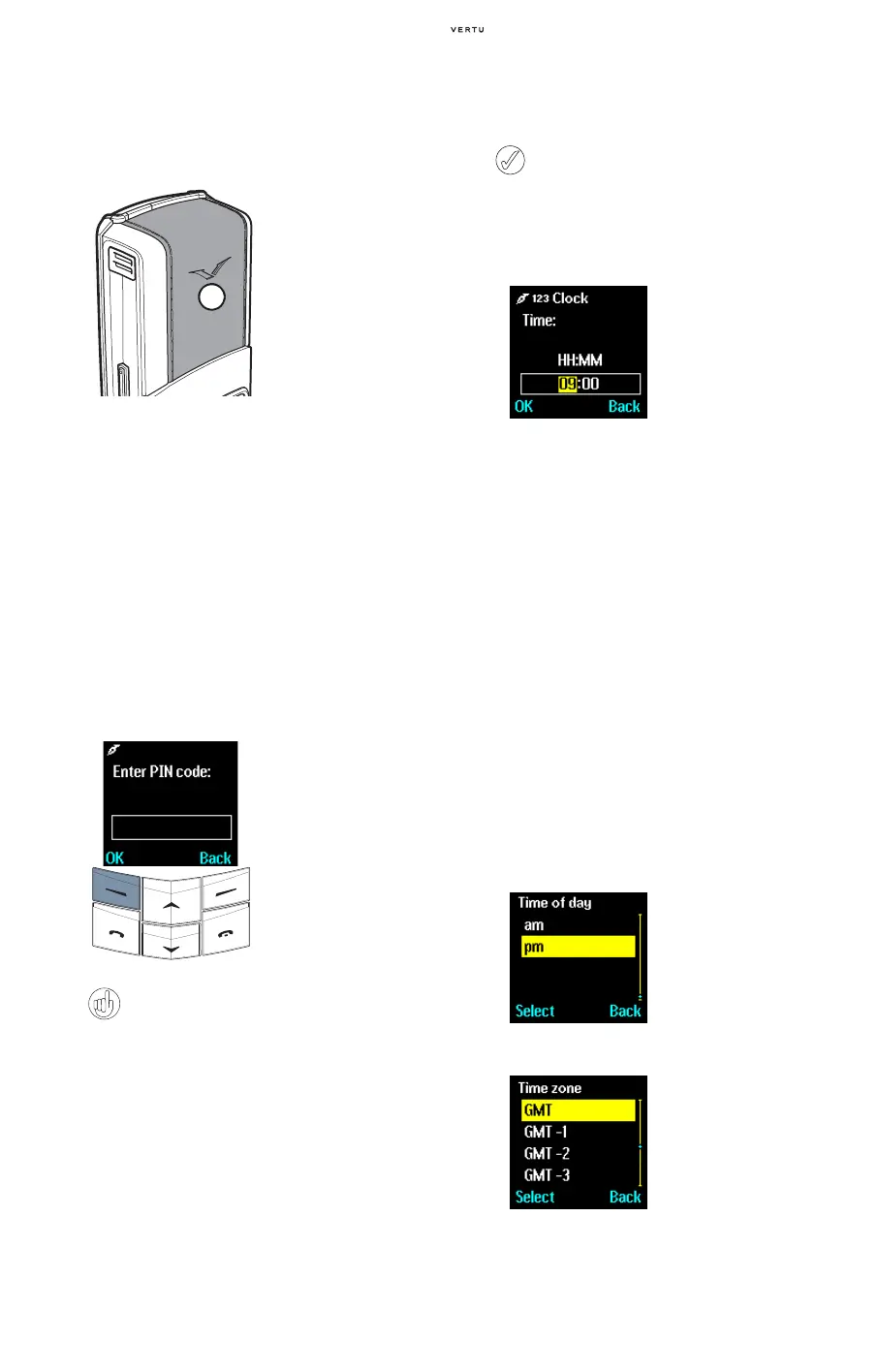
To set the time when you switch on your Vertu
phone for the first time:
You can enter the time in either 12-hour (am/pm)
format or 24-hour format.
For example, to set the time to 08:30:
> Key in “8”.
> Scroll to minutes. The leading zero is added to the
hour figure.
> Key in “30”.
> Press OK.
Or, to set the time to 12:30:
> Key in “12”. The cursor automatically jumps to the
minutes.
> Key in “30”.
> Press OK.
If the hour you entered was not in 24-hour format,
you are prompted to confirm if the time entered is
am or pm:
To select your local time zone:
> Your Vertu phone has
an internal antenna
located inside the top-
rear panel (02). Do not
touch the antenna
unnecessarily when
phone is switched on.
> Use the NUMBER keys
to key in your PIN code.
> Press OK.
It is recommended that you activate both the
PIN code and security code to help prevent
unauthorised use of your SIM card and your
Vertu phone. Refer to the "Chapter Security"
chapter for more information.
02
We recommend setting the time and date
immediately to ensure that features which
use the time and date (for example, the
Organiser) operate correctly.
> Use the NUMBER
keys to key in the
correct time.
> Use the SCROLL keys
to toggle between
hours and minutes.
> Scroll to am or pm.
> Press Select. The
time zone screen is
displayed.
> Scroll to the
appropriate time
zone.
> Press Select. The
date screen is
displayed.















 To Next Page