14
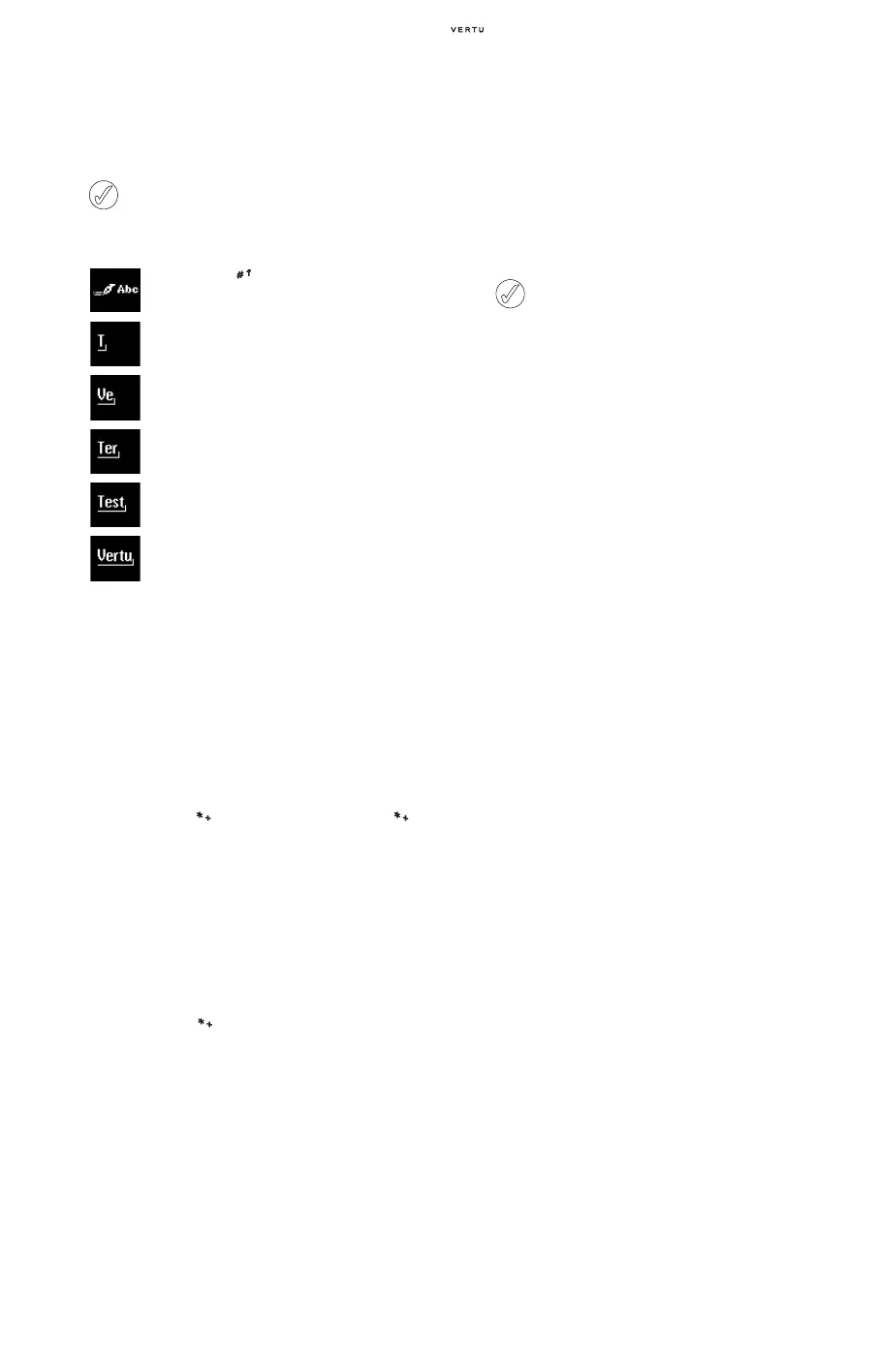
Predictive Text Input Example
The example below describes how to key in
“Vertu”.
SPECIAL CHARACTER INPUT
Though most common special characters such as
punctuation sysmbols can be inserted by pressing
the 1 key, other special characters can be inserted
in your text at any time using the special characters
input.
To use special character input:
> Press the the key (or press and hold the key
if using predictive text) to access the special
characters list.
> Use the central NUMBER keys to highlight the
charater you want.
Press the 2 key to move the cursor up.
Press the 8 key to move the cursor down.
Press the 4 key to move the cursor left.
Press the 6 key to move the cursor right.
> Press the the key to swap between the pages
of symbols.
> Press Use or the 5 key to insert the symbol into
your text.
SCREEN SAVER
The screen saver is designed to maintain the
quality of your Vertu phone's display throughout its
lifetime. It ensures that the contents of your display
are regularly updated and avoids leaving any pixels
(such as those that form the charge or signal
strength icons) in a constantly active state. If pixels
are held contantly active for a long time, they can
become ‘ghosted’ on the display when they are
supposed to be inactive or appear duller when they
are active.
The screen saver is automatically activated after a
delay since the last key was pressed. You can set
this delay to suit your preferences. This delay can
be set from 25 seconds to 1 hour. To exit the
screen saver, press either of the
SELECTION keys.
When the screen saver is activated, the current
display contents are hidden and the screen saver
display is shown. If a key is pressed while the
screen saver is active, the display contents are
automatically restored and no information is lost.
The vertical position of the screen saver in the
display is shifted every minute to ensure that the
screen saver itself does not remain static.
In addition to a key press, some events may trigger
the suspension of the screen saver. For example, if
you connect the charger, the screen saver is
suspended to display the charging confirmation
message. After the event, the screen saver waits
for the delay time and becomes active again.
To change the screen saver delay:
> From the stand-by display, press Menu.
> Scroll to Settings and press Select.
> Scroll to Display settings and press Select.
> Scroll to Screen saver and press Select.
> Scroll to one of the time-out options, or highlight
Other to enter your own time-out value, then
press
Select.
> Enter the delay time in minutes and seconds. Use
the scroll keys to toggle between minutes and
seconds. The minimum delay is 25 seconds and
the maximum is 60 minutes.
> Press OK. A confirmation message is displayed.
When keying in a word, the characters on the
display may not be part of the desired word.
As you continue keying in characters, the
word displayed becomes more accurate.
> Press the key until the predictive text
input icon is displayed.
> Press the 8 key for “V”.
> Press the 3 key for “e”.
> Press the 7 key for “r”.
> Press the 8 key for “t”.
> Press the 8 key for “u”.
Press Clear at any time to erase the
character before the cursor.
You cannot disable the screen saver function
of your Vertu phone.















 To Next Page