13
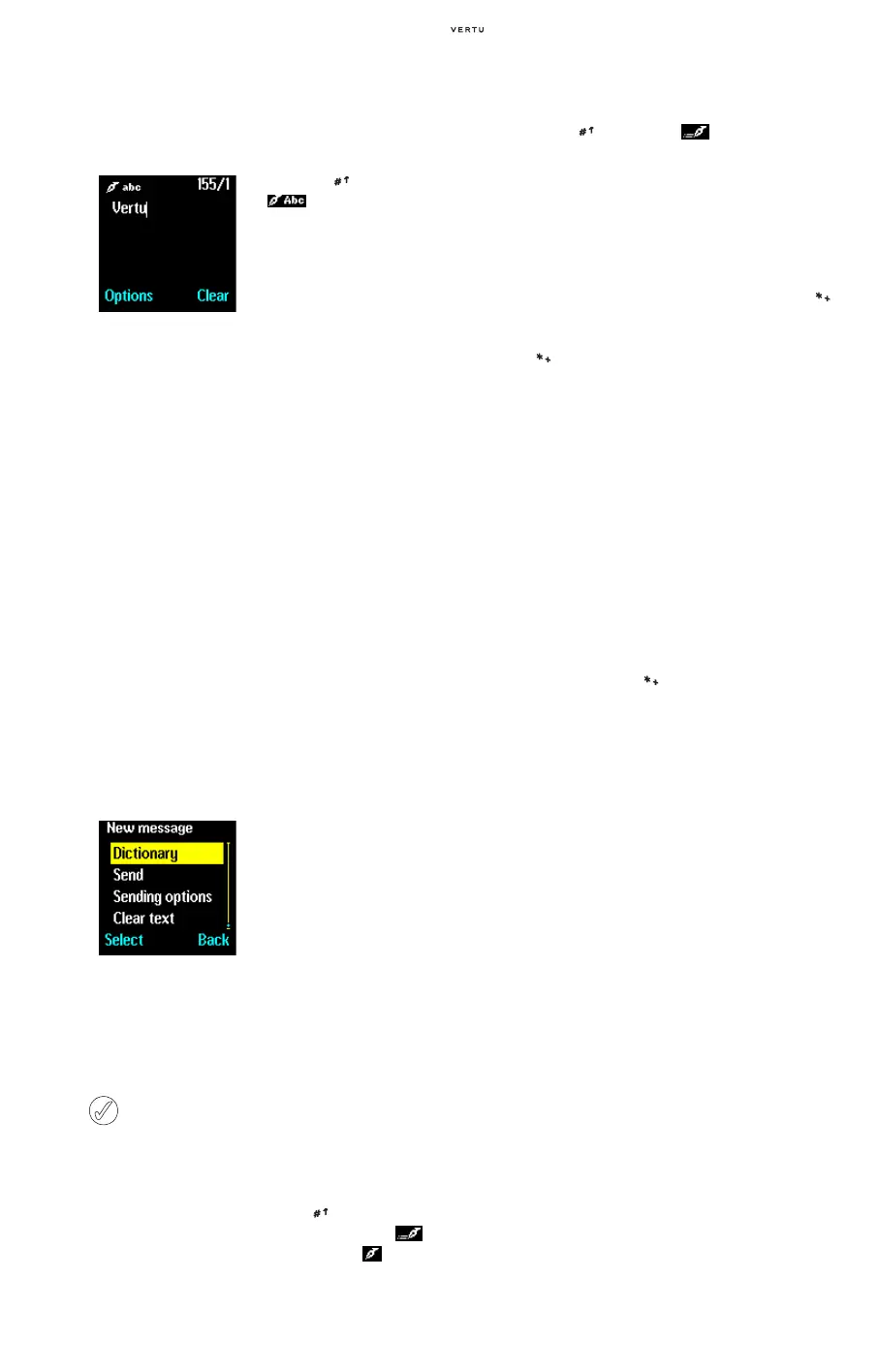
Basic Text Input Example
To write the word ‘Vertu’ using basic text input in a
text message:
PREDICTIVE TEXT INPUT
Predictive text reduces the number of key presses
required to key in a word. As you key in characters,
predictive text attempts to match the characters to
a word in the built-in dictionary.
Before you can use predictive text input, you must
select the language for predictive text.
Once enabled, simply press the key to switch
between predictive text input (shown by the
icon) and basic text input (shown by the
icon) at
any time when keying in your text.
To use predictive text input:
> Press the key until the icon is displayed
with the appropriate text input mode for case.
> For each letter of the word that you want to spell,
press the corresponding
NUMBER key on your
keypad only once, even if the letter you want is not
the first letter on the key. The phone guesses the
word you are trying to spell.
> If the displayed word is not correct, press the
key to see other letter combinations/matches. To
move forward through the list of matches, press
the
key repeatedly. To return to the previous
word in the list, press
Prev..
> Press the 1 key to insert a period or other
punctuation into your text. The punctuation forms
part of the word.
> Press the 0 key to accept the word, enter a
space, and begin writing the next word.
> If question mark appears after a word and you can
enter no more letters, press
Spell to add the
word to the dictionary. Refer to “Adding a Word to
the Dictionary” on page 13.
> To insert a number in your text, press and hold the
corresponding
NUMBER key.
> Press and hold the key to access special
characters such as dollar sign, euro symbol or
pound sign. Refer to “Special Character Input”
on page 14.
Adding a Word to the Dictionary
If a word is not recognised, a question mark
appears at the end of the text you have just keyed
in. An audible alert also sounds if your Vertu phone
is set up for audible alerts.
To add the word to the dictionary:
> Press Spell.
> Key in the desired word. The basic text input
input method is automatically used when adding
a new word to the dictionary.
> Press Save. The new word appears in your text.
The next time you use predictive text input, the new
word will be recognised.
New words are automatically added to the
dictionary if you delete the space between two
known words.
Depending on the language and the length of the
words, you may be able to add hundreds of words
to the dictionary. When the dictionary is full, the
most recent addition replaces the first.
> Press the key until the
icon is displayed.
> Press the 8 three times
for “V”.
> Press the 3 key twice
for “e”.
> Press the 7 key three
times for “r”.
> Press the 8 once for “t”.
> Wait for the cursor to
reappear then press the
8 key twice “u”.
Use the SCROLL keys to
move the cursor through
the text message.
Press Clear at any time to
erase the character before
the cursor.
> From the text input
display, press
Options.
> Scroll to Dictionary and
press
Select.
> Scroll to the desired
language or select
Dictionary off to
disable predictive text
input then press
Select.
A confirmation message
is displayed.
Predictive text is only available for languages
listed.
The selection of a writing language does not
affect the language used in the phone menus
and displays.















 To Next Page