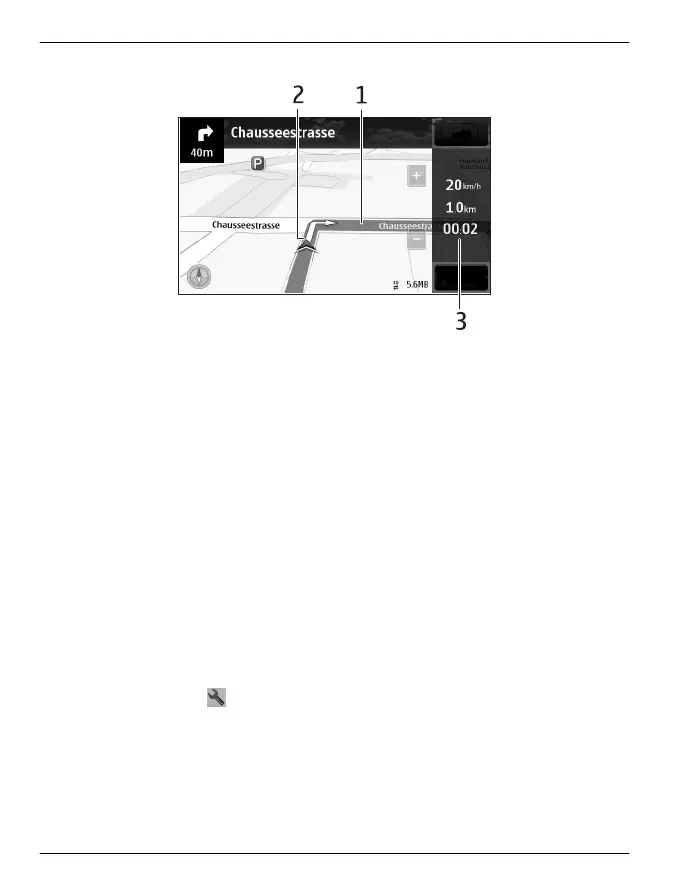
Navigation view
1Route
2 Your location and direction
3 Information bar (speed, distance, time)
Get traffic and safety information
Enhance your driving experience with real-time information about traffic events, lane
assistance, and speed limit warnings, if available for your country or region.
Select Menu > Maps and Drive.
View traffic events on the map
During drive navigation, select Options > Traffic info. The events are displayed as
triangles and lines.
Update traffic information
Select Options > Traffic info > Update traffic info.
When planning a route, you can set the phone to avoid traffic events, such as traffic
jams or roadworks.
Avoid traffic events
In the main view, select
> Navigation > Reroute due to traffic.
Walk to your destination
When you need directions to follow a route on foot, Maps guides you over squares,
and through parks, pedestrian zones, and even shopping centres.
Select Menu > Maps and Walk.
106 Maps
© 2011 Vertu. All rights reserved.















 To Next Page