2 Select (Tap to create entry), or if there are existing entries, tap the area below an
entry.
3 Fill in the fields.
4
To repeat the calendar entry at regular intervals, select
and the time interval.
Select Repeat until, and enter the end date.
5 Select Done.
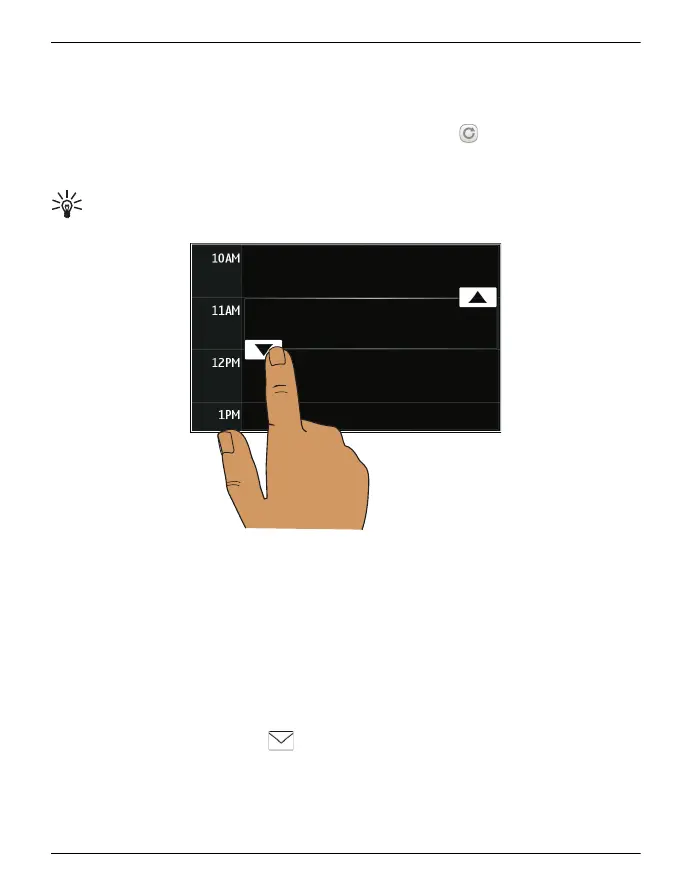
Tip: You can also add a calendar entry in the day view. Select and hold the starting
time, and drag the arrows to set the duration.
Send a meeting request
You can create meeting requests, and send them to the participants.
Before you can create and send a new meeting request, you need to have set up a
mailbox.
Select the Calendar shortcut on the default home screen.
1 Select and hold a calendar entry, and from the pop-up menu, select Send > Via
mail.
2 Add the meeting participants as recipients of the request mail.
3
To send the request, select
.
Calendar 69
© 2011 Vertu. All rights reserved.















 To Next Page