Videos and TV
Videos
About Videos
With the Videos application, you can watch videos on your device.
Using a packet data access point to download a video may involve the transmission
of large amounts of data through your service provider's network. For information about
data transmission charges, contact your service provider.
Play a video
Select Menu > Media > Videos.
Select the video.
Use the video player controls
Tap the screen.
View pictures and videos on a TV
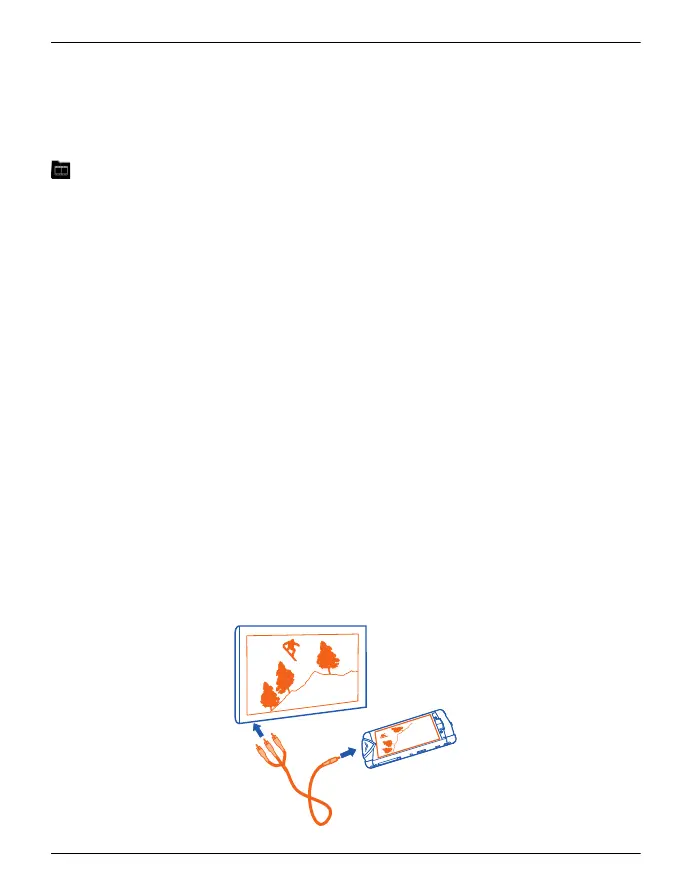
To view your pictures and videos on a TV, you need to use the supplied AV cable
CA-163V to connect your phone to the TV.
1 Connect the AV cable to the video input of a compatible TV. The colours of the
plugs must match the colours of the sockets.
2 Connect the other end of the AV cable to the AV connector of your Vertu
Constellation. You may need to select TV-Out cable as the USB mode.
3 Browse for the file you want to view.
You may need to modify the TV-out settings and aspect ratio. To do this, select Menu >
Settings and Phone > Accessories > TV-Out.
The display from your Vertu Constellation, as well as any sound, is now played through
the connected device.
Videos and TV 91
© 2011 Vertu. All rights reserved.















 To Next Page