Call or send a message to a contact
1 In the widget, select the contact.
2 Select Voice call or Message.
Remove a contact from the home screen
1In the widget, select Remove and the contact to remove.
2 Select OK.
The contact is deleted from the widget, but remains in your contacts list.
Write text
Enter text using Swype™
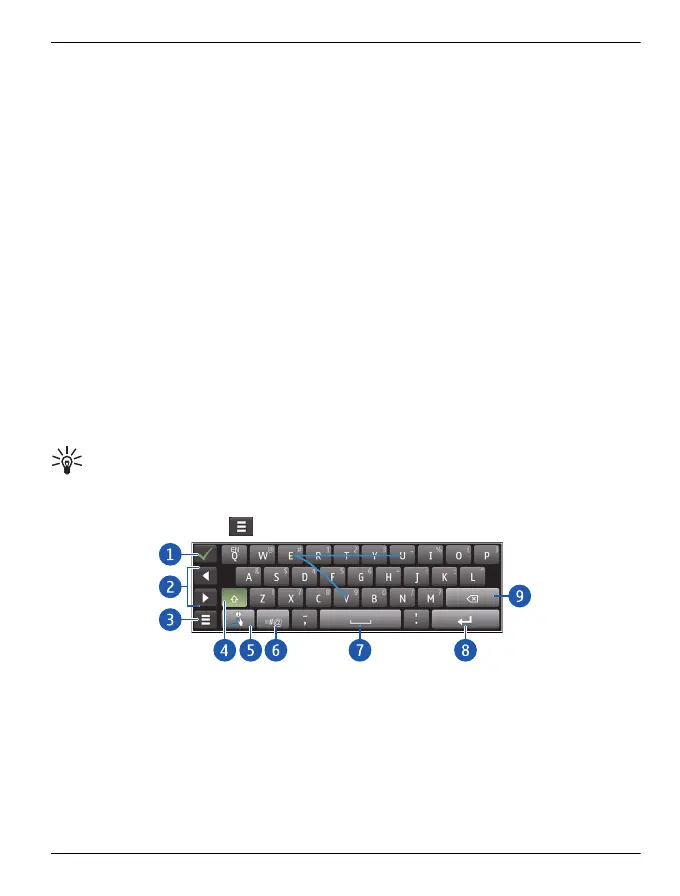
The Swype keyboard is displayed by default whenever typed input is required. It is
displayed in your country's native text input format, for example, QWERTY, in both
portrait and landscape modes.
With Swype, you can enter text quickly and easily, using a single, continuous finger
movement across the keyboard. Simply hold a finger down and slide it through the
letters of each word.
If you do not want to use the Swype movement to enter words, you can still enter text
by tapping the letters on the keyboard.
Tip: Before you start using Swype, select Menu > Settings and Phone >
Swype. You can then modify, as required, the settings for writing language and
predictive text input before you start entering text. On the Swype keyboard, to access
the same settings, select
.
1 Close key - Close the keyboard, entering what you have typed.
2 Arrow keys - Move the cursor left or right.
3 Options key - Cut, copy, or paste text, insert symbols and emoticons, modify text
input settings, and access the Swype user guide.
4 Shift and caps lock key - To enter an upper case character when writing in lower
case, or vice versa, select the key, and then select the desired character. To
activate caps lock, select the key twice.
Home screen 37
© 2011 Vertu. All rights reserved.















 To Next Page