Activate or deactivate predictive text input with the standard keyboard
Select
> Input options > Activate prediction or Deactivate prediction.
Modify the text input settings for the Swype keyboard
Select
> Settings.
Modify the text input settings for the standard keyboard
Select
> Input options > Settings.
Enter text with the virtual keypad
Use the virtual keypad
If you prefer to use the alphanumeric keypad when writing in portrait mode, you can
switch from the virtual keyboard to the virtual keypad.
1 Select a text input field.
2
Select
> Alphanumeric keypad.
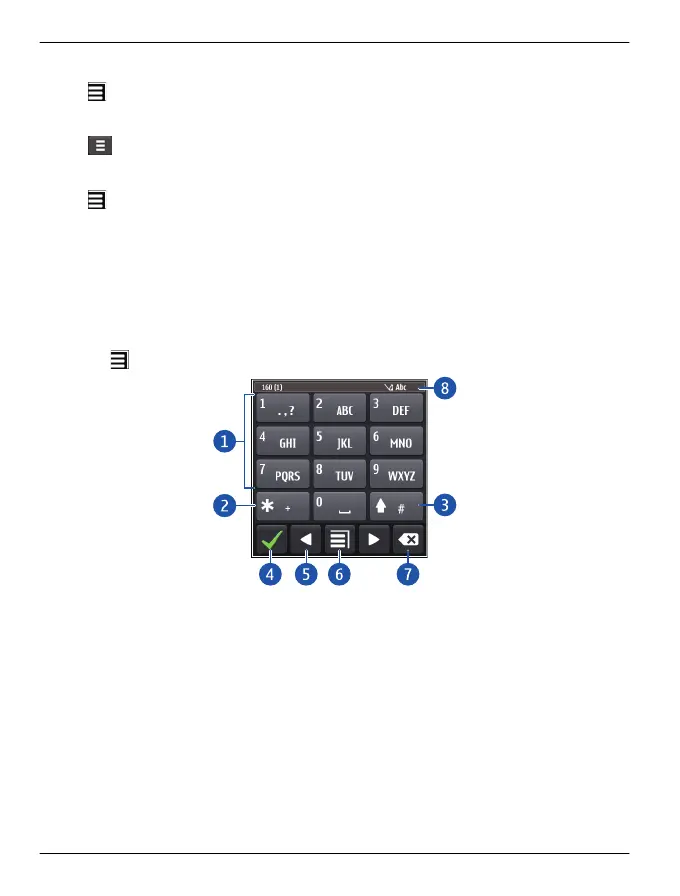
1Number keys
2 * - Enter a special character, or when predictive text input mode is activated and
the word underlined, cycle through the word candidates.
3 Shift key - Change the character case. To activate or deactivate predictive text
input mode, quickly select the key twice. To switch between the letter and number
modes, select and hold the key.
4 Close key - Close the virtual keypad.
5 Arrow keys - Move the cursor left or right.
6 Input menu - Activate predictive text input, change the writing language, or switch
to the virtual keyboard.
7 Backspace key - Delete a character.
40 Home screen
© 2011 Vertu. All rights reserved.















 To Next Page