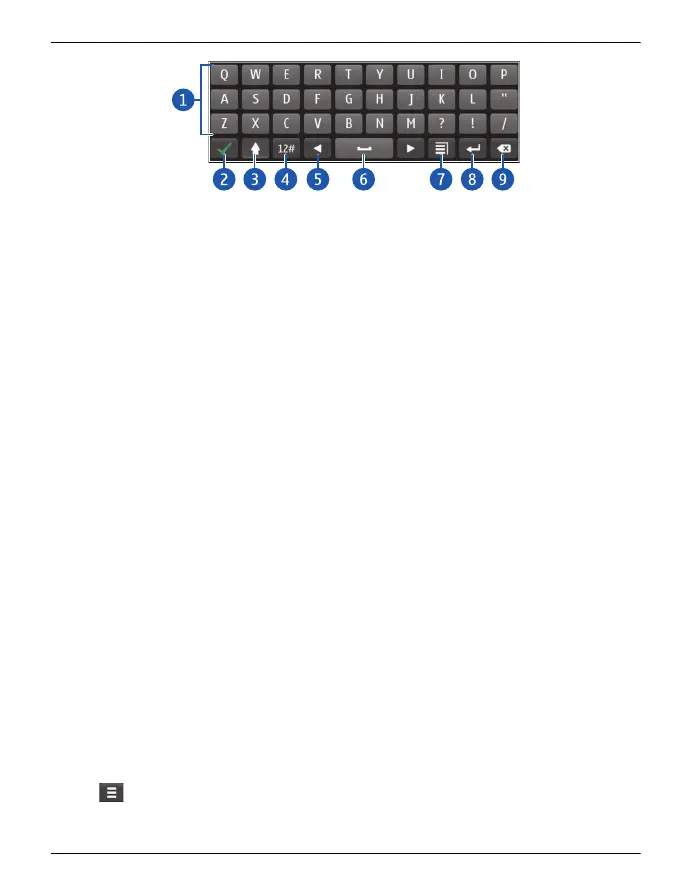
1Virtual keyboard
2 Close key - Close the keyboard, entering what you have typed.
3 Shift and caps lock key - To enter an upper case character when writing in lower
case, or vice versa, select the key before entering the character. To activate caps
lock mode, select the key twice.
4 Character format key - Switch between numeric and text input formats.
5 Arrow keys - Move the cursor left or right.
6 Space bar - Insert a space.
7 Options key - Cut, copy, or paste text, insert symbols and emoticons, and modify
text input settings.
8 Enter key - Move the cursor to the next row or text input field. Additional functions
are based on the current context. For example, in the web address field of the web
browser, it acts as the Go icon.
9 Backspace key - Delete a character.
Add an accent to a character
Select and hold the character.
Activate predictive text input with the virtual keyboard
Predictive text input is based on a built-in dictionary to which you can add new words.
It is not available in all languages, and is deactivated by default.
When predictive text input is activated, start writing a word, and your phone suggests
possible words as you write. When the correct word is displayed, select the word. If
the word is not in the dictionary, the phone suggests an alternative word from the
dictionary. To add the new word to the dictionary, select the word you have written.
Predictive text input only applies to text that you enter by tapping the keys. When you
use Swype, and there is any doubt over a word, you are automatically offered
alternatives from the dictionary for the selected language.
Activate or deactivate predictive text input with the Swype keyboard
Select
> Settings > Word prediction > Yes or No.
To return to the keyboard, select Back.
Home screen 39
© 2011 Vertu. All rights reserved.















 To Next Page