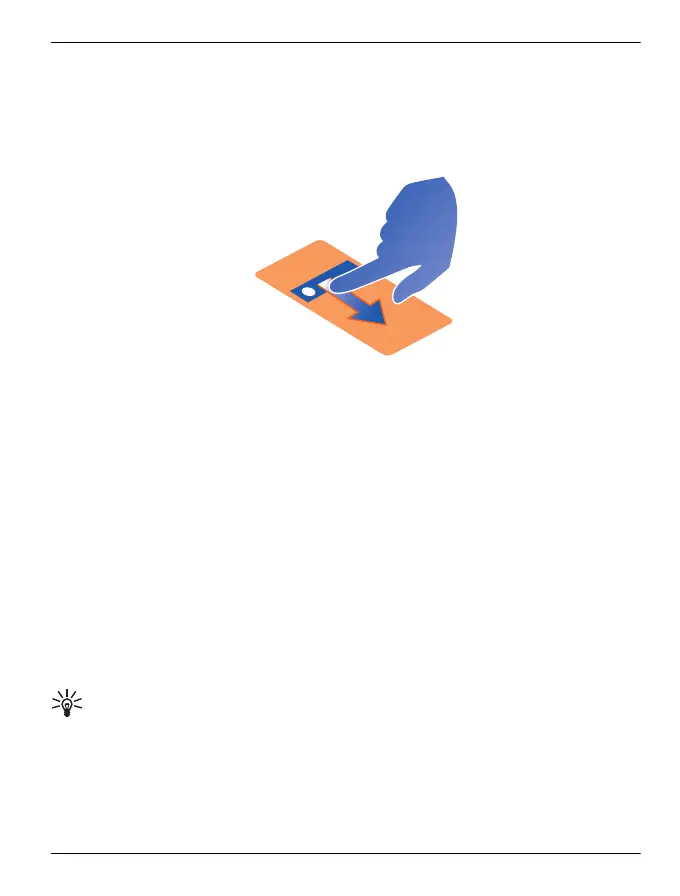
You can add widgets directly to any of the customisable home screens.
Rearrange the items on the current home screen
1 On the current home screen, select Options > Edit Home screen. The + icon
above the menu key indicates that Edit mode is active.
2 To rearrange the widgets, drag and drop them as required.
3 Select Done.
Work with widgets
Add a widget to a home screen
1 Move to the customisable home screen to which the widget is to be added.
2 Select Options > Edit Home screen. The + icon above the menu key indicates
that Edit mode is active.
3 To add a widget, select the + icon.
4 Select the required widget, which is added to the screen. If there is not enough
room, you are asked to remove some existing widgets.
To add an application from Ovi Store, select the Store icon directly above the menu
key.
All added applications appear in the application quick launch widget on the second
home screen to the right of the default home screen. Within this application, there
are tabs for the most recently used and the most recently installed applications.
5 Select Done.
Tip: To add your most frequently used contacts to one of the customisable home
screens, add the Favourites widget. Swipe left or right to access any contacts that are
not immediately visible in the widget.
Remove a widget
1 Make sure that Edit mode is active.
2 Select the widget, and from the pop-up menu, select Remove.
Home screen 35
© 2011 Vertu. All rights reserved.















 To Next Page