Document: LT0732 QE20 Fibre Networking User Manual
Issue 1.0 24 May 2023 Page 3-21
• On the PC terminal type config followed by the Enter key, and then enter the
values in the table below to assign the required IP settings to the PIB.
Prevent PIB from acting
Enter IP
Assigned IP address (e.g.,
10.0.1.1 for SID 1) Enter
All other configuration of the PIB can make use of the internal Web server – as
described in the following section.
3.1.19 Configure PIB Using Built-In Web Server
• Enable the DHCP Server function on the PIB by fitting J13 “DHCP
SERVER/TAMPER”. Note at most one device (PIB, Moxa switch, ATA) on the
QE20 network should have the DHCP Server function enabled.
• Using an RJ45 cable connect the PC’s Ethernet port to the PIB’s Ethernet port
or to a spare port on a Moxa Switch on the network, if the PIB is connected to
the Moxa switch or ring.
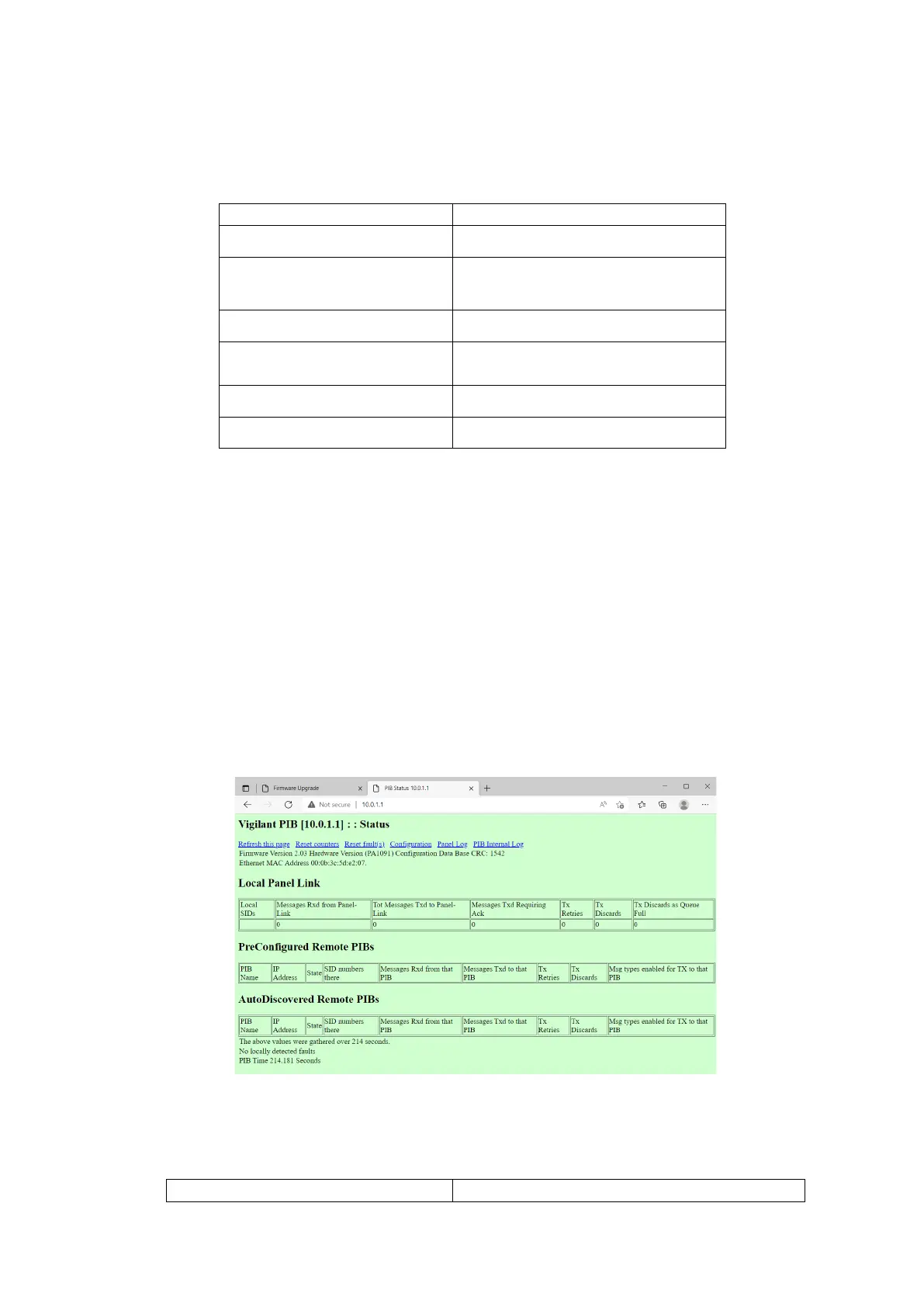
• On the host PC, open a web browser and browse to the PIB’s web server.
E.g., type ‘http://10.0.1.1’ (using the assigned IP address for the PIB) into the
address box of the browser and press Enter. The PIB web page should open.
Enter the programmed password if requested.
PIB Status Web Page
• Click on the ‘Configuration’ link at the top of the page to go to the
configuration page and then enter the settings in the table below.



 To Next Page