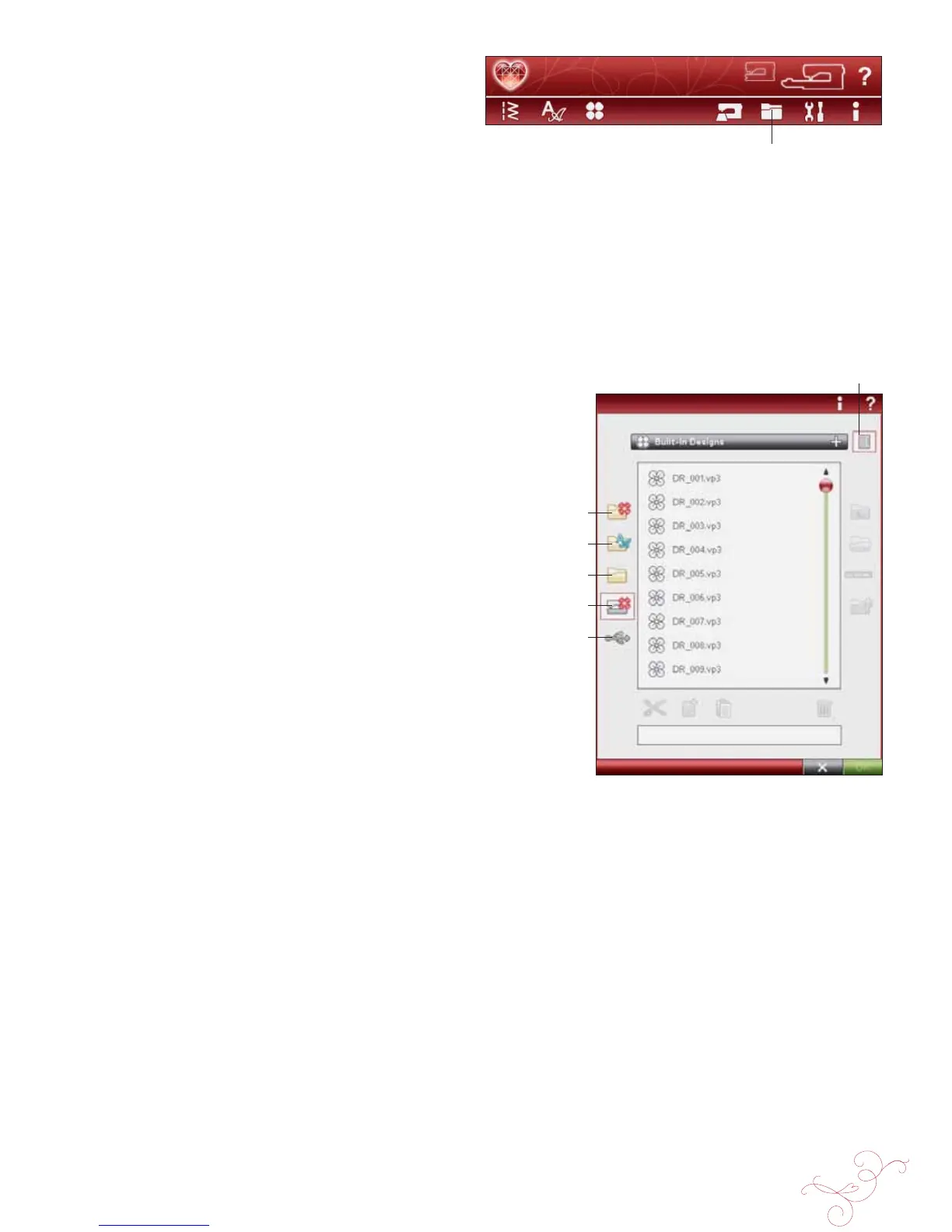
FILE MANAGER 9:3
List view
File Manager
My Files
My Fonts
My Designs
Built-in Designs
External Devices
BROWSE FILE MANAGER
To open File Manager, touch the File Manager icon on the
extended toolbar.
Within the built-in memory there are four folders: My
Designs, My Fonts, My Files and Built in Designs. You can
also explore external devices connected to the USB ports.
The external device folder icon is only available when a
device is connected to the machine.
Touch any of these icons to display their contents in the
selection area. The path of the open folder is written in the
drop down menu. Design À les and embroidery font À les are
displayed as thumbnail images or with an icon.
LIST VIEW
Touch the List View icon to show the À les in the current
folder listed in alphabetical order. For each À le, À le name
and type will be displayed. Touch the List View icon again
to switch back to thumbnail/icon view.
MY DESIGNS
Store design À les in My Designs. You cannot create folders
in My Designs folder. You can reach Designs menu from
the Extended toolbar and My Designs in File Manager.
If you want to open several designs at one time, click on
the ones you want to open. Touch & Hold on the last one.
All the designs will open in Embroidery Edit.
MY FONTS
Store embroidery font À les in My Fonts. You can reach the
fonts from the Extended toolbar and the My Fonts in File
Manager. You cannot create folders in the My Fonts folder.
MY FILES
Load My Files with designs, fonts, your customized designs,
stitch programs, text À les or any À le that you want to store.
Create folders to keep your À les organized.
This chapter will discuss how to arrange My Files so that
you can À nd your favorites easily.
BUILT-IN DESIGNS
This folder contains the designs that are stored in the
permanent sewing machine memory. No À les can be added
or removed from this folder, but they can be copied and
pasted in another folder. You can reach Built-in designs
from the Design menu on the Extended toolbar.
If you want to open several designs at one time, click on
the ones you want to open. Touch & Hold on the last one.
All the designs will open in Embroidery Edit.



 To Next Page