SETTINGS & FUNCTIONS 3:3
SET Menu
Information
File Manager
Design Menu
Font Menu
Stitch Menu
EMBROIDERY ADVISOR™
Stitch Menus
Stitch Submenus
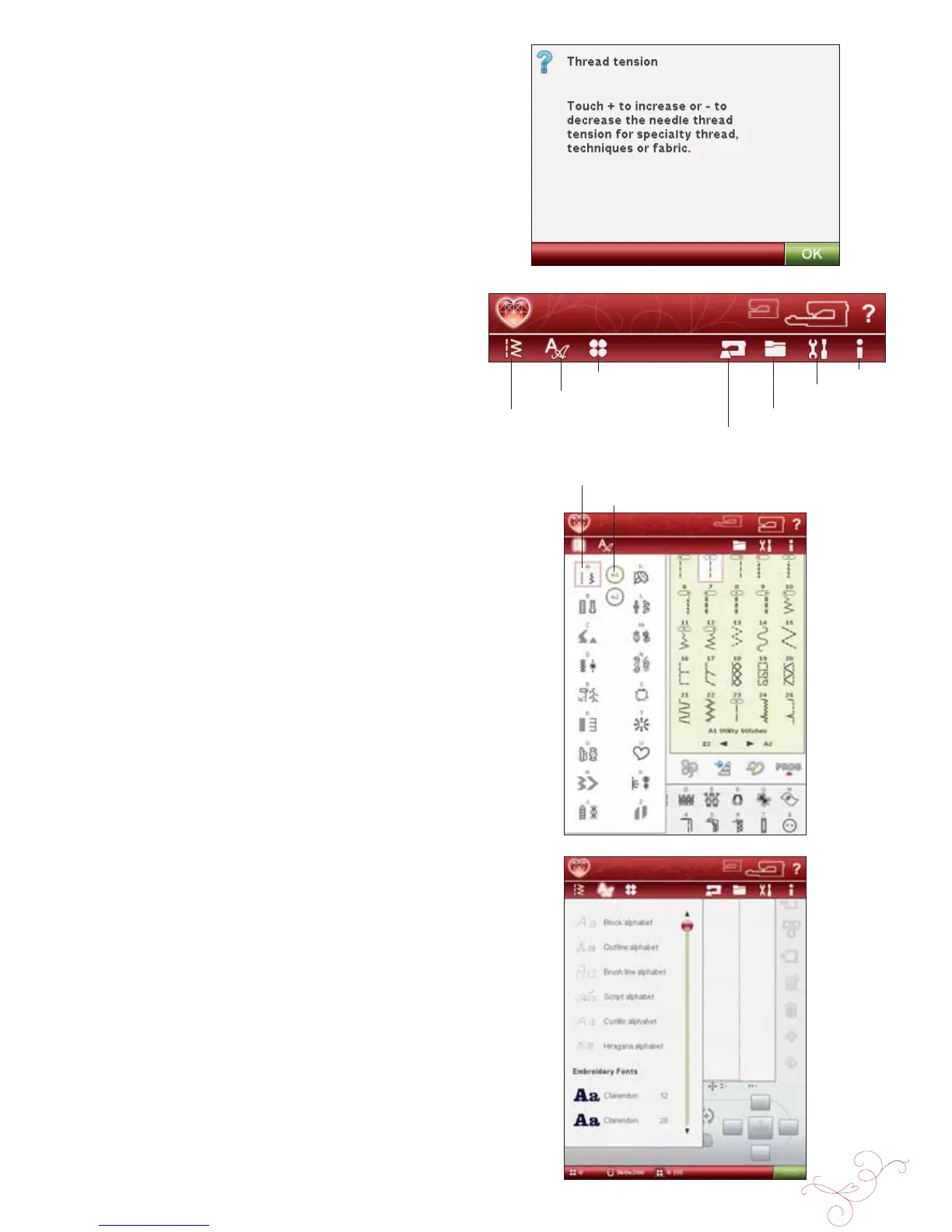
QUICK HELP
Touch the Quick Help icon in the upper right corner of
the screen. The icon Á ashes indicating that Quick Help
is active. Touch the icon and the area on the screen you
want information about. A pop-up message gives a short
explanation. Touch OK to close the pop-up message and
exit Quick Help.
When a USB mouse is connected, it is even easier to use
the built-in Quick Help. Place the cursor over the icon you
wish to know more about and right click on the mouse.
Quick Help will pop-up instantly.
EXTENDED TOOLBAR
Touch the Start Menu icon to open the Extended toolbar.
When the Extended toolbar is open, you can activate the
different functions. Touch the function you want to activate
and make adjustments.
The look of the Extended toolbar will change depending
on whether Sewing Mode or Embroidery Mode is active
(Design Menu and EMBROIDERY ADVISOR™ are only
available in Embroidery Mode).
STITCH MENU
When opening this menu you will À nd several different
stitch menus in the drop down list (see chapter 1 for stitch
descriptions).
HOW TO SELECT A STITCH
To select a stitch, À rst select a stitch menu. For each menu,
there are one or more submenus. A list of stitches is shown
for each submenu. Select a stitch by touching it.
FONT MENU
SELECTING A FONT
Press the Font Menu icon and the Font Menu drop down
list will appear. Both stitch fonts and embroidery fonts are
visible in Embroidery Mode. Select a font by touching it.
Use the scroll bar to see additional fonts.
When an embroidery font is selected, the Embroidery Text
Editor will open automatically. You can select different
sizes for each font.
When a stitch font is selected, you will automatically enter
the Program mode.
Note: Embroidery fonts are only visible if the Embroidery Mode is
active.



 To Next Page