Operating instructions, Quick installation
1:Measurem. Unit
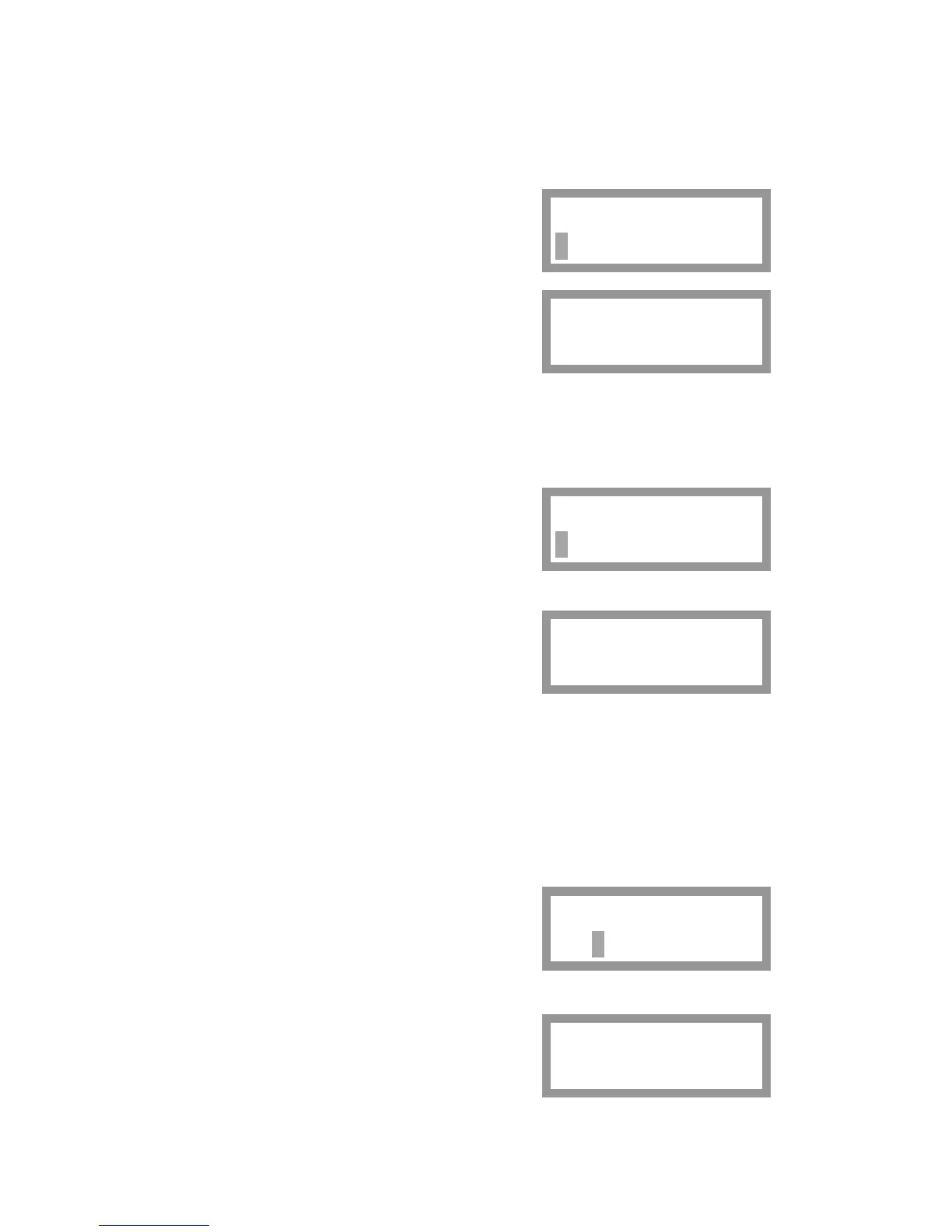
If this parameter is selected for editing, the actual measurement unit appears on
the bottom line with a flashing cursor. The measurement unit will be used for
the measured value and for related set-up parameters.
Press key + or – to scroll the alternatives.
Press key ↵ for 1 second to accept
the displayed alternative.
The selected measurement unit is displayed
without cursor.
Now key + or – can be used
to display another parameter.
1:Measurem. Unit
kg
1:Measurem. Unit
kg
1:Resolution
If this parameter is selected for editing, the actual resolution appears on the bottom line
with a flashing cursor. This parameter defines the smallest change in measured value
that will be shown, and the decimal point position for the scale.
0.1 means display of 0.0 – 0.1 – 0.2 – 0.3 etc.
0.2 means display of 0.0 – 0.2 – 0.4 – 0.6 etc
0.5 means display of 0.0 – 0.5 – 1.0 etc.
Press key + or – to scroll the alternatives.
Press key ↵ for 1 second to accept the displayed
alternative. The selected resolution alternative is
displayed without cursor.
1:Resolution
0.1
1:Resolution
0.1
Now key + or – can be used to display another parameter.
1:Capacity
If this parameter is selected for editing, the actual capacity with leading zeros appears
on the bottom line with a flashing cursor.
This parameter defines the nominal range for the scale. The value of ‘Capacity’ is
shown with measurement unit and decimal point position according to the settings
above.
Use key ↵ to position the cursor on a digit to edit.
Then use key + or – to edit the value of the digit,
and accept each digit by key ↵ .
Press key ↵ for 1 second to accept
the edited value for Capacity.
The edited value of capacity is displayed
without cursor.
Now key + or – can be used
to display another parameter.
1:Capacity
000300.0 kg
1:Capacity
300.0 kg
26


 To Next Page