60
Start-up
Start-up
9 Start-up
9.1 Starting the Diagnostic Software
– Start the OptiTire Diagnostic Software.
– Switch on ignition. Ensure power supply of trailer if necessary.
– Choose whether a guided selection should take place or the Diagnostic Software should
automatically search for connected ECUs.
Select a "Trailer Train Conguration" only if at least 2 trailers are operated coupled behind
each other.
Use a system for simultaneous operation of a tractor and a trailer.
9.2 Parameter setting
9.2.1 Reading in a parameter set
– If you want to enter parameters directly, click:
9.2.2 Selection/entry of parameter data
– If you want to carry out a complete start-up, click on:
Ö The Parameters window is opened.
– Select whether the Module reception should be displayed or an Assignment test should be carried
out.
– Click Start to start the parameter setting.
– Select an existing parameter le (.ecu) if you want to use previously congured vehicles as a
template, or click Cancel to skip this option.
"Vehicleconguration"tab
– Enter the respective vehicle type and vehicle data.
– Select the vehicle conguration to use under Systemconguration.
If the vehicle is not included under the standard system congurations a spare tire is used with the
internal sensor, select the free Systemconguration.
– Dene the type and position of the axles for this free conguration.
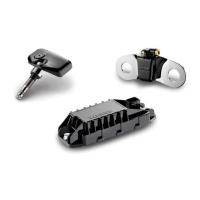
– Select the Sensor type: Internal sensor (WIS - also valid for SMS) or external sensor (WM2).


 To Next Page