Change the orientation of the device
Your device is in landscape orientation by default. You can change the orientation setting in Wacom Center using the
steps below.
1. Open Wacom Center.
2. Select your device in the Devices sidebar.
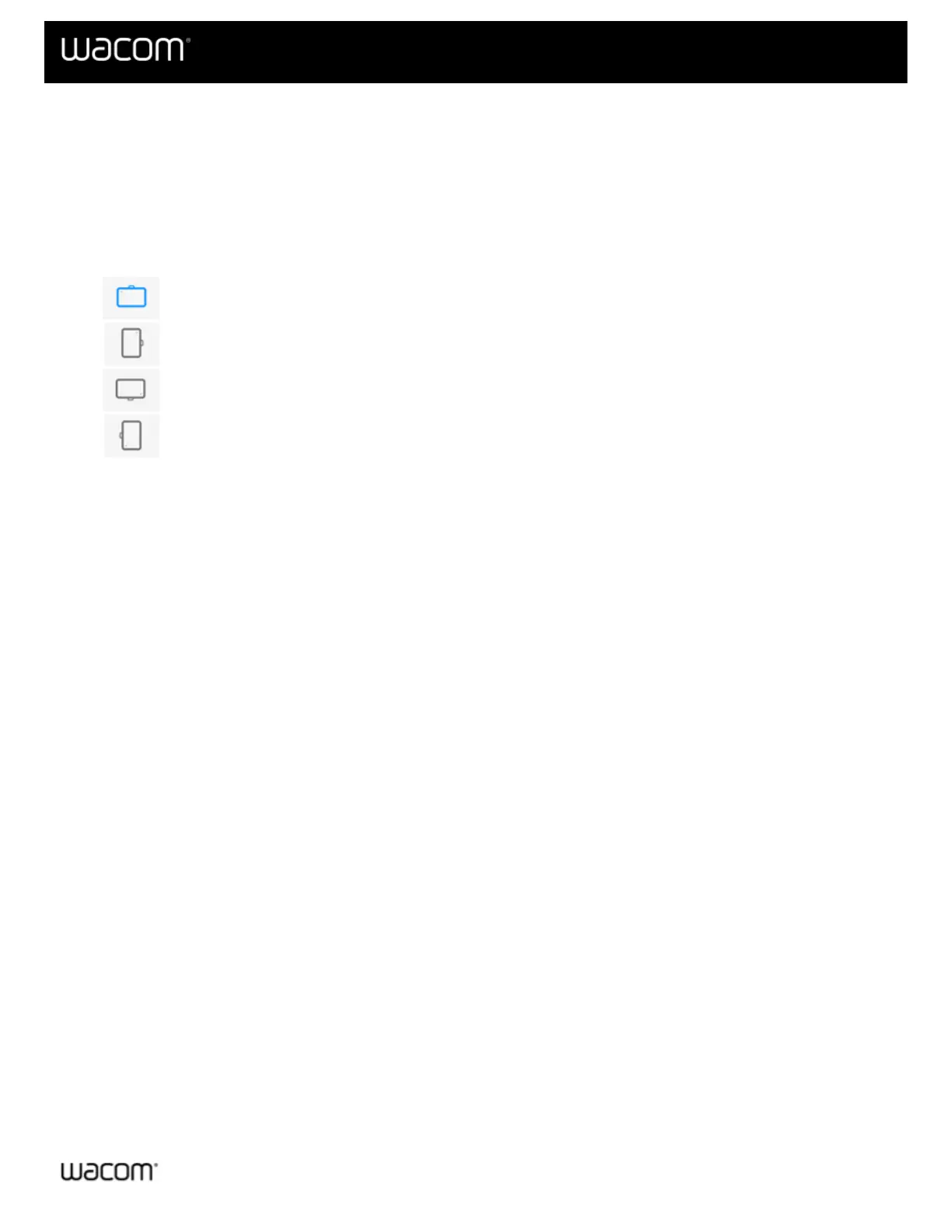
3. To the right of your device in the main content area, select one of the following icons:
Landscape
Portrait
Landscape flipped
Portrait flipped
4. Physically rotate your device so the device is positioned in the same way as the orientation you selected in the
previous step.
| Do not share my information | Cookies | Terms of use | Privacy Policy | California Privacy














 To Next Page