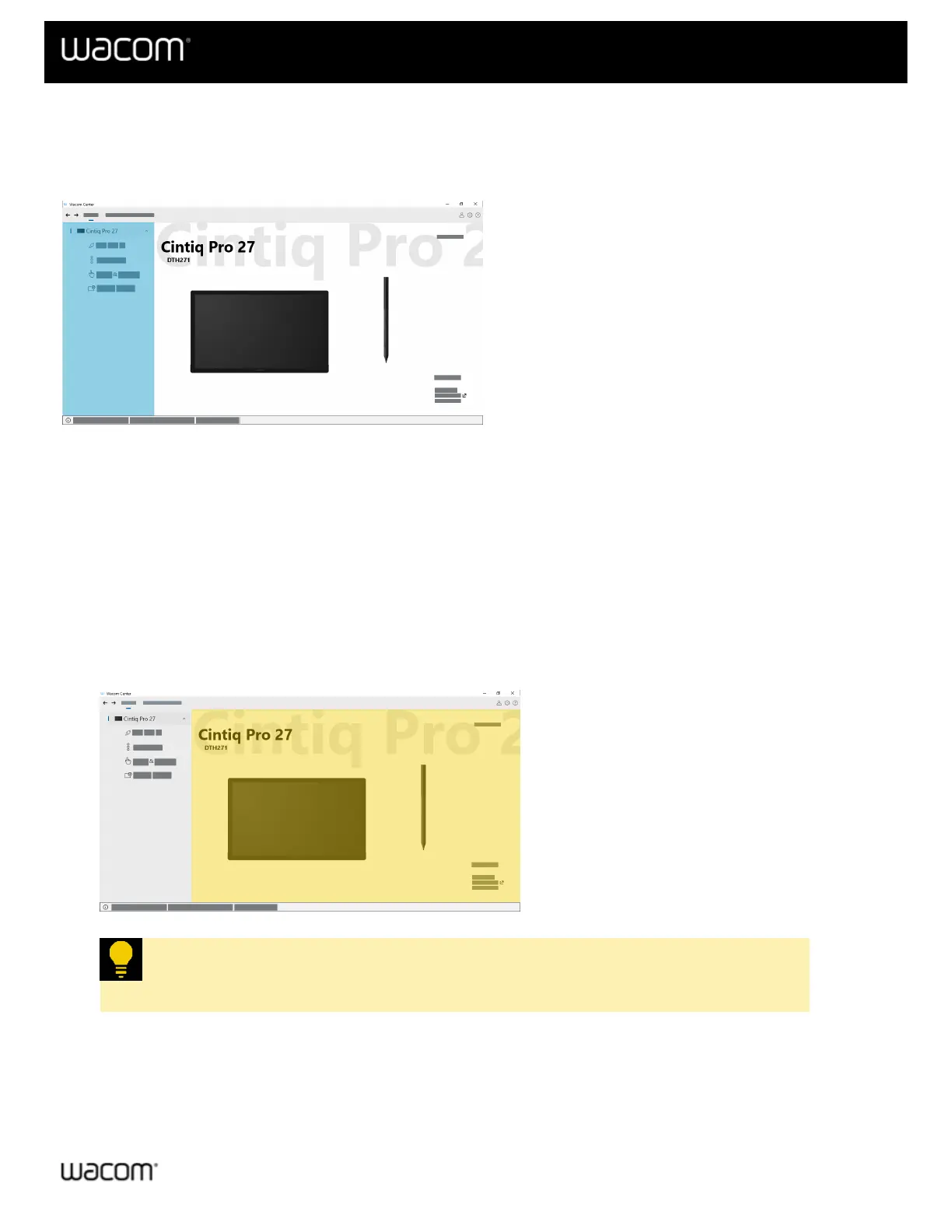
your computer. To add a new device to this list, connect the device to your computer.
For some devices, you can click the drop-down arrow next to the device name in the Devices sidebar to open the
device's customizable components (Pen, ExpressKeys, Touch & gestures, etc.). Click on a component to customize
it in the main content area.
The above screenshot is for illustrative purposes; it may not match your screen.
For other devices, when you select your device in the Devices sidebar, settings links (Pen settings, ExpressKey
settings, etc.) will display in the main content area. Click on a settings link to open it for customizing in Wacom Tablet
Properties.
Main content area
The main content area is located in the center of Wacom Center and is where you can either customize your device
settings (A) or access your device settings (B).
A. Customize your device in the main content area when you select a customizable component (Pen,
ExpressKeys, etc.) in the Devices sidebar. The component and the Application-specific settings feature will
open in the main content area, where you can make all your customizations:
The above screenshot is for illustrative purposes; it may not match your screen.
Tip: Video tutorials that may display at the bottom of the main content area can help
you learn more about your Wacom device.
B. Access your device's settings links (Pen settings, ExpressKey settings, etc.) and Help resources in the main
content area when you select a device name in the Devices sidebar. Click a settings link to open Wacom
Tablet Properties, where you can make all your customizations.














 To Next Page