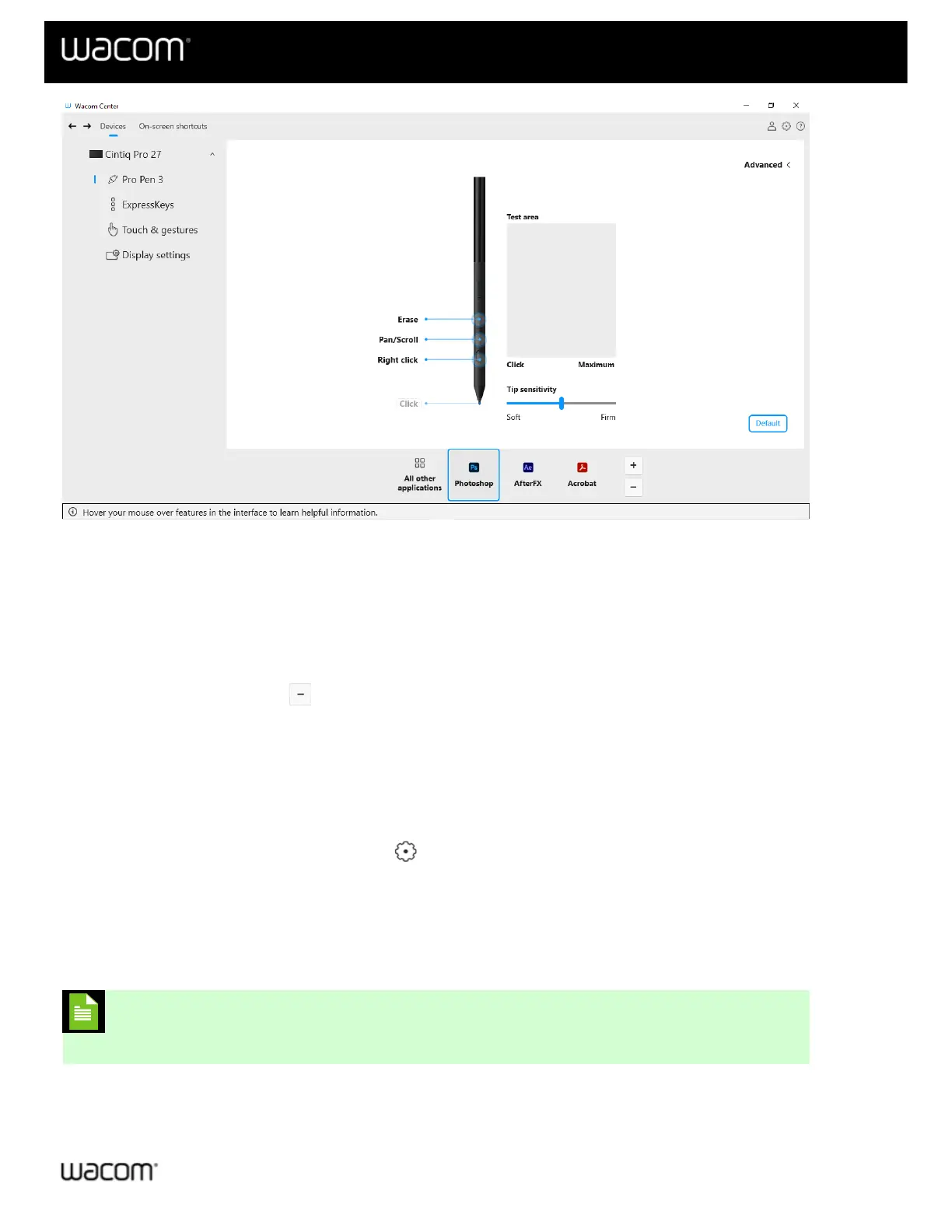
The above screenshot is for descriptive purposes; it may not match your screen.
Remove an Application-specific setting
1. Open Wacom Center.
2. In the Devices sidebar, select the device and then the tool from which you wish to remove the application-
specific setting.
3. Select the application you want to remove from the list of applications at the bottom of the main content area.
4. Click the remove application button.
5. Click Delete to confirm your selection. The selected application is removed from the list, along with any
custom tool settings.
Remove all Application-specific settings from a pen
1. Open Wacom Center.
2. In the navigation bar, click the Global settings icon.
3. Select the Devices manager tab, then click Edit next to the pen for which you wish to remove Application-
specific settings.
4. On the Edit your pen screen, click the Forget pen button.
5. Place the pen back on your Wacom device. The pen will be added back to the Devices sidebar with its factory
default settings.
Note: If two programs have the same executable file name, they will share the same
customized settings.
| Do not share my information | Cookies | Terms of use | Privacy Policy | California Privacy














 To Next Page