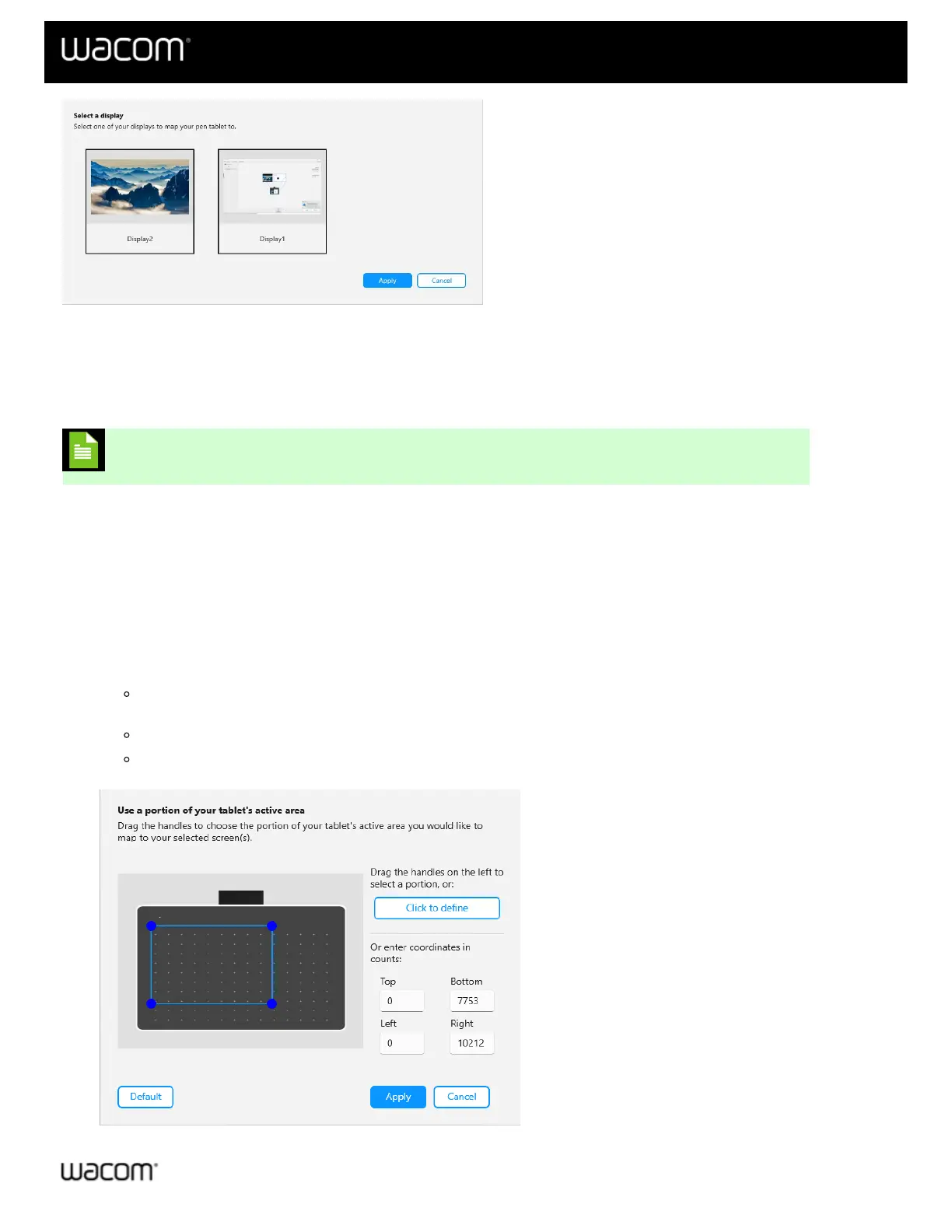
The above screenshot is for descriptive purposes; it may not match your screen.
Use a portion of your device's active area
You can specify a custom active area of your device. This might be useful if you want a smaller pen stroke to
correlate to a larger movement on your computer's display, for example.
Note: These instructions are recommended for advanced Wacom device users.
1. Open Wacom Center.
2. Select your device in the Devices sidebar.
3. Select Mapping and then click Advanced.
4. Turn the Show advanced options toggle "On" and make sure Pen mode is selected.
5. Close Advanced settings.
6. In Mapping settings, choose "Use custom area..." under Tablet area.
7. On the Use a portion of your tablet's active area screen, use any of the following methods to change your
device mapping settings:
Use the drag handles to drag the corners of the blue border to define the screen area that you want to
map to.
Select Click to define and use your cursor to select the screen area that you want to map to.
Enter the Top, Bottom, Left, and Right coordinates in pixels.
The above screenshot is for descriptive purposes; it may not match your screen.














 To Next Page