Note: These instructions apply to multiple display setups only. These instructions are
recommended for advanced Wacom device users.
1. Open Wacom Center.
2. Select your device in the Devices sidebar.
3. Select Mapping and then click Advanced.
4. Turn the Show advanced options toggle "On" and make sure Pen mode is selected.
5. Close the Advanced settings.
6. In Mapping settings, choose "Select portion..." under Display mapping.
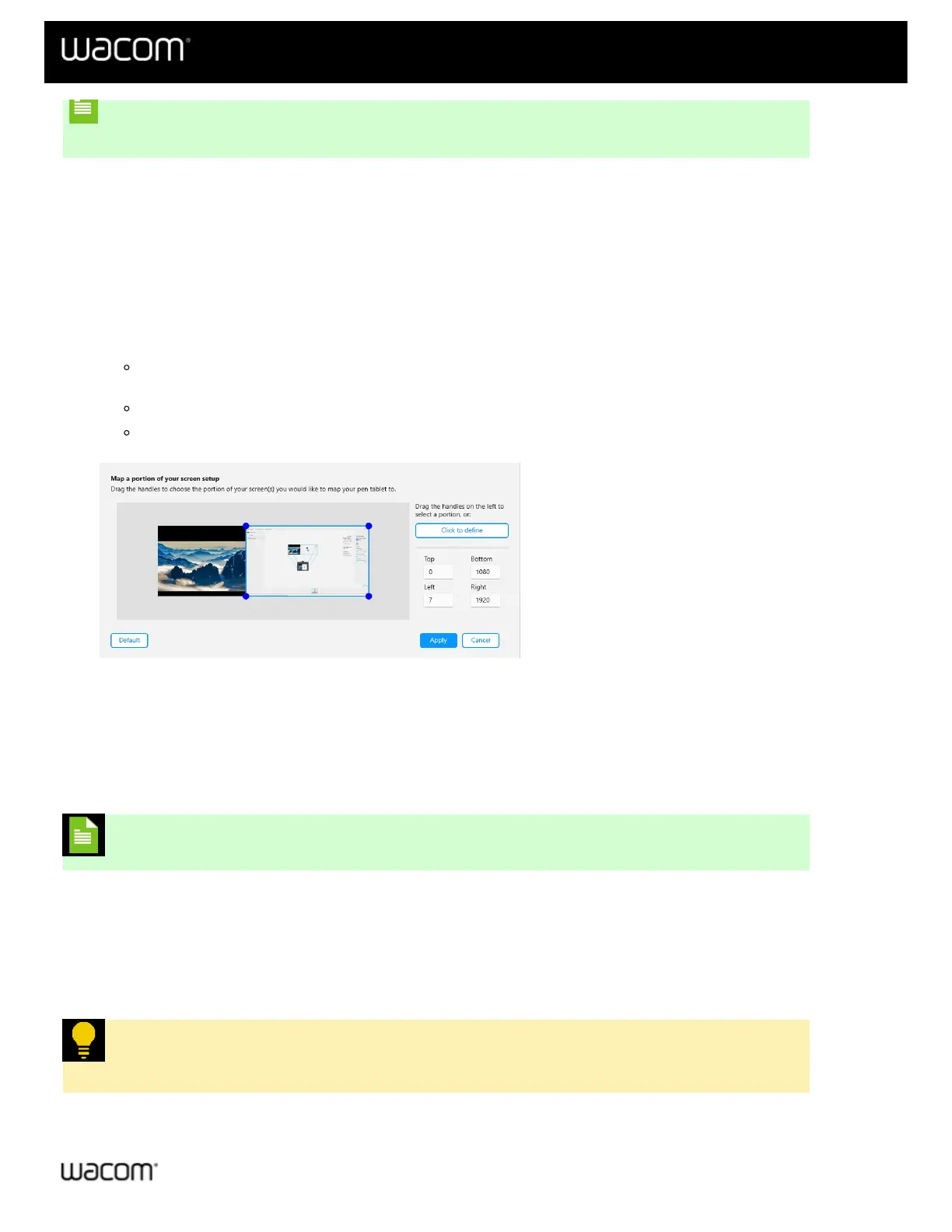
7. In the Map a portion of your screen setup window, use any of the following methods to map your device to
a portion of your screen displays:
Use the drag handles to drag the corners of the blue border to define the screen area that you want to
map to.
Select Click to define and use your cursor to select the screen area that you want to map to.
Enter the Top, Bottom, Left, and Right coordinates in pixels.
The above screenshot is for descriptive purposes; it may not match your screen.
Map your device to one of multiple displays
If you have multiple displays, your Wacom device will be mapped to all of the displays by default. If you wish to map
your device to a single one of the displays, follow the instructions below.
Note: These instructions apply to multiple display setups only.
1. Open Wacom Center.
2. Select your device from the Devices sidebar.
3. Select Mapping.
4. Under Display mapping, choose "Select one display".
5. On the Select a display screen, select the display screen you wish to map to and click Apply.
Tip: You can use Display toggle to toggle between working on an individual display to
working on all of your displays at once.














 To Next Page