Force proportions
The Force proportions setting affects how drawing on your Wacom device appears on your display screen. It can
also affect the device's active area. Force proportions is "Off" by default.
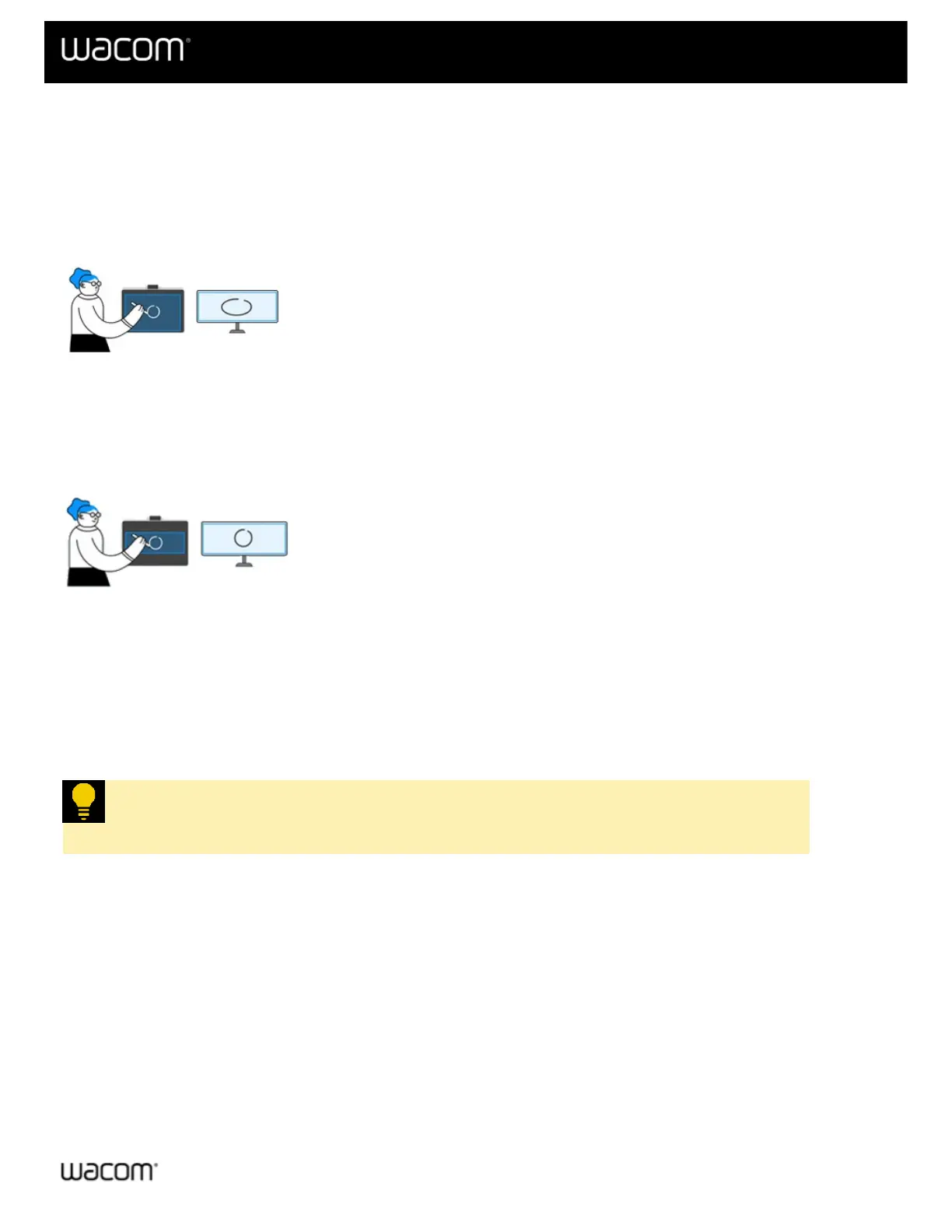
If the drawing area on your Wacom device has a different format than your display screen, it may make your
drawings look distorted and different than what you are drawing with your pen (Figure 1).
Figure 1
To prevent this, you can turn Force proportions "On". This will then use a proportional area of your Wacom device,
making what you draw with your pen look the same on your display.
However, depending on your display screen layout, this may leave a portion of your Wacom device inactive, as
illustrated in the image on the left in Figure 2.
Figure 2
Turn Force proportions "On"
1. Open Wacom Center.
2. Select your device from the Devices sidebar.
3. Select Mapping.
4. In Mapping settings, turn Force proportions to "On".
Tip: You can turn Force Proportions on and off and watch the blue borders of the image in
Mapping settings to see how it affects the mapping on your device.
| Do not share my information | Cookies | Terms of use | Privacy Policy | California Privacy














 To Next Page