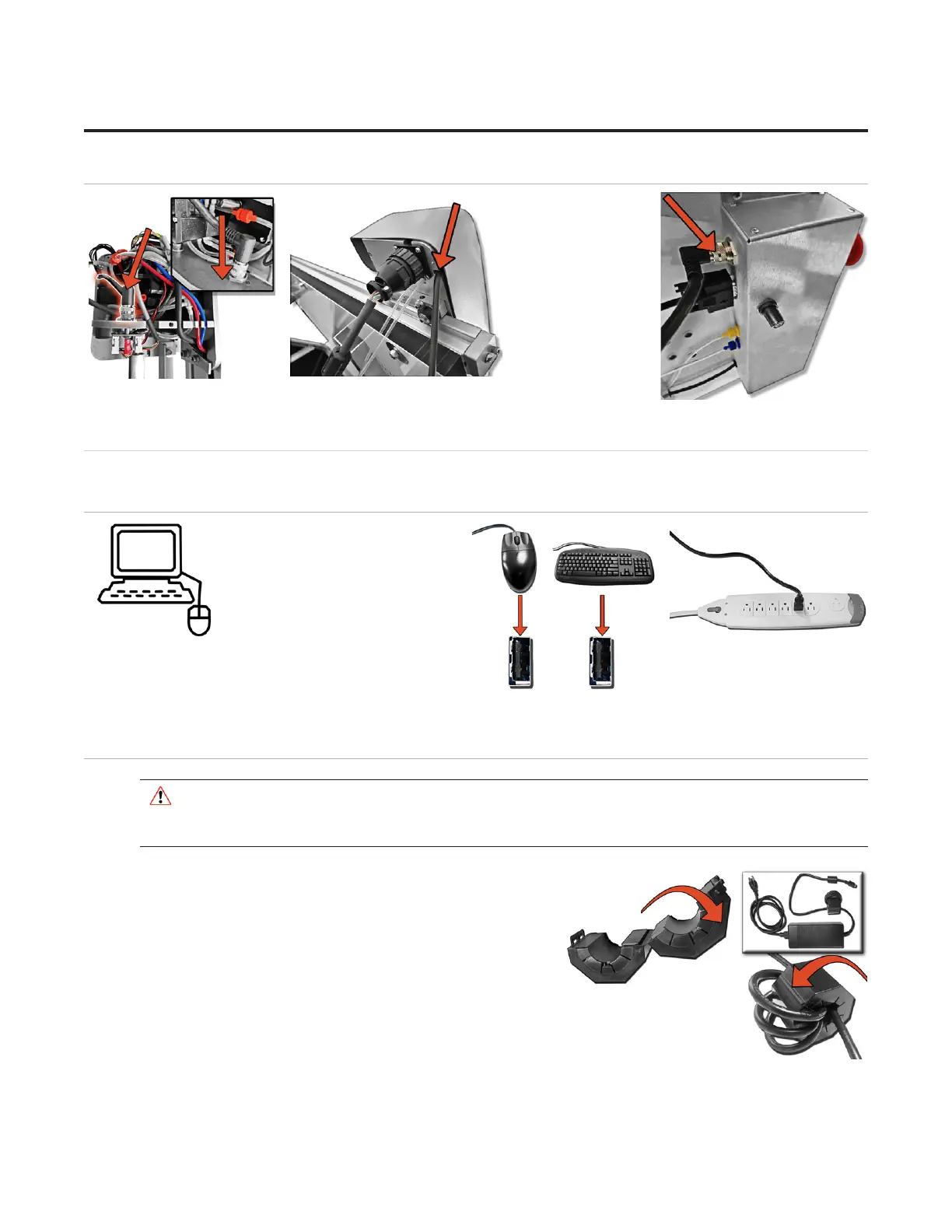
Attach the M12 Cable to the Control Panel
1. Locate the 1. Locate the
M12 cable that is M12 cable that is
plugged into the plugged into the
back plate of the back plate of the
top of the gantry. top of the gantry.
2. Plug the other 2. Plug the other
end of the M12 end of the M12
cable into the M12 cable into the M12
port located on the port located on the
Control Panel on Control Panel on
the back of the board, twisting the thumbscrew to connect it.the back of the board, twisting the thumbscrew to connect it.
Connect the Computer and ECU
Hook up Computer and Peripherals
1. Place the computer on the 1. Place the computer on the
computer stand.computer stand.
2. Hook up the keyboard and 2. Hook up the keyboard and
mouse by plugging their USB mouse by plugging their USB
cables into the computer. cables into the computer.
Some of the USB connections Some of the USB connections
are in the back, and some are are in the back, and some are
available along the side.available along the side.
3. Plug in the computer power cord into the 3. Plug in the computer power cord into the
matching port on the computer, then plug the power cord from the computer into a surge protector. matching port on the computer, then plug the power cord from the computer into a surge protector.
Connect the ECU
* WARNING: High voltage. No user serviceable parts inside
the ECU.*
1. Locate the Ferrite tube, which looks like a black doughnut and 1. Locate the Ferrite tube, which looks like a black doughnut and
open it. Wind the ECU power supply output cable around the open it. Wind the ECU power supply output cable around the
inside of the Ferrite three times, then close it shut.inside of the Ferrite three times, then close it shut.
12
Wizard™ International, Inc., 4600 116th St. SW, Mukilteo, WA 98275 888/855-3335 Wizard™ International, Inc., 4600 116th St. SW, Mukilteo, WA 98275 888/855-3335 wizardcutters.comwizardcutters.com
20-36070-1 GettingStartedManualZ1-70FrameShop
04/03/24
Wizard™ CMC Model Z1 Hardware and Software Getting Started Guide



 To Next Page