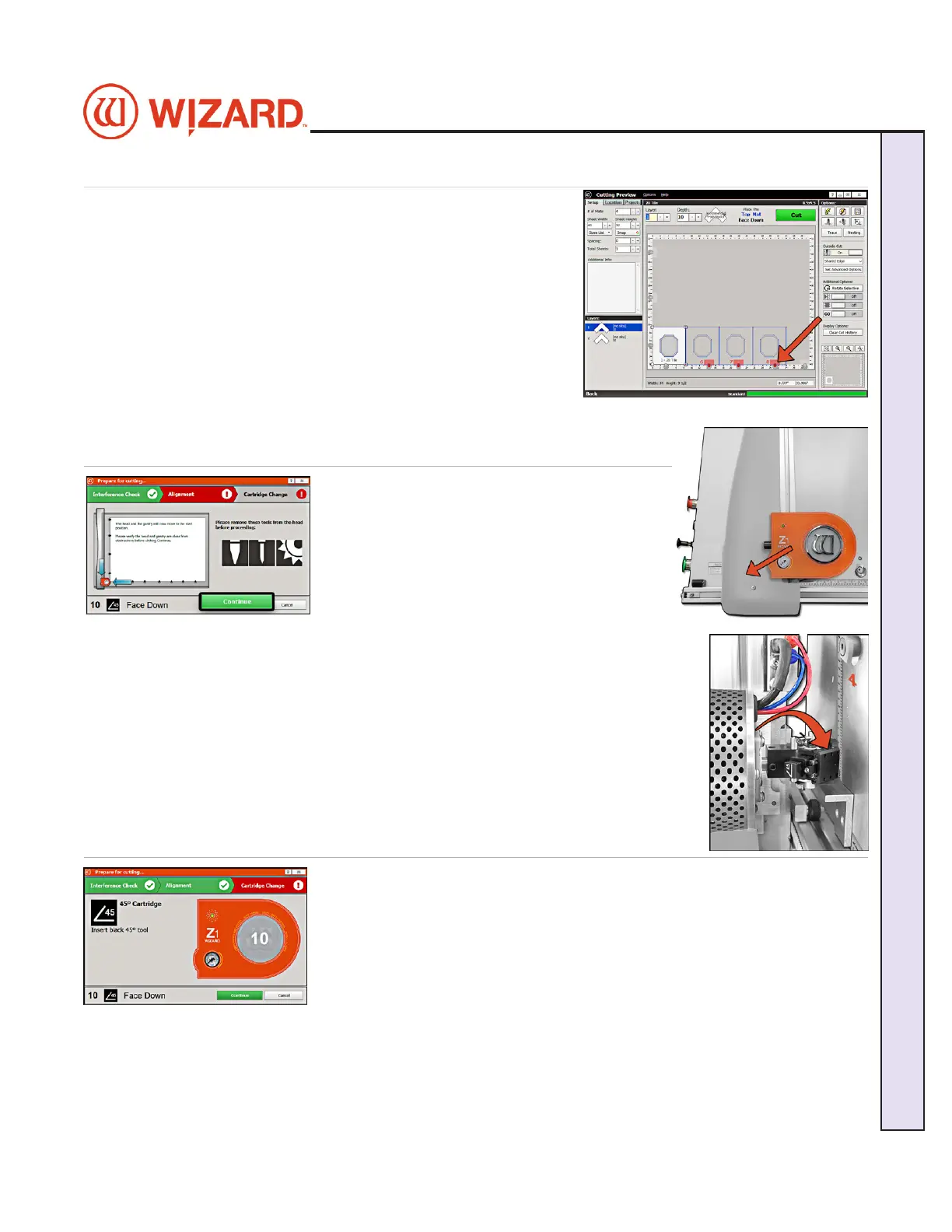
Prepare to Cut
Interference Check
1. The CMC will do an interference check to see if any of the 1. The CMC will do an interference check to see if any of the
clamps are in the way of the current cut sequence.clamps are in the way of the current cut sequence.
2. If you are following these instructions and have entered a 2. If you are following these instructions and have entered a
dierent size mat and there are red indicators showing that any dierent size mat and there are red indicators showing that any
of the clamps are in the way of cutting, the clamps will need to be of the clamps are in the way of cutting, the clamps will need to be
rotated. rotated. See “Adjusting the SmartClamps™ for Zero Waste” See “Adjusting the SmartClamps™ for Zero Waste”
on page 22on page 22..
3. It will do an interference check to see if any of the clamps are in 3. It will do an interference check to see if any of the clamps are in
the way. If the interference check passes, it continues to the the way. If the interference check passes, it continues to the
Alignment screen.Alignment screen.
Homing and Alignment
1. On the Alignment screen, make sure that 1. On the Alignment screen, make sure that
the Pen, Vinyl and Creasing tools are not in the the Pen, Vinyl and Creasing tools are not in the
footblock. footblock.
2. Click 2. Click ContinueContinue on the Alignment screen. on the Alignment screen.
3. The machine will now automatically home 3. The machine will now automatically home
itself and align the cutting head. This means itself and align the cutting head. This means
that, regardless of their starting position, the that, regardless of their starting position, the
Head and Gantry will move to the left side of the Head and Gantry will move to the left side of the
board and the head will move down until the Footblock rests against the Head board and the head will move down until the Footblock rests against the Head
Alignment Stop.Alignment Stop.
4. The Cutting Head is now aligned in the Home position and is ready to cut. Once 4. The Cutting Head is now aligned in the Home position and is ready to cut. Once
the Cutting Head is homed and aligned, the software will proceed to the Cartridge the Cutting Head is homed and aligned, the software will proceed to the Cartridge
Change screen.Change screen.
5. If you had clicked the 5. If you had clicked the Align the HeadAlign the Head button, the CMC is now aligned and ready to button, the CMC is now aligned and ready to
cut.cut.
6. If you had clicked the 6. If you had clicked the CutCut button, the CMC will now prompt for the blade cartridge button, the CMC will now prompt for the blade cartridge
and blade depth.and blade depth.
Cartridge Change and Depth Setting
1. Once the cutting head has homed and aligned itself, you will be prompted to 1. Once the cutting head has homed and aligned itself, you will be prompted to
insert the correct Cartridge for the next operation.insert the correct Cartridge for the next operation.
Note: Note: If the same cartridge is needed as the previous operation, you will not If the same cartridge is needed as the previous operation, you will not
need to change the cartridge.need to change the cartridge.
2. You will also be prompted to conrm the depth that will be used for the 2. You will also be prompted to conrm the depth that will be used for the
next operation (cutting, debossing, pen, etc.). The depth is set automatically next operation (cutting, debossing, pen, etc.). The depth is set automatically
according to the blade depth screen setting and the conguration settings. according to the blade depth screen setting and the conguration settings.
3. Once you click 3. Once you click ContinueContinue, the machine will automatically adjust to the new depth setting and begin the , the machine will automatically adjust to the new depth setting and begin the
cutting operation.cutting operation.
20-36070-1 GettingStartedManualZ1-70FrameShop
04/03/24
19
Wizard CMC Model Z1: Hardware and Software Getting Started Manual
Wizard™ CMC Model Z1 Hardware and Software Getting Started Guide



 To Next Page