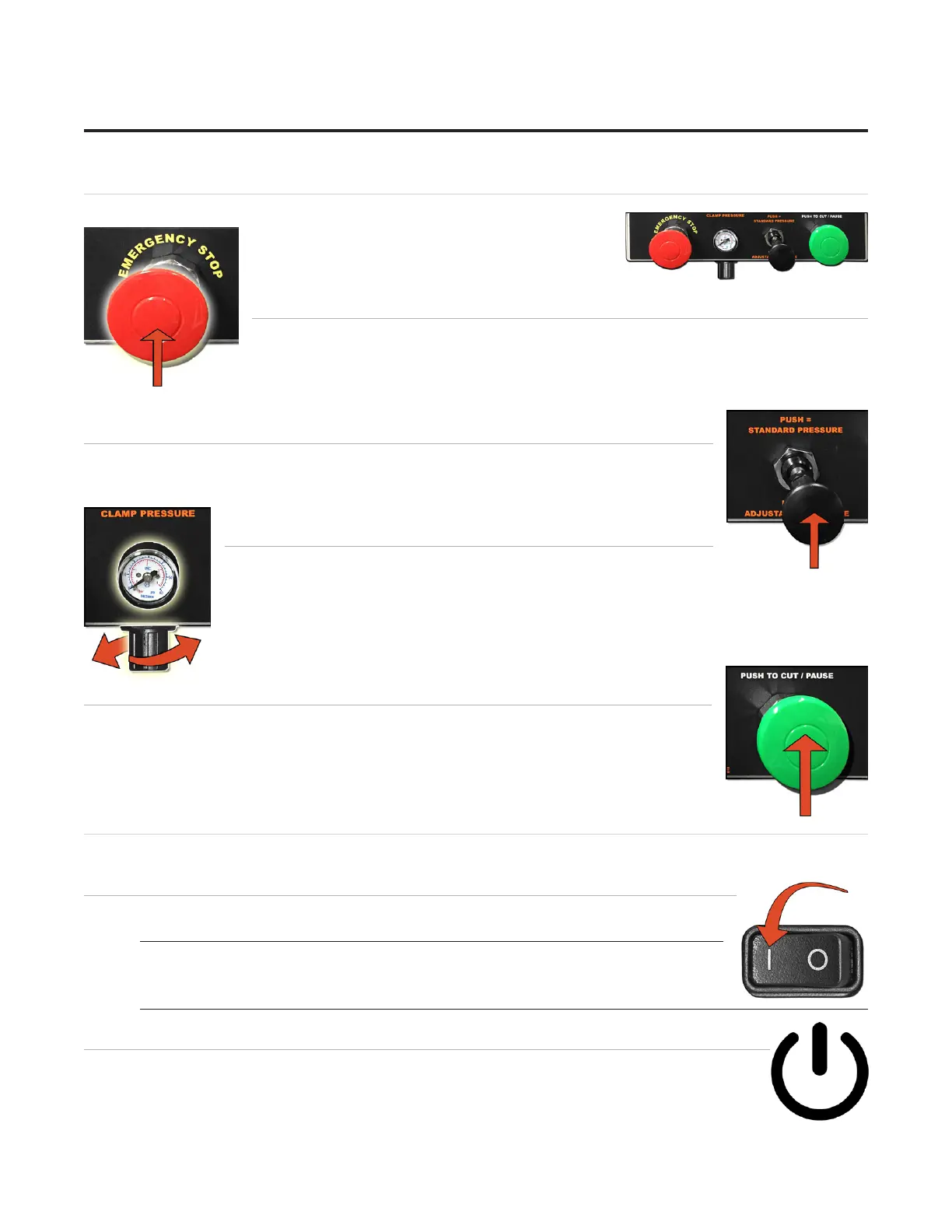
Control Panel
The control panel is located on the left side of the The control panel is located on the left side of the
board, and contains the most commonly used board, and contains the most commonly used
buttons.buttons.
Red Abort Button
Hit the red Stop Button to immediately abort the current cut; the cut will be stopped and Hit the red Stop Button to immediately abort the current cut; the cut will be stopped and
the motors will be disengaged. Pull out the Stop Button to return to cutting. You will be the motors will be disengaged. Pull out the Stop Button to return to cutting. You will be
asked to Align the Head before cutting again. asked to Align the Head before cutting again. See “Homing and Alignment” page 19 See “Homing and Alignment” page 19
for instructions on how to Align the Headfor instructions on how to Align the Head..
Mat SmartClamps™ Pressure Knob
The Mat Clamp Pressure Knob switches between standard and low clamp pressure. The Mat Clamp Pressure Knob switches between standard and low clamp pressure.
Push the knob in to use standard pressure or pull it out to use lower pressure for fragile Push the knob in to use standard pressure or pull it out to use lower pressure for fragile
material such as foamcore.material such as foamcore.
SmartClamps™ Pressure Adjustment
The Clamp Pressure Adjustment is used to adjust the low clamp The Clamp Pressure Adjustment is used to adjust the low clamp
pressure setting. The gauge displays the clamp pressure as it is pressure setting. The gauge displays the clamp pressure as it is
cutting. To adjust the clamp pressure, pause the current cut, then pull out the black pressure cutting. To adjust the clamp pressure, pause the current cut, then pull out the black pressure
knob underneath the control panel and turn it. Turn the knob clockwise to increase the knob underneath the control panel and turn it. Turn the knob clockwise to increase the
pressure adjustment or counter-clockwise to decrease it. Push it back in to set it to this pressure adjustment or counter-clockwise to decrease it. Push it back in to set it to this
pressure.pressure.
Green Cut Button
Push the green Cut button to cut the current design on the Cut Preview Screen. If Push the green Cut button to cut the current design on the Cut Preview Screen. If
required, you will be ask to Align the Head. required, you will be ask to Align the Head. SSee “Prepare to Cut” page 19 for ee “Prepare to Cut” page 19 for
instructions on how to Align the Headinstructions on how to Align the Head. . During cutting, you can also push the green During cutting, you can also push the green
Cut button to pause the cut.Cut button to pause the cut.
Power Up Sequence
Power Up the ECU
Press the Press the || on the rocker switch on the back of the ECU to turn on the ECU. on the rocker switch on the back of the ECU to turn on the ECU.
*The ECU must be on for the CMC to cut. Press | on the
rocker switch to turn it on.*
Power Up the Computer
Turn on the computer. Allow a minute or so for it to power up.Turn on the computer. Allow a minute or so for it to power up.
14
Wizard™ International, Inc., 4600 116th St. SW, Mukilteo, WA 98275 888/855-3335 Wizard™ International, Inc., 4600 116th St. SW, Mukilteo, WA 98275 888/855-3335 wizardcutters.comwizardcutters.com
20-36070-1 GettingStartedManualZ1-70FrameShop
04/03/24
Wizard™ CMC Model Z1 Hardware and Software Getting Started Guide



 To Next Page