6-20 How to Delete a Job from the Jobs Database Rev AB
Wolke m600 touch Operator Manual
6 Update the selected field as required and touch OK.
7 If there is a second field, repeat the steps 4 and 5.
8 Touch OK after editing all the required fields. The job will be updated
in the printer and displayed in the ‘current job details bar’.
Note: When Touch to Edit and Quick Position Edit features are enabled, the
Image Job Queue icon is removed. You need to navigate to Tools > Diagnostics >
Control to access Image Update Queue.
Note: The changes made to the job using this feature are saved.
How to Delete a Job from the Jobs Database
To remove jobs that are no longer required, proceed as follows:
1 Touch the Tools icon on the home page.
2 Touch the Database icon on the tools page to open the database page.
3 Select the required database (internal or external) and touch Edit to go
to the deletion screen (see Figure 6-26). This page contains a list of all
the available print jobs along with details of the space available for the
storage of new jobs.
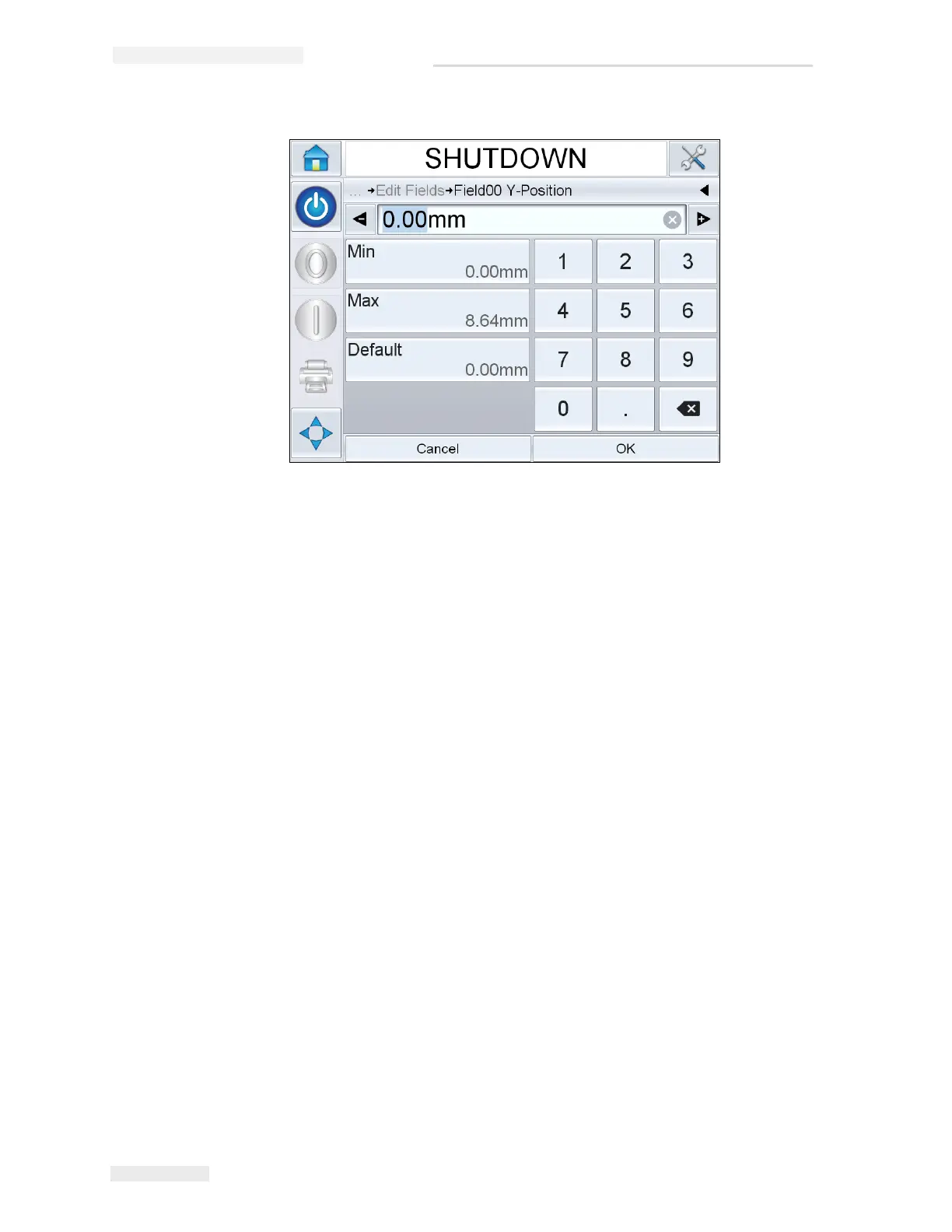
Figure 6-25: Quick Position Edit - Y Position



 To Next Page